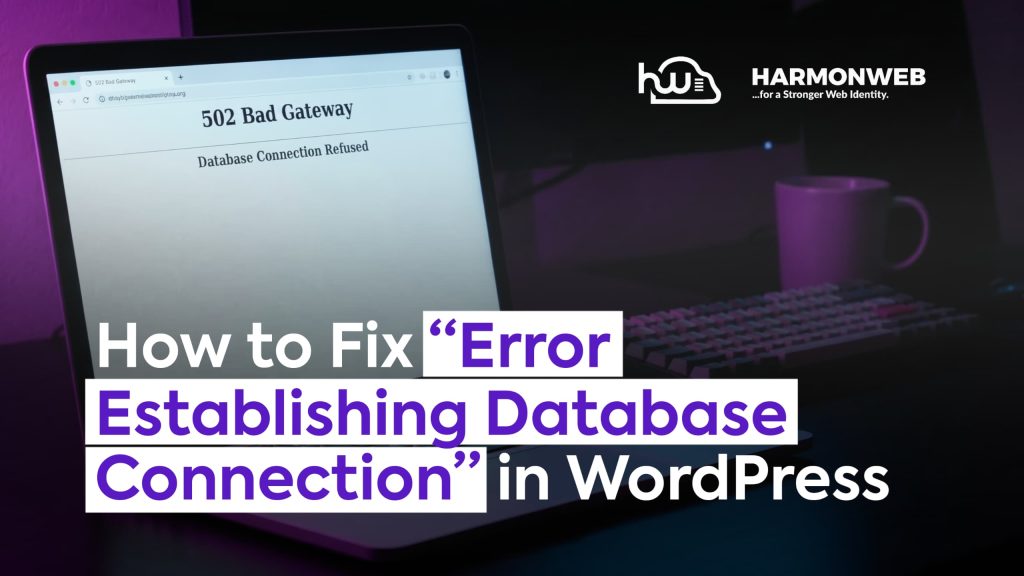
If you run a WordPress website long enough, there’s a good chance you will eventually come across the frustrating message:
“Error Establishing Database Connection”
It can appear suddenly and completely lock visitors out of your website. Your homepage disappears, the admin dashboard becomes inaccessible, and your business or blog may instantly lose traffic and credibility.
The good news is that this issue is usually fixable.
In this guide, you’ll learn what causes the “Error Establishing Database Connection” problem, how to fix it step by step, and how to prevent it from happening again. Whether you’re a beginner or an experienced website owner, these solutions can help you restore your site quickly.
For users who want professional WordPress troubleshooting and maintenance support, HarmonWeb provides reliable website solutions tailored to businessess, bloggers, and online brands.
Table of Contents
What Does “Error Establishing Database Connection” Mean?
WordPress relies on two major components to function properly:
- Your website files
- Your database
The database stores:
- posts
- page
- user information
- plugin settings
- website configurations
When WordPress fails to connect to the database, it displays the “Error Establishing Database Connection” message.
Think of it like this:
Your website files are the body, while the database is the brain. If communication between both stops, your site cannot function.
Common Causes of Database Connection Errors
Several things can trigger this issue.
1. Incorrect Database Credentials
WordPress uses a configuration file called wp-config.php to connect to the database.
If:
- the database name is wrong
- the username is incorrect
- the password changed
- the database server is inaccurate
the connection will fail.
2. Corrupted Database
A damaged database can also cause this problem. This sometimes happens because of:
- failed plugin updates
- malware
- server interruptions
- corrupted files
3. Web Hosting Issues
Sometimes the problem is not from WordPress itself.
Your hosting provider may be experiencing:
- server downtime
- overloaded resources
- temporary database failures
Cheap hosting plans are especially prone to this issue.
Businesses that depend heavily on website uptime often choose professional support services like HarmonWeb to monitor performance and reduce technical interruptions.
4. Corrupted WordPress Files
A broken core WordPress file may interrupt communication with the database.
This can happen after:
- incomplete updates
- hacked installations
- accidental file modifications
5. Traffic Spikes
If your site suddenly receives too many visitors, your server may exceed its resource limits.
When this happens:
- the database server may stop responding
- pages may load slowly
- Wordpress may display the database connection error
How to Fix Error Establishing Database Connection
Now let’s go through the actual solutions.
1. Check your wp-config.php file
This is the first thing you should inspect.
The wp-config.php file contains your database login details.
Look for these lines:
PHP
define(‘DB_NAME’, ‘your_database_name’);
define(’DB_USER’, ‘your_database_user’);
define(’DB_PASSWORD’, ‘your_password’);
define(’DB_HOST’, ‘localhost’);
Make sure all values are correct.
You can verify the details through your hosting control panel or cPanel.
Example
If your hosting company recently changed your database password and WordPress still uses the old one, the connection will fail immediately.
Updating the correct credentials usually fixes the issue within minutes.
2. Repair the WordPress Database
Sometimes the database simply needs repair.
Add this line temporarily inside your wp-config.php file:
PHP
define(‘WP_ALLOW_REPAIR’, true);
Then visit:
Plain text
yourwebsite.com/wp-admin/maint/repair.php
You’ll see options to:
- repair database
- repair and optimize database
Choose the second option for better performance.
After repair, remove the code from wp-config.php.
3. Contact Your Hosting Provider
If everything looks correct but the issue persists, your server may be down.
Contact your hosting support and ask:
- if the MySQL server is working
- whether your account exceeded resource limits
- if there are server-side database issues
Reliable technical support can save hours of frustration.
Website owners who prefer managed assistance often rely on services from HarmonWeb for troubleshooting, WordPress optimization, and long-term maintenance.
4. Replace Corrupted WordPress Core Files
Damaged WordPress files can interrupt database communication.
To fix this:
- Download a fresh copy of WordPress
- Extract the files
- Replace:
- wp-admin
- wp-includes
Do not replace:
- wp-content
- wp-config.php
This refreshes the core system files without affecting your content.
5. Disable Faulty Plugins
Some plugins can corrupt your database or overload your server.
To test:
- Access your website files through File Manager or FTP
- Rename the plugins folder to something like:
Plain text
plugins_old
This disables all plugins instantly.
If your site starts working again, one of the plugins caused the problem.
Rename the folder back and activate plugins one by one to identify the faulty one.
6. Increase Server Resources
If your website receives growing traffic, your current hosting plan may no longer be sufficient.
Common signs include:
- frequent downtime
- slow loading pages
- random database errors
Upgrading your hosting or optimizing your WordPress setup can significantly improve stability.
Professional WordPress optimization services from HarmonWeb can help improve website speed, uptime, and server performance for growing websites.
How to Prevent Database Connection Errors
Fixing the issue is important, but preventing it is even better.
Here are practical ways to avoid future problems.
1. Keep WordPress Updated
Always update:
- WordPress core
- plugins
- themes
Outdated software can create compatibility issues and security vulnerabilities.
2. Use Reliable Hosting
Poor hosting is one of the biggest causes of WordPress errors.
A quality hosting provider like Harmonweb provides:
- better uptime
- stable databases
- stronger security
- faster performance
3. Install Security Protection
Hackers and malware can damage your database files.
Use:
- security plugins
- strong passwords
- regular malware scans
4. Create Regular Backups
Backups are your safety net.
If your database becomes corrupted, you can quickly restore your site instead of rebuilding everything from scratch.
5. Avoid Too Many Heavy Plugins
Installing dozens of unnecessary plugins can overload your server and create conflicts.
Only keep plugins you truly need.
Final Thoughts
The “Error Establishing Database Connection” message may look serious, but in most cases it can be fixed with the right troubleshooting steps.
The issue usually comes down to:
- incorrect database settings
- corrupted files
- hosting problems
- overloaded servers
- faulty plugins
By carefully checking your configuration, repairing the database, and maintaining your WordPress environment properly, you can restore your site and reduce the chances of future downtime.
For businesses, bloggers, and website owners who want expert WordPress support, performance optimization, and reliable maintenance, HarmonWeb offers practical solutions to keep websites secure, stable, and running smoothly.