

Email authentication helps keep business domains secure from e-mail spoofing and increase e-mail trustworthiness. Nevertheless, despite using professional e-mail hosting, wrong DNS configuration may prevent a company’s e-mail from successfully passing e-mail authentication.
Another common cause for this problem could be the use of incorrect Sender Policy Framework (SPF). An SPF allows receiving mail servers to determine whether or not an email server has been authenticated to send emails through a particular domain.
Thankfully, most issues that arise in SPF can be solved by pinpointing what the problem is and then correcting your DNS entry. Knowledge of how SPF works is also very useful when preventing any issues in authenticating emails for new services or different hosting companies.
Table of Contents
What Is an SPF Record and What Is Its Importance?
SPF Record refers to the DNS TXT record that states the authorized mail servers for a certain domain. During email authentication, the receiving mail server compares the SPF record against the IP address of the sending server.
How SPF Email Authentication Works
Upon receipt of the email, the receiving server compares the IP address to the SPF record for the domain used in the sender address in the message’s envelope (MAIL FROM). The email passes SPF email authentication if the IP address is from an authorised source.
For instance, a company that sends emails via its web host as well as marketing software needs to include both these systems in their SPF records.
Why Do Businesses Need a Correct SPF Record?
Having a correct SPF record is vital for differentiating between authorized and unauthorized email sources on receiving servers. It also support DMARC authentication by combining the SPF and DKIM authentication checks to prevent domain spoofing.
Impact of SPF Failures on the Email Deliverability
Failure of the SPF authentication process can make the recipient servers regard the mail as suspicious. Based on their filtering methods and other forms of authentication, they might choose to deliver it to spam or even reject it.
Nevertheless, an SPF fail does not necessarily mean all messages will be rejected by receiving servers; they evaluate a number of things before handling the email.
SPF Records Mistakes that May Affect Email Authentication
Knowing about common mistakes will make it easy to troubleshoot any issue. Let’s consider some mistakes that may affect your domain.
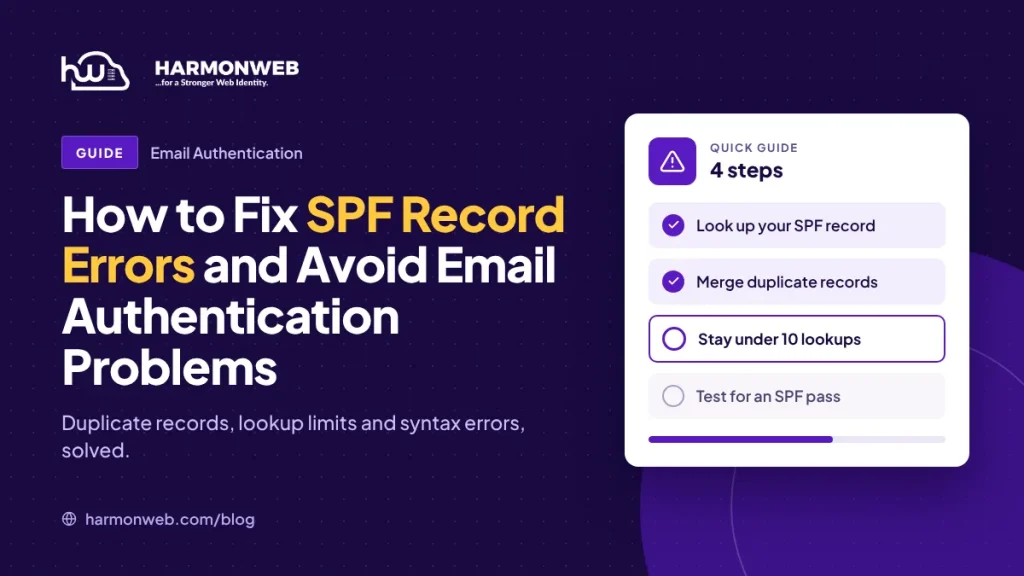
- Several SPF Records for a Single Domain: One domain should contain only one SPF record. Having several SPF records from various mail service providers may result in a PermError for authentication. Rather, merge all the valid senders into one SPF record.
- Too Many DNS Lookups: The maximum number of terms causing DNS lookups while authenticating via SPF is ten. This is contributed to by mechanisms such as include, a and mx, as well as the modifier redirect. Nested include mechanism is counted as well. Therefore, even with just a few visible mechanisms a record can end up going above the limit.
- Invalid SPF Syntax or Formatting: Bad syntax will cause mail servers to be unable to read your SPF record. Some common mistakes include lack of spaces, misspelling of mechanisms, wrong IP address, among others.
- Problems with the Sending Servers: When your SPF record does not list any of the email services used, the emails will not be authenticated as SPF compliant. The main reason for this error is when companies use new email marketing tools or switch hosting services without adding it to their DNS.
- Incorrect use of SPF mechanisms and qualifiers: SPF mechanisms help determine authorised sending addresses, and the qualifiers tell us how to treat a match. For example, -all shows a hard fail, and ~all shows a soft fail. The incorrect usage of qualifiers may influence the treatment of unauthorised sending addresses.
How to Identify SPF Record Errors
Before modifying your DNS entries, you must know the specific problem faced by your domain.
1. Finding Your Domain’s SPF Record in DNS
Use a DNS lookup utility to fetch the TXT records of your domain. Find out the record that starts with v=spf1.
Ensure that the record has the anticipated sending sources and that your domain has more than one SPF record.
2. Online SPF Record Checkers
The use of online SPF record checkers helps to detect various configuration issues that include multiple records, syntax errors, and excessive DNS queries.
Such tools are useful in detecting whether your record has the right mail servers included.
3. Check SPF Authentication in Email Headers
The email headers will provide information on how the received messages were authenticated.
Check the Authentication-Results header and the SPF value therein. The following are some examples of common values:
- Pass: The sender source passed SPF authentication.
- Fail: The sender source failed to pass the SPF policy.
- Neutral: The SPF record does not make any clear decision.
- Softfail: The sender source failed authorization, however the policy shows that it is a soft fail.
- PermError: There is a permanent error in the SPF record.
- None: There is no SPF record for the receiving server.
4. Email Authentication Report Checking
In case DMARC reporting is enabled for your domain, aggregate reports will contain sending IP addresses, which are not able to pass through the SPF validation process. It may be useful to differentiate legitimate mail providers with misconfigured policies from new senders.
SPF Record Errors and How to Correct Them
Once you have identified the issue, use the correct solution to your domain’s DNS configurations.
1. Eliminate Multiple SPF Entries
In case there are duplicate SPF entries in your domain, combine all their mechanisms in one TXT record.
Example: Instead of listing each record separately for your hosting service and marketing service, you can add their valid sending servers together:
Incorrect configuration:
| v=spf1 include:hosting-provider.example ~all v=spf1 include:marketing-provider.example ~all |
The above are just some examples. Replace the domain names with the specific SPF include values provided by your email service providers.
2. Understand and Utilize SPF Mechanisms Properly
Various SPF mechanisms authorize sending sources in various ways:
- ip4: Authorises a specific IPv4 address or range.
- ip6: Authorises a specific IPv6 address or range.
- include: Allows another domain’s SPF policy to identify authorised sending sources.
- a: Checks the IP addresses associated with the domain’s DNS A or AAAA records.
- mx: Checks the IP addresses of the domain’s mail servers.
- all: Matches any sending source not previously matched by another mechanism.
For instance, ip4:192.0.2.10 permits the particular IPv4 address. Always ensure that you have the right IP addresses and provide the values from your email provider and not guesswork.
3. Decrease SPF DNS Queries to Allowed Minimum Number
Check your SPF record and eliminate any unneeded mechanisms or services you do not use anymore. You may also inquire from your email provider if they have an easier SPF setup.
Do not add any additional includes as having nested records may cause the total number of DNS queries to be higher.
4. Correct Syntax and Add All Valid Sending Services
Check if there are any spelling mistakes, missing spaces and wrongly formatted mechanisms. Also check if the record starts with “v=spf1” and ends with a suitable qualifier.
Identify all services sending emails from your domain name. They might consist of your email service provider, your website contact forms, CRM systems, marketing automation tools. List all approved sender IP addresses in your current log.
Do not approve any new sources just to pass the authentication test.
5. Checking DNS Propagation After Modifying Your SPF Record
Once you have changed your SPF record, give enough time to allow propagation of DNS updatesDNS updates. The amount of time needed depends on your DNS service provider and also the TTL of the record.
Utilize a service to verify that the new record is indeed in place. Once this is accomplished, it is now time to conduct some test mailings.
Ways to Prevent SPF Authentication Issues
Fixing the error that exists is crucial; however, preventing new errors from occurring is equally vital.
- One SPF Record per Domain: It is essential to always make changes to your SPF record in case you add another email provider. You should not have more than one SPF record per domain.
- Monitor Third-Party Email Service: Check the third-party email services permitted to send emails for your domain. Delete old services if you have stopped using them, but ensure that an existing system is not relying on them.
- Check SPF Records Before Switching Email Provider: While switching to a new email provider, get their recommended SPF record settings. Add the new source to your current record without deleting other valid senders.
- Perform Periodic Tests on SPF Records: Make sure that you periodically test your SPF records to see if there is anything wrong with your email authentication processes.
What If My Email Gets Into The Spam Folder, Even Though SPF Passed?
A pass on SPF means that the sender’s IP address is authenticated according to the particular SPF policy. Nevertheless, it does not necessarily mean that your emails will go into the inbox.
If you have problems with your emails entering spam folder, check other email verification mechanisms and reputation criteria.
Check first if your DKIM passes. Passing a DKIM will help your receiving servers validate the authenticity and integrity of the email.
After that, check your DMARC setup. DMARC can fail even if your SPF is successful because of the lack of alignment between the authenticated domain and the visible “From” domain along with the DKIM aligned pass.
Furthermore, examine your domain and sending IP reputation, as well as the content of your emails and volume of sending. In case you are using an email service provider, ensure it uses the recommended authentication configuration settings.
Common SPF Record Setup Errors to Be Avoided
There are certain errors that could make the situation worse by leading to more authentication problems even when an error is corrected.
- Using invalid IP addresses: Verify that you use the right IP addresses in your email messages.
- Authorization of all senders: Never use “+all” since it is equivalent to authorizing any server to send emails on behalf of your domain.
- Setup of multiple SPF records: Ensure that all sources are contained in a single record.
- Neglecting any new services: Your SPF record needs to be updated when you change any email sending service.
- Exceeded the limit on DNS lookups: Ensure that the SPF check does not exceed the allowed 10 DNS-lookup-enabled entries.
Conclusion
The SPF records of any domain name can cause complications in sending emails due to which the receiving server can fail to authenticate your emails. However, you can avoid these complications by having only one SPF record and not exceeding the number of DNS queries.
Moreover, the DNS and email authentication monitoring will aid you in finding any problems in your configuration before they can affect your corporate communications. Just keep in mind that the SPF is most effective when used in conjunction with DKIM and DMARC.
Looking for a reliable business email hosting?
Here at HarmonWeb, we offer hosting services that can assist businesses to set up professional emails for their domain names. Get email hosting services along with proper setup of SPF, DKIM and DMARC record to secure your email id.

Pingback: Why Your Business Emails Keep Going to Spam and How to Fix It | HarmonWeb