

Although an email address is essential for the professional communication of your business, a custom domain cannot be taken to mean that all emails sent from your address will get through to your recipients’ mailboxes. Emails may end up in the recipient’s spam, be marked as such and never seen at all.
It becomes particularly relevant for those organizations that make use of emails for customer queries, confirmation of orders, bills and even newsletters and marketing campaigns. Important messages not being delivered could mean missed chances, disappointed customers and low credibility of your organization.
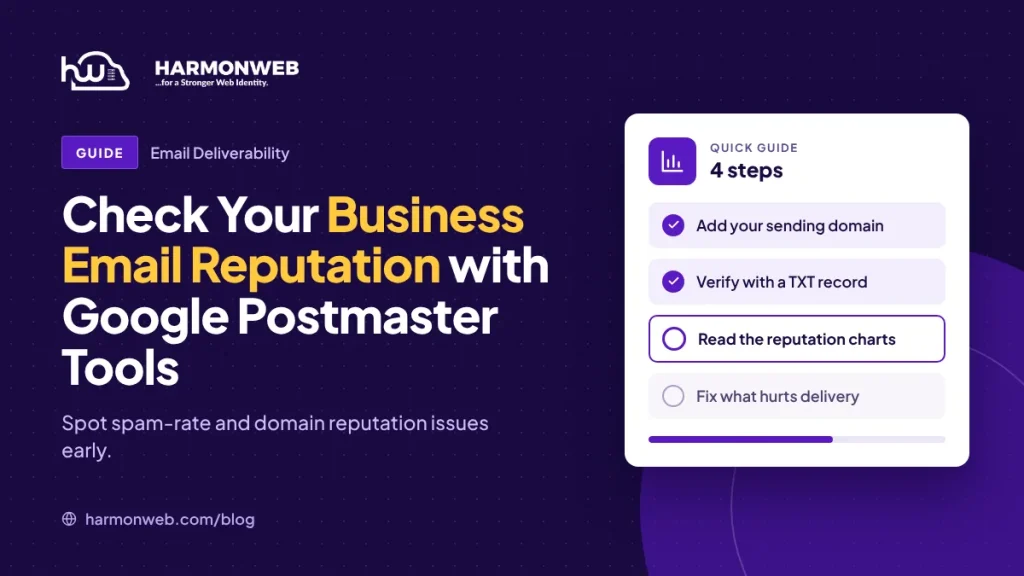
Google Postmaster Tools allows organizations to know more about how Gmail treats emails that are sent from the domain. Through analyzing reports from Google Postmaster Tools, you will be able to detect any issues regarding delivery.
Table of Contents
Google Postmaster Tools: What It Is and How It Works
Google Postmaster Tools are tools that enables domain owners and email admins to get information on how Gmail process their emails. It offers information related to spam rate, authentication, domain and IP reputation, encryption and compliance.
Monitoring of Your Sending Domain by Google
As soon as you begin sending emails to individual Gmail accounts, Google starts analyzing various signals relating to your emails. This includes the verification of your emails, the reporting of your emails as spam, and issues with their delivery. Postmaster Tools shows you information via dashboards; you can use them to find trends that can influence deliveries.
However, it should be clear that these tools does not assess your reputation across all email providers. They concentrate on outgoing emails delivered to Gmail personal accounts. This means that you will receive different evaluations from other service providers regarding your domain.
What Kind of Information Is Provided by Postmaster Tools?
Several reports about your email efficiency are provided by this platform. They are:
- Spam rate
- Authentication
- Reputation of domain
- IP address
- Encryption
- Delivery issues
They can help identify problems; however, they do not reflect actual-time statistics. Moreover, Google may choose not to share some information if the volume is low.
7 Must-Follow Steps to Check & Improve Your Email Reputation Using Google Postmaster Tools.
1. Learn the Definition of Business Email Reputation
Business email reputation is all about the way that the receiving email servers judge your sending domain and IP reputation. It is affected by elements like authentication of your emails, sending practices, spam complaints, and email quality. Read on how to create a business email address in Nigeria.
What Is Email Sender Reputation?
Email sender reputation is the evaluation carried out by recipient mail servers in order to ascertain if the emails from a certain sender can be trusted. A domain that consistently sends emails that are welcome and authenticated will develop good reputation.
Note that frequent sending of unwanted messages, old mailing lists and high spam complaints may ruin your reputation.
Why Your Business Email Reputation Is Important
Bad reputation may lead to poor deliverability of emails. Your emails may end up in junk folders, be delayed or even blocked at all. It may have an impact on the regular communication process in business, such as resetting passwords, responses to customers and transactions.
Sender Reputation Monitoring allows you to detect issues before they seriously damage your communications.
2. Prepare for Your Business Domain before Applying Postmaster Tools
To use Google Postmaster tools, you should first prepare your email system. Any errors within the DNS settings as well as unapproved sources of your emails might affect your results.
Setting up SPF, DKIM, and DMARC
The following are three tools that are used to verify that emails are indeed related to your domain.
SPF (Sender Policy Framework): Helps to define which servers and what services are allowed to send email from your domain.
DKIM (DomainKeys Identified Mail): Includes an extra layer of protection to the outgoing emails as it allows the signing domain to check whether its message has been tampered with or not.
DMARC (Domain-based Message Authentication, Reporting and Conformance): Informs the receiving server what action to take on messages that fail authentication and reports on the possibility of domain spoofing.
Though there are differences in the functionalities of the three systems, the three play an important role in protecting your domain from being spoofed and also ensure email authentication. Google advocates for proper authentication by the senders, with SPF, DKIM and DMARC essential for bulk senders.
Domain E-Mail Sending Sources
Create a list of all sources from which emails are being sent using your company domain. These could include the following: host, business email server, website forms, customer relationship management systems, etc.
Ensure that your authorised services are properly configured within your SPF record, and that your sending domains have the right DKIM configuration.
Make Sure That Your Domain Can Send Email to Gmail Users
To get meaningful data via Postmaster Tools, you must send some emails to users’ Gmail accounts first. Otherwise, there might be several blank reports among those provided by Postmaster Tools.
3. How to Configure Google Postmaster Tools For Your Business Domain
After setting up the email authentication process, you should register the domain on Google Postmaster Tools.
Sign in to Google Postmaster Tools
Navigate to the Google Postmaster Tools website and sign in using your Google Account or Google Workspace account.
Add Your Business Sending Domain
On the homepage of the dashboard, click on the Add Domain option. Type in the domain that you use in your business email address.
For instance, if your business email address is [email protected], then the sending domain will mostly be yourbusiness.com.
Proving Your Domain Name Ownership by Using DNS
In order to prove ownership of the domain name, Google gives you a record in TXT format which should be added into your DNS zone. This can be done via your hosting control panel.
Once the updates have been saved, go back to Postmaster Tools and finish the verification process. There may be some delay in reflecting the DNS updates.
View Your Email Performance Dashboard
Once you have successfully verified yourself, Google can now start gathering data related to your outgoing email performance to your personal Gmail accounts. Select the domain to view its respective performance reports.
4. Know the Important Email Reputation Reports from Postmaster Tools
Understanding the metric that each report provides is important in ensuring you know your business’s email performance.
Domain and IP Reputation
The above offer insight into how Google determines the reputation of the domain and IP addresses linked to your emails. Reputation data can assist you in spotting possible problems; however, it is not meant to be a universal rating system for all email services.
Spam Rate
Spam rate provides the data of the percentage of emails being marked by the users as spam. Increasing spam rate means that your emails are not identified by the users, are irrelevant or unexpected.
According to Google, it is recommended that the spam percentage remains under 0.10% and not more than 0.30%.
Authentication
Authentication will show the percentage of the outbound messages that have passed SPF, DKIM, and DMARC. Failure may also be a sign of incorrect DNS record entries, lack of authentications or third-party sending services configuration.
Delivery Errors
The following report can assist in determining any messages that have been refused or failed in their delivery. Reviewing the errors will help in discovering the possible reason for Gmail refusing to receive any of your messages.
Status of Compliance and Encryption
The compliance dashboard tells you whether your sending practices adhere to the sender requirements of Google. The encryption dashboard displays the number of messages sent using SSL/TLS encryption.
5. Identifying Issues in Email Reputation Through Postmaster Tools
Monitoring the dashboards makes sense when you can interpret the information presented there.
Identifying a Bad Domain/ IP Reputation
When your reputation report indicates a bad score, check any changes that may have been made recently regarding your sending activities. Determine if there was a sudden surge in the volume of your email campaign, use of a new sending service or the sending of messages to recipients who didn’t necessarily want them.
Reviewing High Spam Complaint Rates
If the spam rate is high, it means there are more complaints regarding your emails. Check the kind of emails you are sending out, the method through which your recipients were added to the list, and if the emails meet their expectations.
Finding Failures of SPF, DKIM, and DMARC Authentication
Evaluate the outcome of the process for every reporting period. Should there be any failures using one technique, check the DNS records and ensure that your email provider is authenticating the message properly.
Keep in mind that authentication doesn’t mean delivery success for an email. It is just one of the factors used to analyze deliverability.
Understanding the Delivery Errors
Analyze any trends in delivery errors and look into repeated delivery problems. You can check your email server’s delivery logs and the SMTP return codes when available for an explanation of the problem.
6. Tips on How to Boost Your Business Email Reputation
Once you have pinpointed the issues that affected your email performance, you can do something about them.
Only Send Emails to Engaged Recipients
Do not buy any mailing list or send your emails to recipients who did not subscribe to them. Target those customers who already know you and expect an email from you.
Email Authentication Must Be Correctly Done
Always make sure that your SPF, DKIM, and DMARC settings are correctly done, especially whenever you are switching hosting services or adding any new email services. Improper settings could lead to failure of your genuine emails.
Don’t Have Spikes in Your Email Sending Volume
When you need to send an increased amount of emails, then slowly increase the volume. Sudden increase will put you under additional watch when you have high complaints rate.
Remove Invalid and Unsubscribed Email Addresses
Clean your email list regularly by eliminating invalid addresses and assessing those email recipients who are no longer responding to your emails.
Follow Gmail’s Rules for Email Senders
Go through Google’s latest standards for authentication, security, spam rates, and unsubscribing from mail. Some extra rules apply to bulk email senders, such as SPF, DKIM, DMARC, and one-click unsubscribe features.
7. Monitor Your Email Reputation and Ensure Good Deliverability
Email reputation cannot be built once and forgotten about, it is an ongoing process. You must be constantly aware of it, particularly if you rely on emails to communicate with your customers.
Make Sure to Monitor Your Postmaster Tools Reports
Be sure to check your dashboards occasionally for any changes in the spam rates, authentication status, errors and compliance issues. This way it becomes easier to spot the issues.
Monitoring Changes in Email Deliverability
Review reporting intervals to see whether the changes you have made with respect to emails are helping or harming deliverability. Document changes in configuration, providers, and increased volume.
Study Unexpected Declines in Reputation
Never overlook any sudden changes in your reports. Examine your DNS settings, sender IPs, mailing lists and campaigns that you recently ran. Consult with your email hosting company when you think that the issue is related to the server setup.
Conclusion
Google Postmaster Tools provide companies valuable information regarding the functioning of Gmail concerning sending out your e-mails. Using this tool, you will be able to know whether there are any issues such as spam, authentication, reputation and delivery problems.
Good deliverability of email is achieved through proper email hosting, correct DNS setup, and proper sending techniques. These can help you ensure that your business domain remains safe and that you can communicate professionally with your customers.
Need business email hosting services?
HarmonWeb offers hosting packages that will assist your business in creating an online identity using domain-based email accounts. Select the right hosting package and give your business a strong base to communicate with your customers.

Pingback: Why Your Business Emails Keep Going to Spam and How to Fix It | HarmonWeb