Your HarmonWeb Client Area contains important information about your hosting services, domains, invoices, support tickets, and account profile. Because of this, keeping your account secure should be a top priority.
One of the best ways to protect your account is to enable Two-Factor Authentication (2FA).
Two-Factor Authentication adds an extra layer of security to your HarmonWeb account. Instead of logging in with only your email address and password, you will also be required to enter a temporary security code from an authenticator app on your phone.
This means that even if someone knows your password, they still cannot access your account without the 2FA code from your device.
Table of Contents
What Is Two-Factor Authentication?
Two-Factor Authentication is a security feature that requires two steps before you can log in:
First, you enter your normal HarmonWeb Client Area email address and password.
Second, you enter a temporary verification code generated by an authenticator app on your phone.
This code changes every few seconds, making it much harder for unauthorized users to access your account.
Why You Should Enable 2FA on Your HarmonWeb Account
Your HarmonWeb Client Area gives you access to sensitive services such as:
Your hosting account details.
Your domain names.
Your invoices and billing history.
Your support tickets.
Your contact information.
Your service management options.
If an attacker gains access to your Client Area, they may be able to make unauthorized changes, view private information, or attempt to misuse your services. Enabling 2FA helps prevent this by requiring a second layer of verification during login.
What You Need Before You Start
Before enabling 2FA, make sure you have the following:
Access to your HarmonWeb Client Area.
Your HarmonWeb account email address and password.
A smartphone.
An authenticator app installed on your phone.
You can use apps such as:
Google Authenticator (Recommended).
Microsoft Authenticator.
Authy.
1Password.
Bitwarden Authenticator.
Any standard time-based authenticator app should work.
Step 1: Log in to Your HarmonWeb Client Area
Go to the HarmonWeb Client Area login page:
Enter your registered email address and password, then click Login.
If your login details are correct, you will be redirected to your HarmonWeb Client Area dashboard.
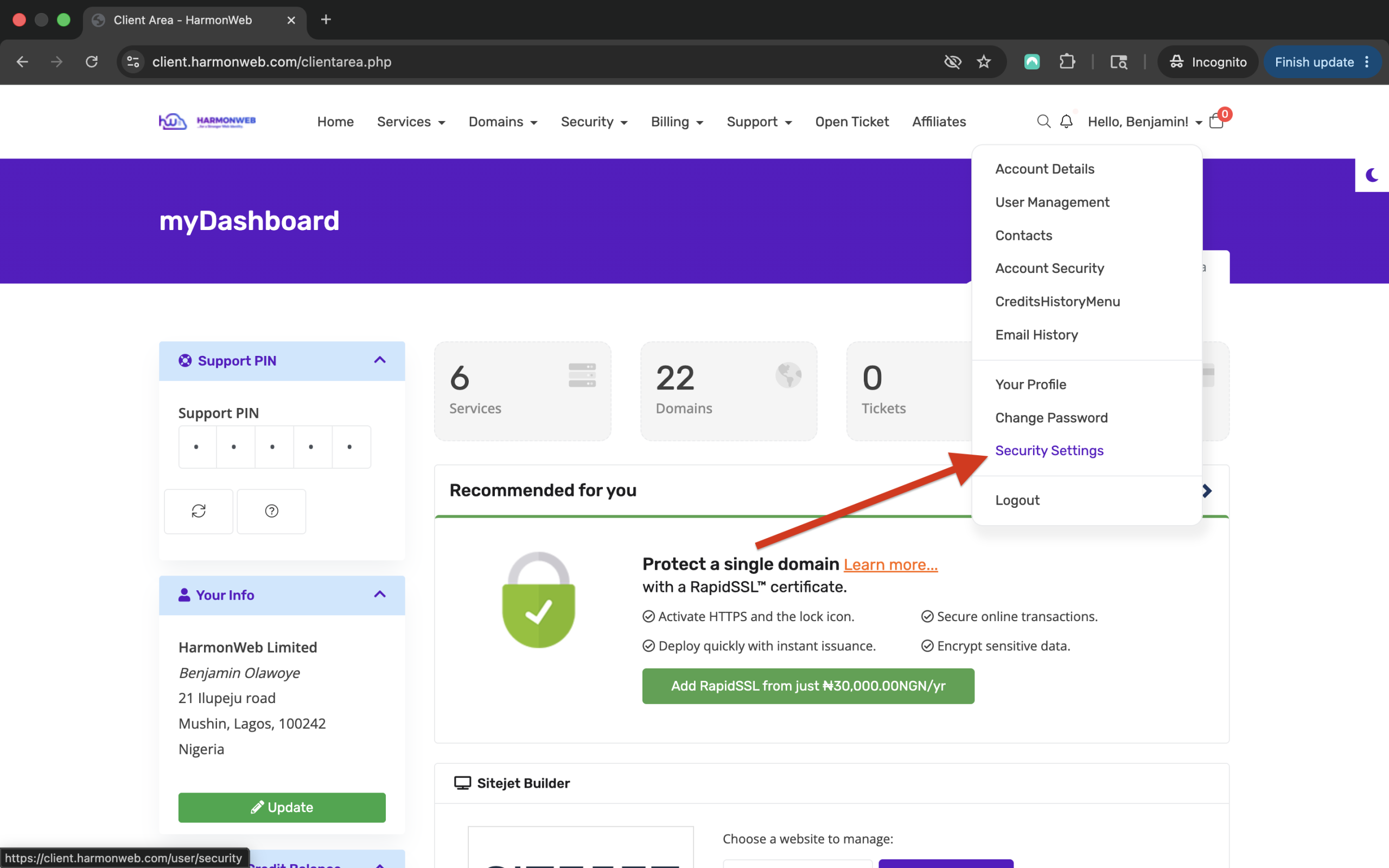
Step 2: Open Your Account Menu
Once you are logged in, look at the top-right area of your Client Area.
You should see your name or a greeting such as:
Hello, Your Name!
Click on this menu to open your account options.
Step 3: Go to Security Settings
From the account menu, click Security Settings.
This is where you can manage security-related options for your HarmonWeb Client Area account, including Two-Factor Authentication.
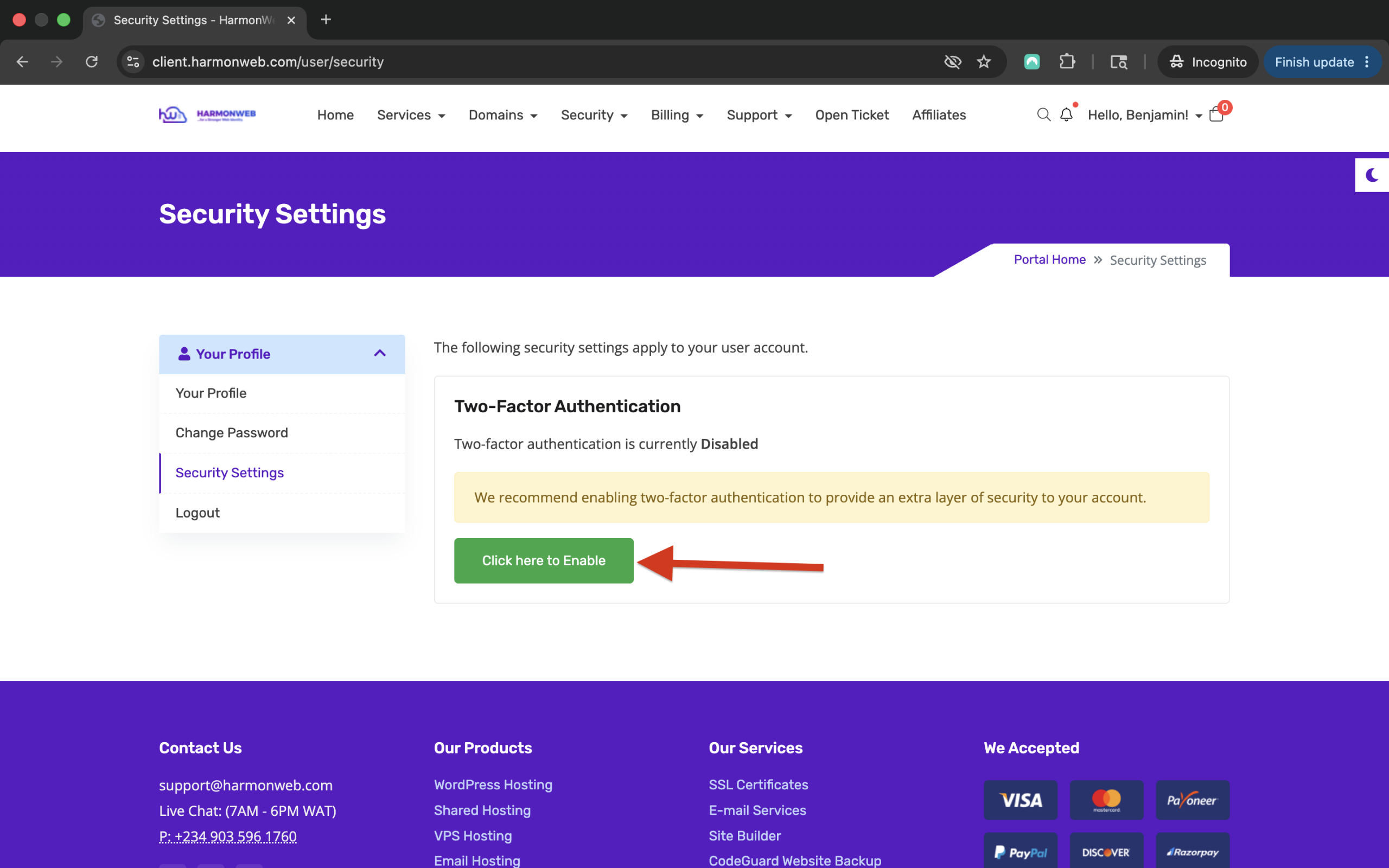
Step 4: Locate Two-Factor Authentication
On the Security Settings page, look for the Two-Factor Authentication section.
If 2FA is not yet enabled on your account, you should see an option to enable or activate it.
Click the option to enable Two-Factor Authentication.
Select the time-based token option if you are asked to choose a 2FA method.
Step 5: Scan the QR Code
After selecting the 2FA option, a QR code will be displayed on your screen.
Open your authenticator app on your phone.
Tap the option to add a new account.
Choose Scan QR Code.
Point your phone camera at the QR code shown in your HarmonWeb Client Area.
Your authenticator app should automatically add your HarmonWeb account and begin generating temporary security codes.
Step 6: Enter the Verification Code
After scanning the QR code, your authenticator app will show a 6-digit code.
Enter that code into the verification field in your HarmonWeb Client Area.
Click the button to confirm or complete the setup.
If the code is correct, Two-Factor Authentication will be enabled on your account.
Step 7: Save Your Backup Code
After enabling 2FA, the system may show you a backup code.
This backup code is very important.
It can help you access your account if you lose your phone, delete your authenticator app, or cannot generate your 2FA code.
Save the backup code in a safe place. Do not store it publicly, do not send it to anyone, and do not share it with anyone claiming to be support.
Recommended places to store your backup code include:
A trusted password manager.
A private offline note.
A secure document only you can access.
Step 8: Test Your 2FA Login
After enabling 2FA, you can test it by logging out of your HarmonWeb Client Area and logging in again.
When you log in, you will first enter your email address and password.
After that, the system will ask for your 2FA code.
Open your authenticator app, copy the current code, and enter it into the login screen.
If the code is accepted, your 2FA setup is working correctly.
What Happens When You Log in After Enabling 2FA?
Once 2FA is enabled, your login process will work like this:
You visit the HarmonWeb Client Area.
You enter your email address and password.
You are asked to enter your 2FA code.
You open your authenticator app.
You enter the current 6-digit code.
You are logged in securely.
The code changes regularly, so always use the latest code shown in your authenticator app.
What to Do If Your 2FA Code Is Not Working
If your 2FA code is not accepted, try the following:
Check that you are entering the latest code from your authenticator app.
Wait for the code to refresh and try again.
Make sure the time and date on your phone are correct.
Make sure you are using the correct authenticator account if you have multiple accounts saved in the app.
Do not reuse an expired code.
Most authenticator apps depend on your phone’s time settings. If your phone time is incorrect, the generated code may fail.
What to Do If You Lose Access to Your Authenticator App
If you lose your phone or delete your authenticator app, use your backup code if one was provided during setup.
If you cannot access your account and you do not have your backup code, contact HarmonWeb support for assistance.
For security reasons, you may be required to verify ownership of the account before 2FA can be reset.
You can contact HarmonWeb support by opening a support ticket or reaching out through the official HarmonWeb support channels.
Important Security Tips
Do not share your HarmonWeb password with anyone.
Do not share your 2FA code with anyone.
HarmonWeb support will never ask you to provide your current 2FA code.
Use a strong and unique password for your HarmonWeb account.
Avoid using the same password you use on other websites.
Keep your email account secure because it may be used for password resets and account notifications.
Save your backup code securely.
Update your phone number and email address in your client profile when necessary.
Frequently Asked Questions
Is Two-Factor Authentication compulsory?
Depending on HarmonWeb’s security policy, 2FA may be optional or required for some users. However, we strongly recommend enabling it even if it is optional.
Can HarmonWeb see my 2FA code?
No. Your 2FA code is generated on your device. HarmonWeb support does not need your 2FA code and will never ask you to share it.
What if I lose my backup code?
If you lose both your authenticator access and your backup code, you will need to contact HarmonWeb support for account recovery assistance. You may be asked to verify that you are the rightful owner of the account.
Final Thoughts
Enabling Two-Factor Authentication is one of the simplest and most effective ways to protect your HarmonWeb Client Area account.
It only takes a few minutes to set up, but it adds a strong layer of protection against unauthorized access.
We strongly recommend that every HarmonWeb client enable 2FA to keep their hosting services, domains, invoices, and account information secure.
Log in to your HarmonWeb Client Area today and enable Two-Factor Authentication from your Security Settings.