Are you seeing the “Your connection is not private” error each time a browser is trying to access your website? If you are a Chrome user, you may get this message. You may also receive this error but with a slightly different message if you are some other modern browsers.
If you receive this error message, there’s no need to panic. Sometimes the issue may be from the browser or your network connection. In this article, I will be discussing how to fix your connection is not private error in WordPress.

Table of Contents
What is Your Connection is Not Private Error?
“Your connection is not private” error only occurs in sites that’s running with SSL / HTTPs protocol indicating that the browser you are using is unable to validate the SSL certificate installed on the website.
Each time you visit a website with SSL / HTTPs protocol, security certificate information is being sent from the website to your browser. The browser then goes through the certificate to ensure it is valid using a public key that comes with the security certificate.
If the certificate is valid, the browser encrypts and secures all the data transferred between your website and the browser using the website’s private key.
But if the browser finds that the provided security certificate is invalid, it will automatically block all data transfer between the website and the browser, and prevent you from reaching the website. This way it will keep your entire data safe, and protect you from insecure or malicious.
This invalid security certificate will trigger the “Your connection is not private” error message. This error message is to warn the browser’s user that data transfer between the website and the browser is not encrypted, therefore it is not private.

Variations of Your Connection is Not Private Error
The “Your connection is not private” error is a common SSL error but various modern browsers show this error message in a slightly different ways, all pointing to the same error.
Google Chrome
If you are using a Chrome browser, the browser will display the error as “Your connection is not private”.
Attackers might be trying to steal your information from www.thedomain.com (for example, passwords, messages, or credit cards).
Mozilla Firefox
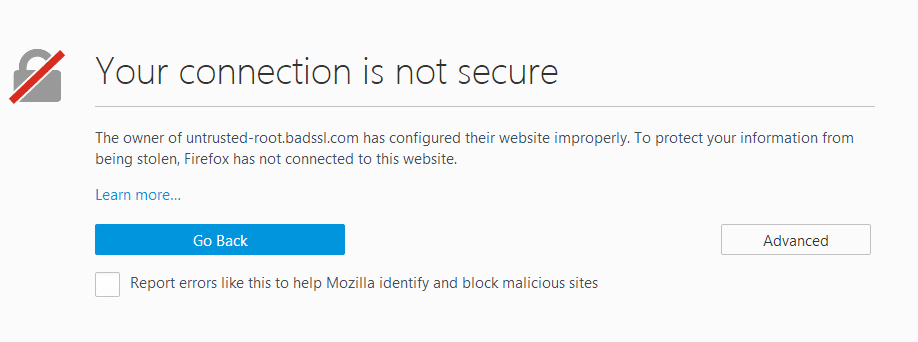
If you are using Firefox browser, the browser will display the error as “Your connection is not secure”.
The owner of www.thedomain.com has configured their website improperly. To protect your information from being stolen, Firefox has not connected to this website.
Microsoft Edge
If you are using the Microsoft Edge browser, the browser will display the error as “This site isn’t secure”.
Attackers might be trying to steal your information from www.thedomain.com (for example, passwords, messages, or credit cards).
Safari
If you are using the Safari browser, the browser will display the error as “Your connection is not private”.
This website may be impersonating “www.thedomain.com” to steal your personal or financial information. You should go back to the previous page.

How to Fix Your Connection is Not Private Error in WordPress
Below are the following steps you can take in fixing the “Your connection is not private” error. You can follow these steps if the “Your connection is not private” error appears on a website you are using.
Reload the page
If you get this error message, the first step you should take is to reload the webpage. Sometimes the reason for the “Your connection is not private” error may be because the hosting company is reissuing the site’s SSL certificate, so the browser is unable to detect it.
You can easily reload your browser on Windows with the shortcut CTRL + R. If you are using a Mac, the shortcut is Command + R. This simple solution could be enough to fix the error.
Clear your browser’s cache
Sometimes the browser may have cache files that contain outdated information of the website stored on it. If this is the case, you will have to go to your browser and clear up the browsing history and cache files.
If you are using a Chrome browser, you can also clear up your browser’s cookies. You can clear the browser cache with the following steps:
- Open the Chrome browser, click on the three vertical dots at the top right corner of the screen and select History.
- Select the Clear Browsing Data option that popped up on the left.
- Under the Basic tab, select the necessary boxes to clear up your browser cache and cookies. You can also enter the Advanced tab for more options.
- Now go back to the website and check if the “Your connection is not private” error has been fixed.
Use Incognito Mode
Another recommendation is to switch your browser to Incognito Mode. You can try out this option if you don’t want to clear out your browser cache. You can also use this option if you don’t want to test the faulty webpage in another browser.
There may be other reasons why you are getting the “Your connection is not private” error. Extensions installed on your Chrome browser may also be one of the culprits behind the error message. But with Incognito mode, your browser won’t be using any of these extensions or storing any cache or history.
If you are using Mozilla Firefox, the Incognito mode in the browser is called “New private window”. For Microsoft Edge, it’s called “New InPrivate Window”.
Check Your Computer’s Clock
Another reason you are getting the “Your connection is not private” error may be because the date/time settings of your computer is incorrect. The computer is normally set to automatically sync its time and date settings, but if the time/date settings are not correct the browser will have issues verifying the SSL certificate request.
Windows
Simply right-click on the time/date at the bottom right of the taskbar, and select “Adjust date and time settings”.
This option will take you to the date and time section in your Windows Settings app. Now you can adjust the time and date on your computer to the correct settings, then select the “Set time automatically”.
When you are done with configuring the time and date settings, you can check the bottom right of the taskbar to ensure it is correct.
Mac
For Mac users, simply go to the Settings app and select “Date & Time”. If a padlock pops up at the bottom of the screen, you will need to enter your administrator username and password before you can proceed.
Select the “Set time and date automatically” option and set your time zone in the Time Zone tab. This will update your time/date settings to match the one on the Apple NTP servers.
Temporarily disable Antivirus and VPN
Sometimes, the culprit may be VPNs and Antivirus software installed on your computer or in the website. This software may be running scripts which could block your browser’s access to the SSL certificate, and force it to show the “Your connection is not private” error.
In this case, you will have to temporarily disable all your VPNs and Antivirus software so as to figure out which one is responsible for the error message. When you are done, clear your browser cache and retry the website.
If you discover that the fault is one of your Antivirus or VPN software, you can contact the software developers for help or remove the software from your computer or website.
Ensure the SSL Certificate Isn’t Expired
One common reason for this error message is when the website has an expired SSL certificate. At times, the SSL certificate had expired without the knowledge of the website owner. This happens frequently so it’s no big deal.
A quick way to check your certificate information in Google Chrome is by simply clicking the padlock icon in the address bar beside your website, then select “Certificate”.
This will show you all your SSL certificate details including the certificate expiration date.
If the certificate has expired, you can easily fix the issue by replacing the expired SSL certificate with a new one.
Test Your SSL Server
You can also run a test on your SSL server using an SSL server test to ensure the SSL certificate on your website is completely set up.
Using a free and reliable tool like Qualys SSL Labs, you can easily check your SSL/HTTPs set up and TLS protocol to ensure all the settings are well configured. You can also run cross-browser testing, to check how the configuration will appear on other browsers.
The scanner won’t take more than a minute or two, and will provide you with detailed information about the site’s SSL/TLS configuration.
Check Certificate Domain Name
Sometimes the reason you are having this “Your connection is not private” error may be because your SSL certificate is set for a different variation of your domain name.
For example, you could have the SSL certificate set for the www URL version of your domain and not the non-www URL version. Note that both https://thedomain.com and https://www.thedomain.com are two separated domains.
If you had set the SSL certificate for one version of your website’s domain name and you try accessing the website using another version of the domain name, you are sure to run into the “Your connection is not private” error. If you are using Google Chrome, the error message comes with the error code SSL_ERROR_BAD_CERT_DOMAIN.
Another reason you will get this error is if you recently changed your website’s domain name or server.
To fix this, you can contact your hosting provider for assistance or you can redirect your website visitors to the version of your domain name with SSL certificate installed in it.