

Harmonweb Webmail lets you read and send your business email from any browser, on any computer, with nothing to install. This guide shows you how to log in and takes you on a quick tour, so you know exactly where everything is.
Table of Contents
Before you start
You’ll need your email address (for example [email protected]) and its password. If you haven’t created an address yet, follow our guide to create your first professional email address.
Step 1: Open Harmonweb Webmail
There are two ways to get to the login page:
- From the client area: open your Harmonweb Email plan under Services > My Services and click Open webmail in the Harmonweb Business Email panel.
- Directly: go to mail.harmonweb.net in your browser. Bookmark it so it’s always one click away.
Step 2: Log in with your email address
Enter your full email address and your password, then click Login.
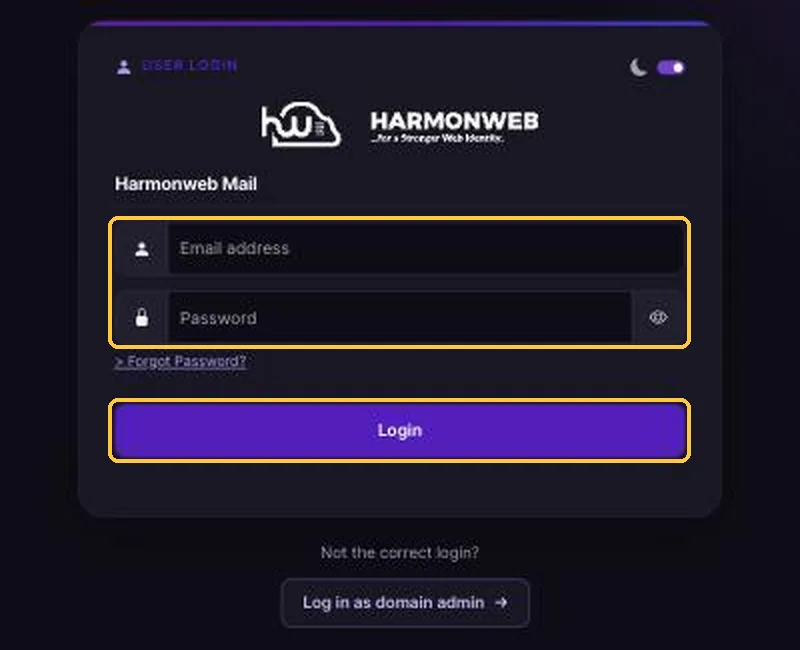
- Type the whole address, including the part after the @ ([email protected], not just hello).
- Click the eye icon to show your password and check it’s typed correctly.
- The Log in as domain admin button is only for the account owner who manages mailboxes. Everyone else should use the main login form.
Step 3: Go to your inbox
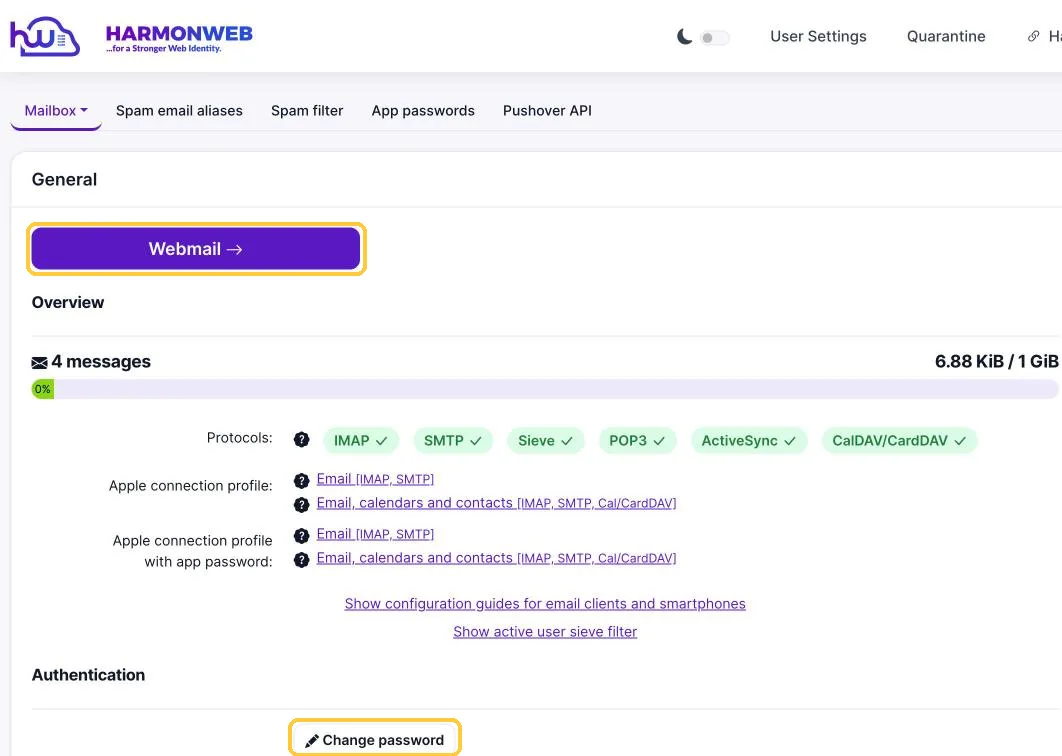
After logging in, you may land on your account page first. This page shows your mailbox storage and account settings (more on this below). Click Webmail to open your inbox.
A quick tour of Harmonweb Webmail
Here’s what each part of the screen does:
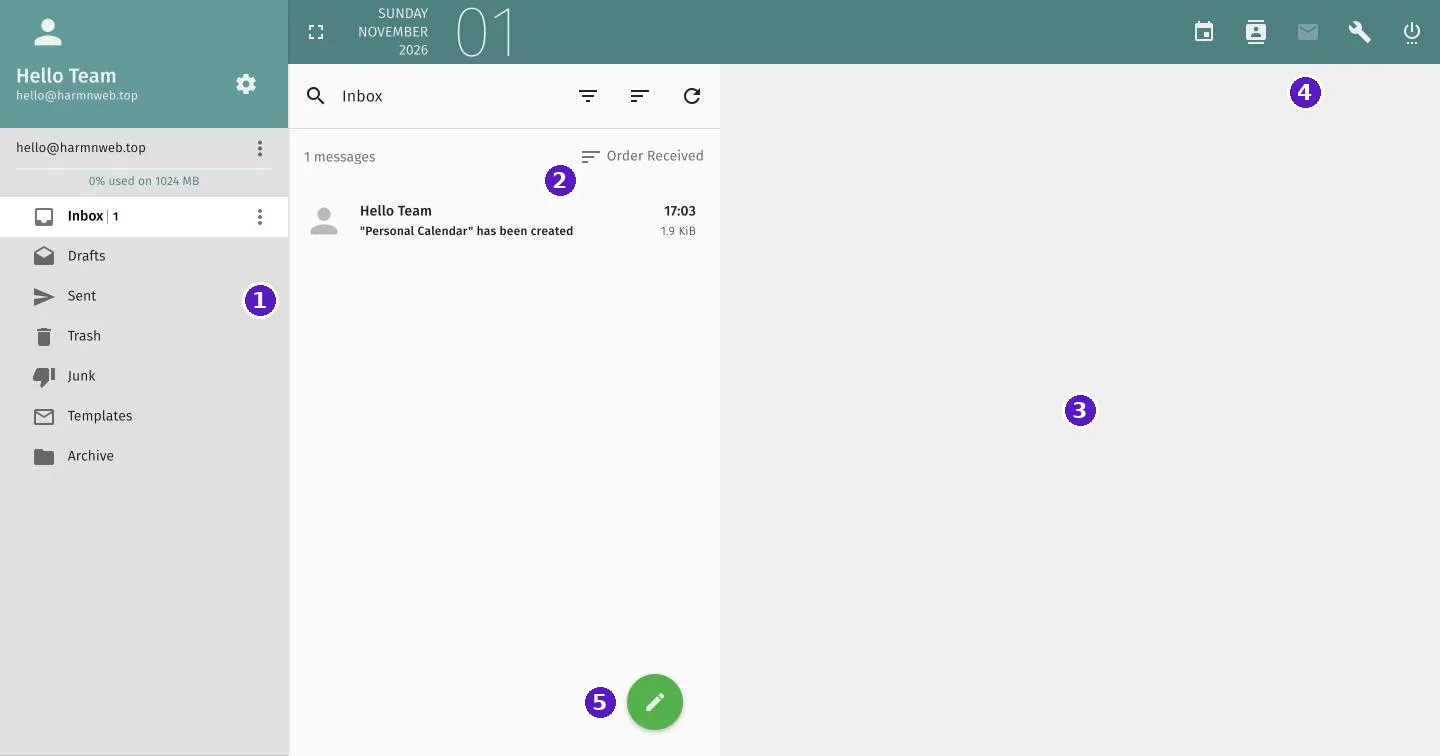
- Folders: Inbox, Drafts, Sent, Trash, Junk, Templates and Archive. Your storage use is shown just above them.
- Message list: the emails in the folder you’ve selected. Use the icons at the top to search, filter, sort and refresh.
- Reading pane: click any email in the list to read it here.
- Apps and settings: switch between Calendar, Contacts and Mail, open your account settings (the wrench icon) or log out (the power icon).
- Write a new message: the round pencil button.
Send your first email
Click the round pencil button at the bottom of the message list. In the window that opens:
- Type the recipient’s address in To and press Enter. Click CC or BCC on the right to copy other people in.
- Add a Subject and write your message. Use the toolbar for bold text, lists, links, tables and images.
- Click the paperclip at the bottom right to attach a file.
- Click the paper plane icon at the top to send. The disk icon next to it saves your message as a draft.
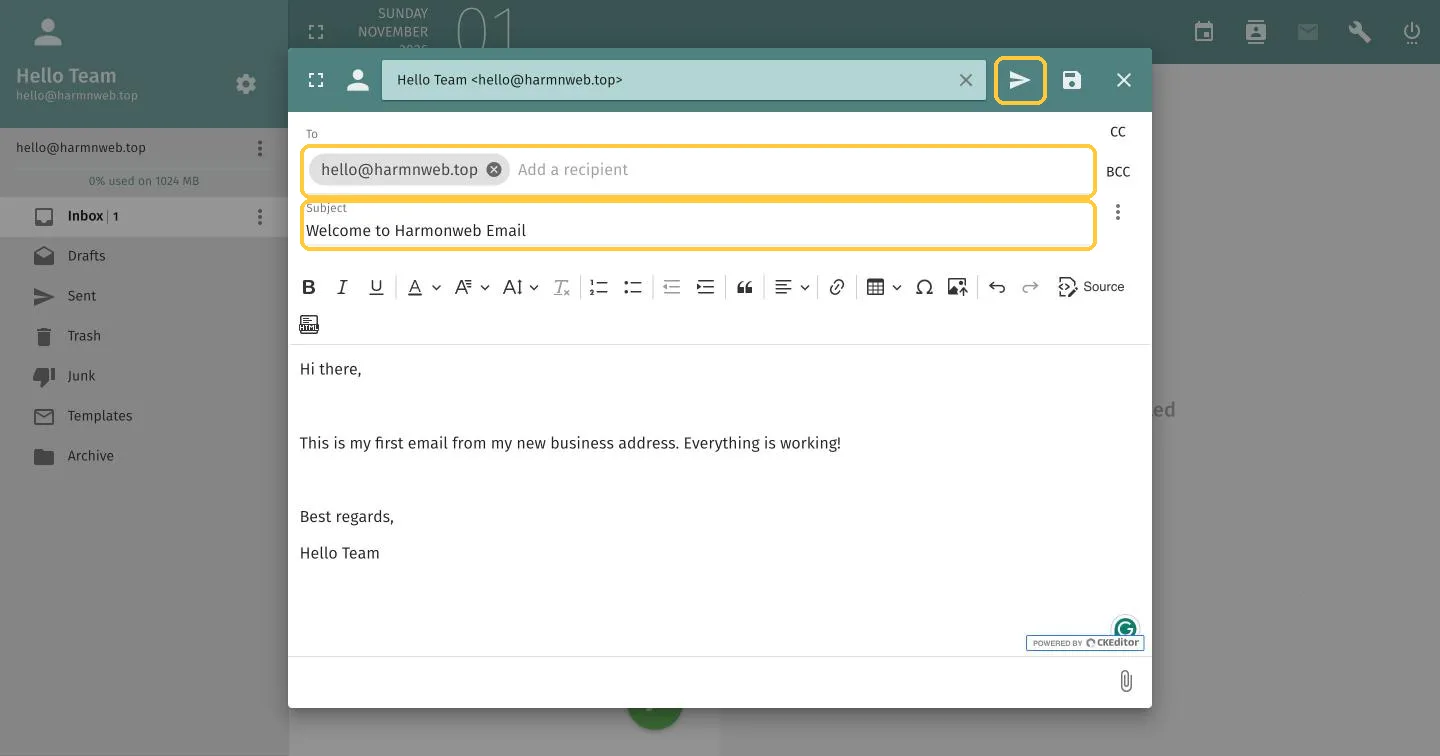
Tip: send your first email to yourself or a colleague to confirm everything is working.
Read and reply to email
Click a message to open it in the reading pane. The toolbar at the top right lets you star it, mark it as unread, mark it as junk, reply, forward or delete it. The three-dot menu has more options, such as printing or moving the message to another folder.
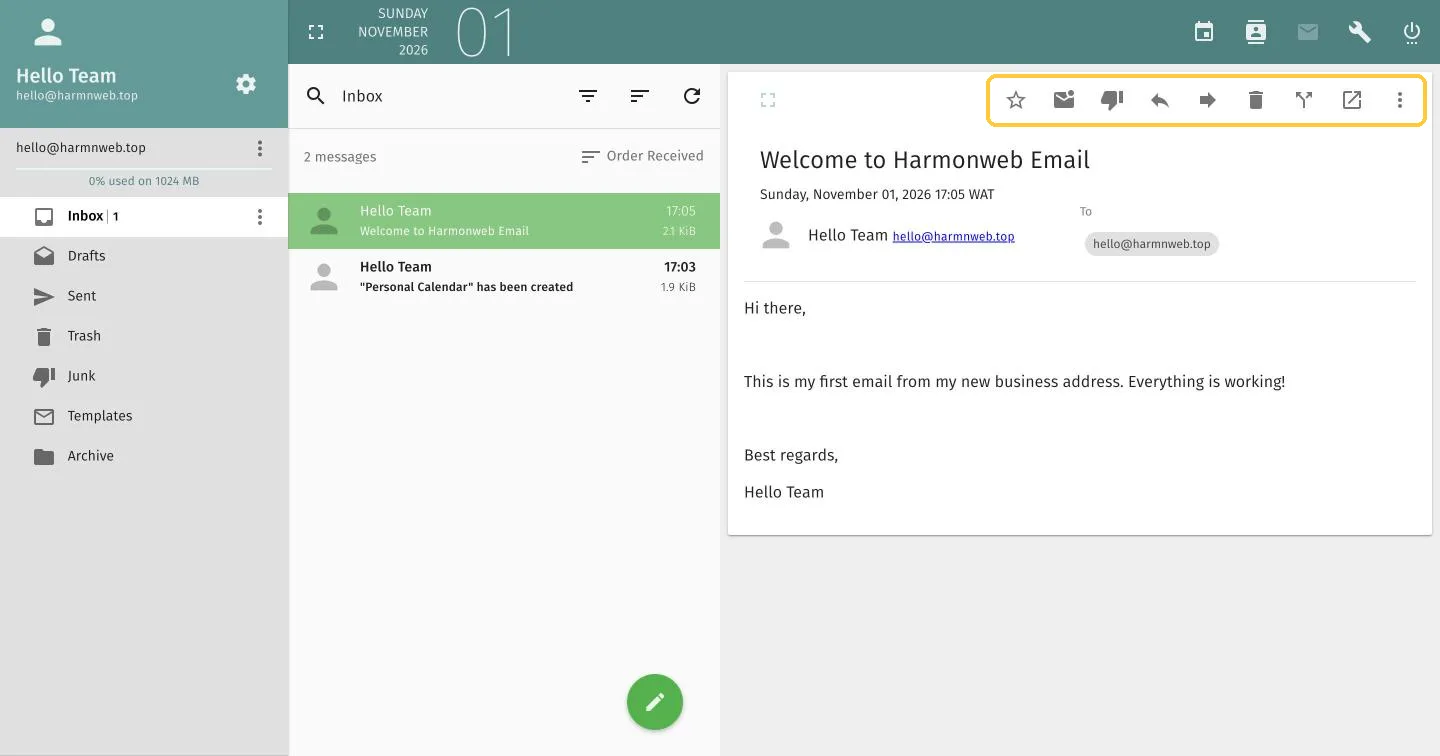
You can also drag emails from the message list onto any folder on the left to file them.
Your calendar
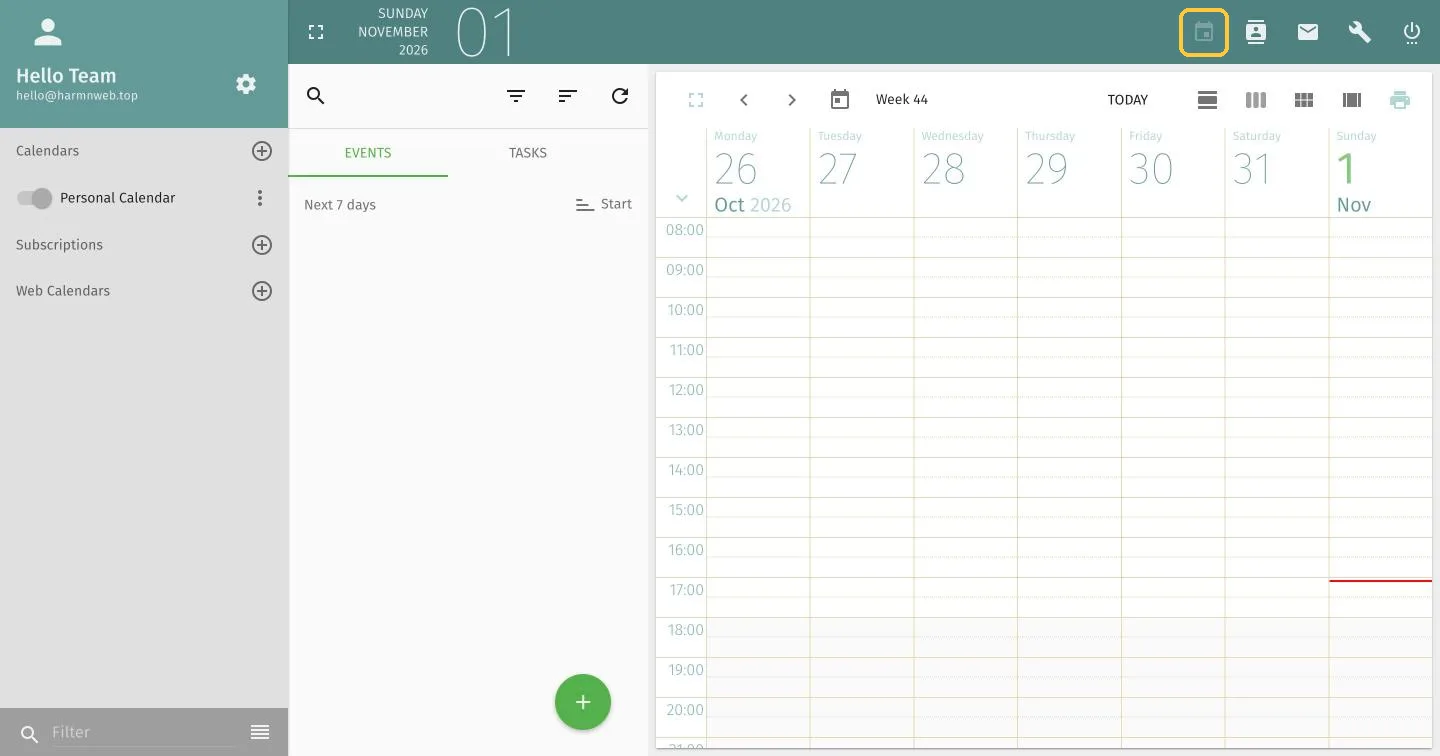
Click the calendar icon at the top right to open your calendar. Switch between day, week and month views with the buttons above the calendar, and click the round + button to add an event or task. Your calendar can also sync with your phone and computer.
Your contacts
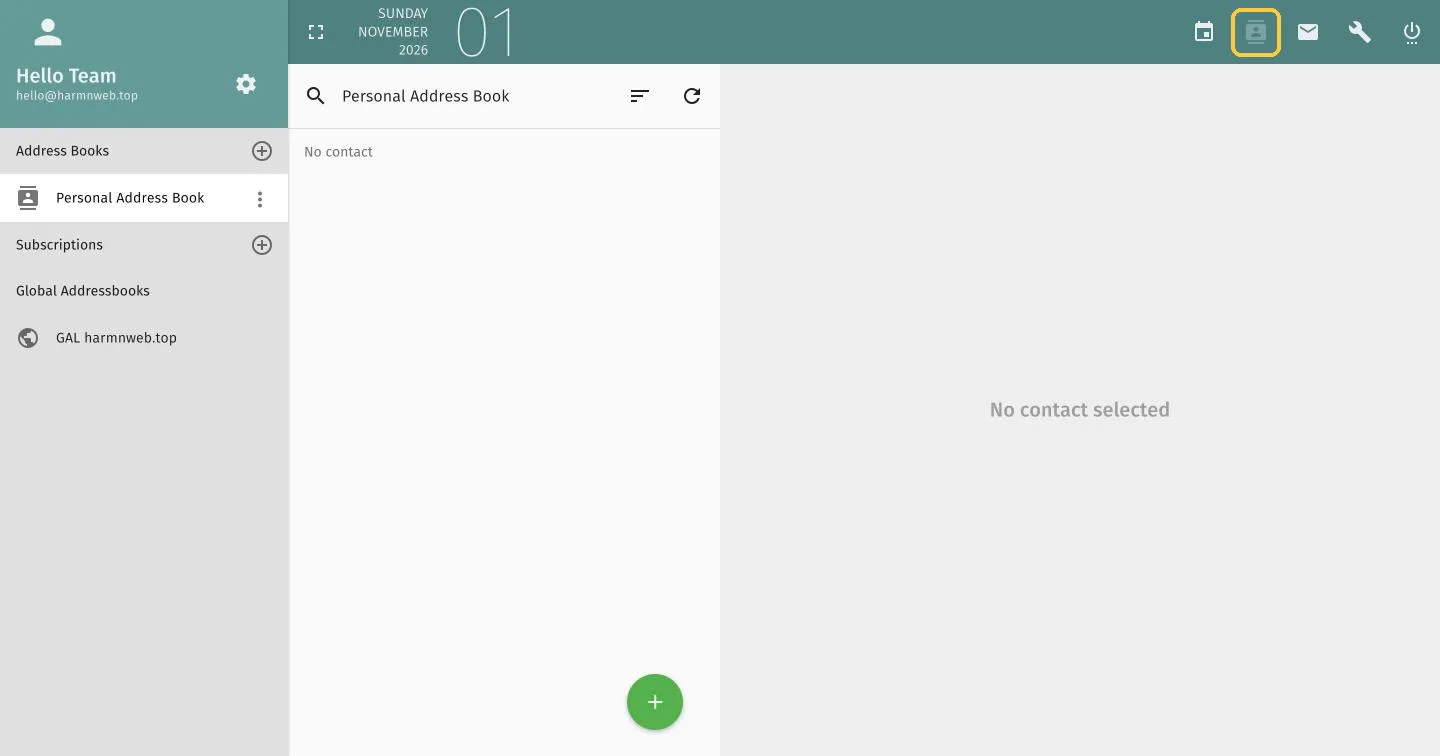
Click the contacts icon next to the calendar to open your address book. Click the round + button to add a contact. Under Global Addressbooks you’ll also find a shared directory of everyone with an address on your domain, which makes it easy to email colleagues.
Your account settings
Click the wrench icon at the top right to go back to your account page. From here you can:
- Change password: set a new password for your email address.
- Turn on two-factor authentication: add an extra layer of security to your login.
- Spam filter: control how strictly spam is filtered for your mailbox.
- Quarantine: review suspicious emails that were held back before reaching your inbox.
- App passwords: create separate passwords for email apps on your phone or computer.
To set up your email signature, click the gear icon next to your name in the top-left corner of webmail.
Log out safely
Click the power icon at the top right of webmail to log out. Always log out when you’re using a shared or public computer.
Frequently asked questions
I can’t log in. What should I check?
Make sure you’re typing your full email address and that Caps Lock is off. If you’ve forgotten your password, ask whoever manages your company’s email to reset it in Manage mailboxes. If you’re the account owner, see our mailbox guide to reset it yourself.
Can I use webmail on my phone?
Yes. Webmail works in any mobile browser. For the best experience on your phone, though, we recommend setting up your email in your phone’s mail app.
Why is an email I’m expecting not in my inbox?
Check your Junk folder first, then the Quarantine in your account settings. If it isn’t in either place, ask the sender to check that they used the right address.
How much storage do I have?
Your storage use is shown just above your folders and on your account page. If you’re running low, empty your Trash and Junk folders, or ask your account owner about upgrading your plan.
What to do next
Now that you know your way around webmail, set up your email on your phone and computer so new messages reach you wherever you are.


Pingback: How to Create a Professional Email Address (Step-by-Step) | HarmonWeb
Pingback: IMAP vs POP3: Which Is Best for Business Email? | HarmonWeb