

An email address like [email protected] tells customers you’re a real, established business, far more than a Gmail or Yahoo address does. With Harmonweb Email, you can create one in about two minutes. This guide shows you how, step by step.
Table of Contents
Before you start
- An active Harmonweb Email plan. If you don’t have one yet, follow our guide on how to order Harmonweb Email.
- Your domain’s DNS records in place. You can create addresses before this, but they won’t receive email until your domain points to Harmonweb. See how to point your domain to Harmonweb Email.
- Your mailbox admin login. This is the admin username shown in your client area, plus its password.
Step 1: Open Manage mailboxes from the client area
Log in to the Harmonweb client area, go to Services > My Services and click your Harmonweb Email plan. In the Harmonweb Business Email panel, note your Admin username and click Manage mailboxes.
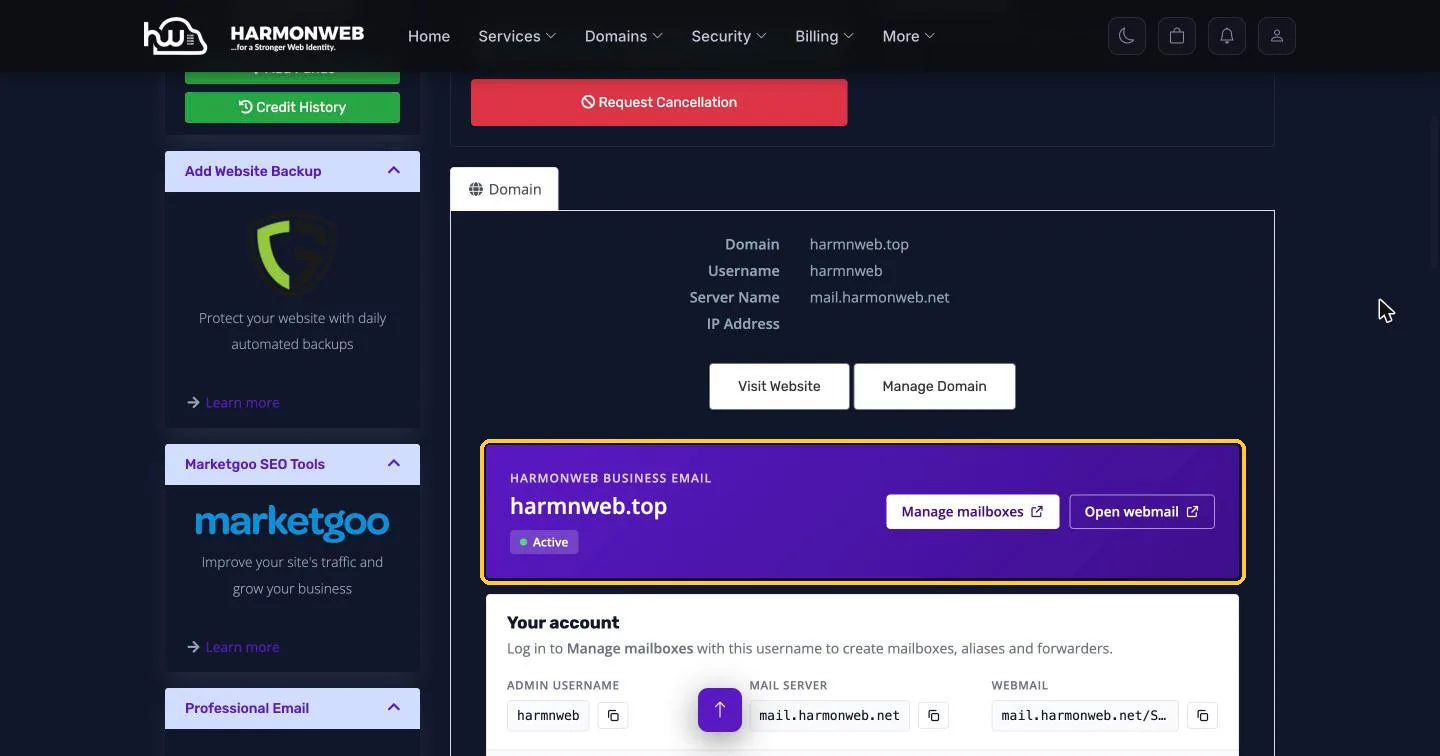
Log in with your admin username and password. Don’t know your admin password? Click Change Password in the Actions menu on the same client area page to set a new one.
Step 2: Go to the Mailboxes tab
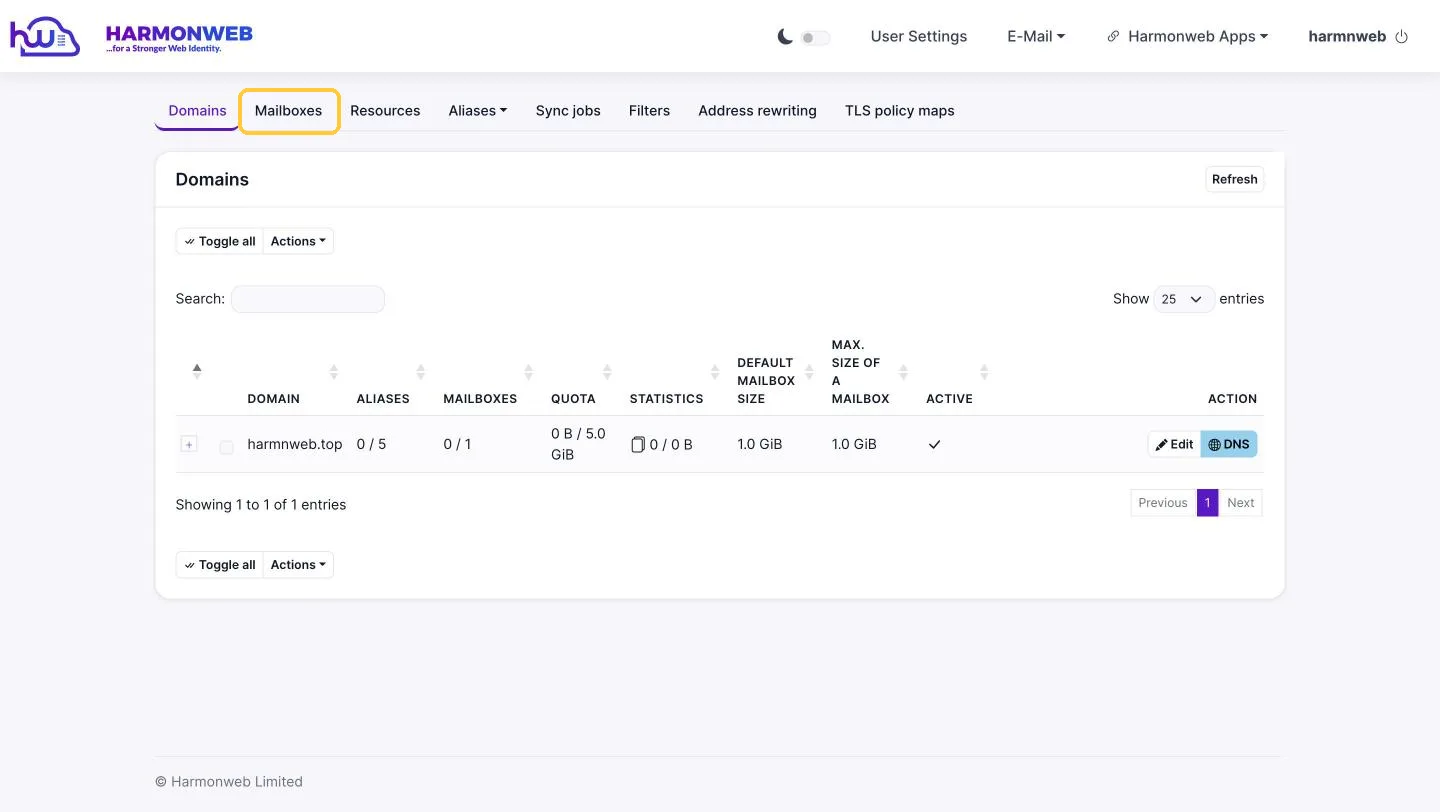
After logging in, you’ll see the Domains tab with your domain listed. The Mailboxes column shows how many addresses you’ve created and how many your plan allows (for example 0 / 1).
Click the Mailboxes tab at the top.
Step 3: Click Add mailbox
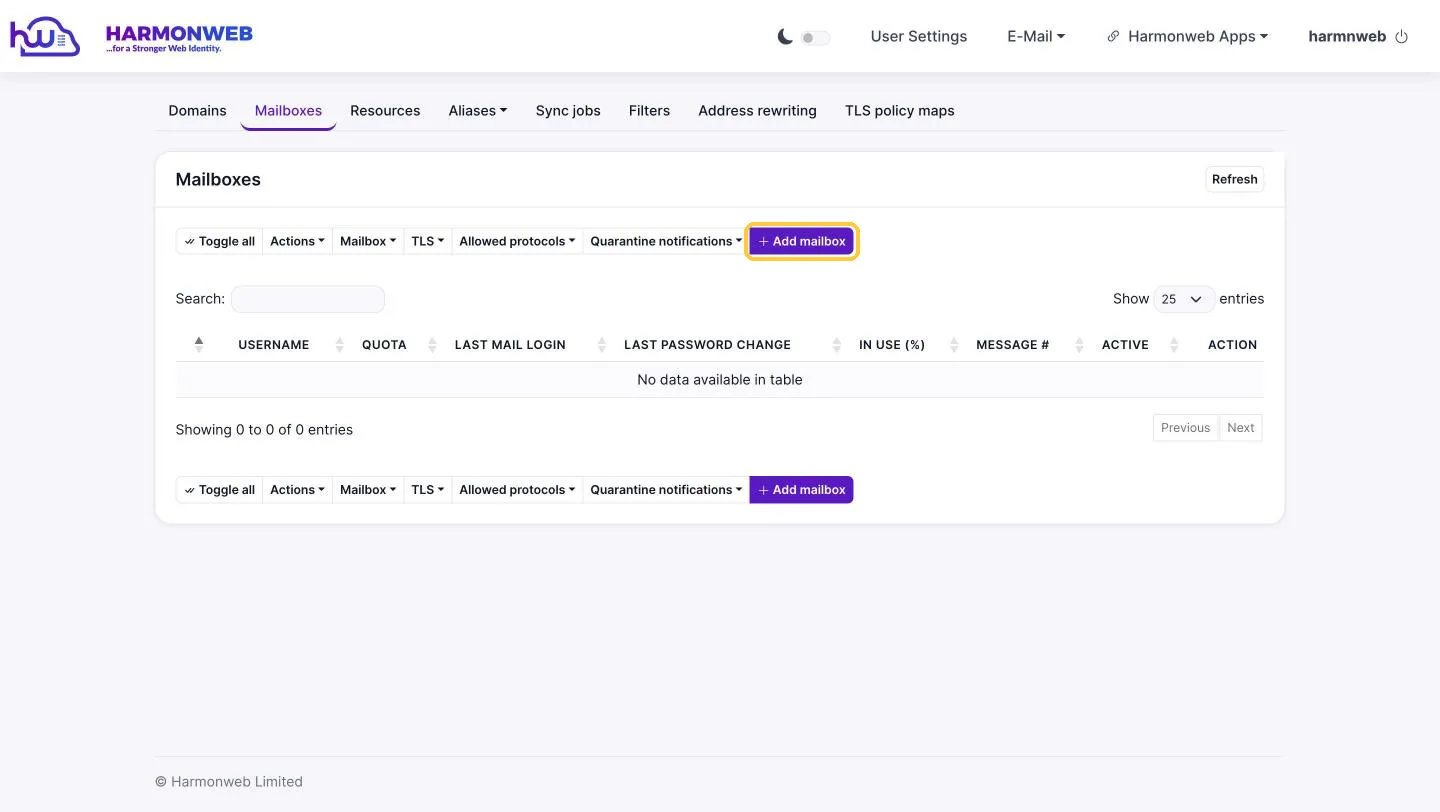
This tab lists every email address on your domain. It’s empty for now. Click Add mailbox.
Step 4: Fill in the new address details
A form opens. You only need to fill in the first few fields:
- Username: the part before the @. For [email protected], type hello.
- Full name: the name people see when you send them an email, for example your name or your team name.
- Domain: your domain is already selected. If you have more than one, pick the right one.
- Password and Confirmation password: type a strong password, or click generate to create a random one. If you generate it, copy it somewhere safe before you continue, because you’ll need it to log in.
- Quota (MiB): how much storage this address can use. The label shows the maximum allowed (1024 MiB is 1 GB). Leave it as is, or set a smaller limit if you’re sharing storage between several addresses.
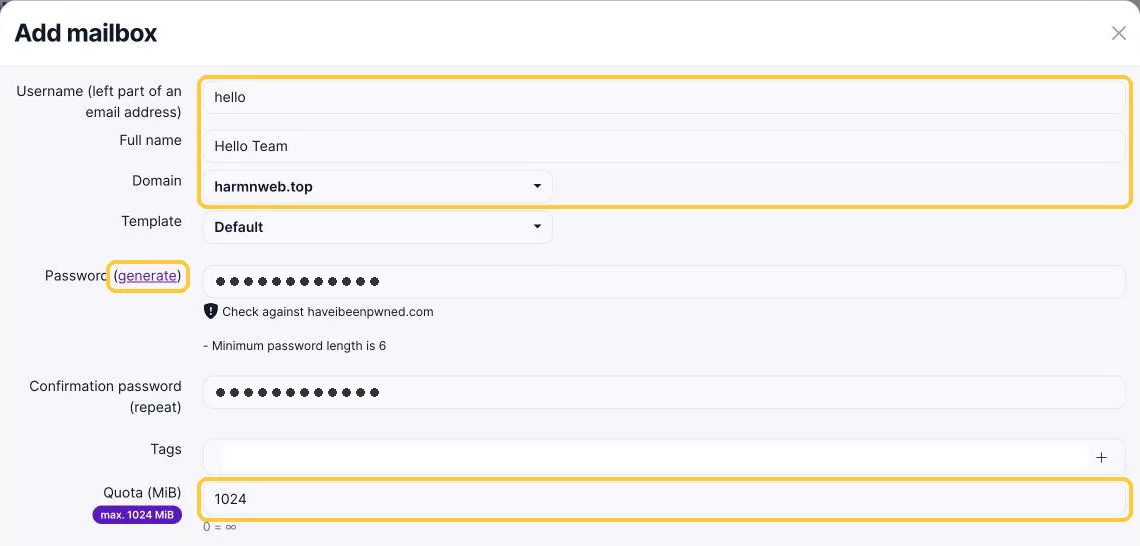
You can leave all the other settings as they are. Scroll to the bottom of the form and click Add.
Step 5: Your new address is ready
You’ll see a confirmation message, and your new address appears in the Mailboxes list.
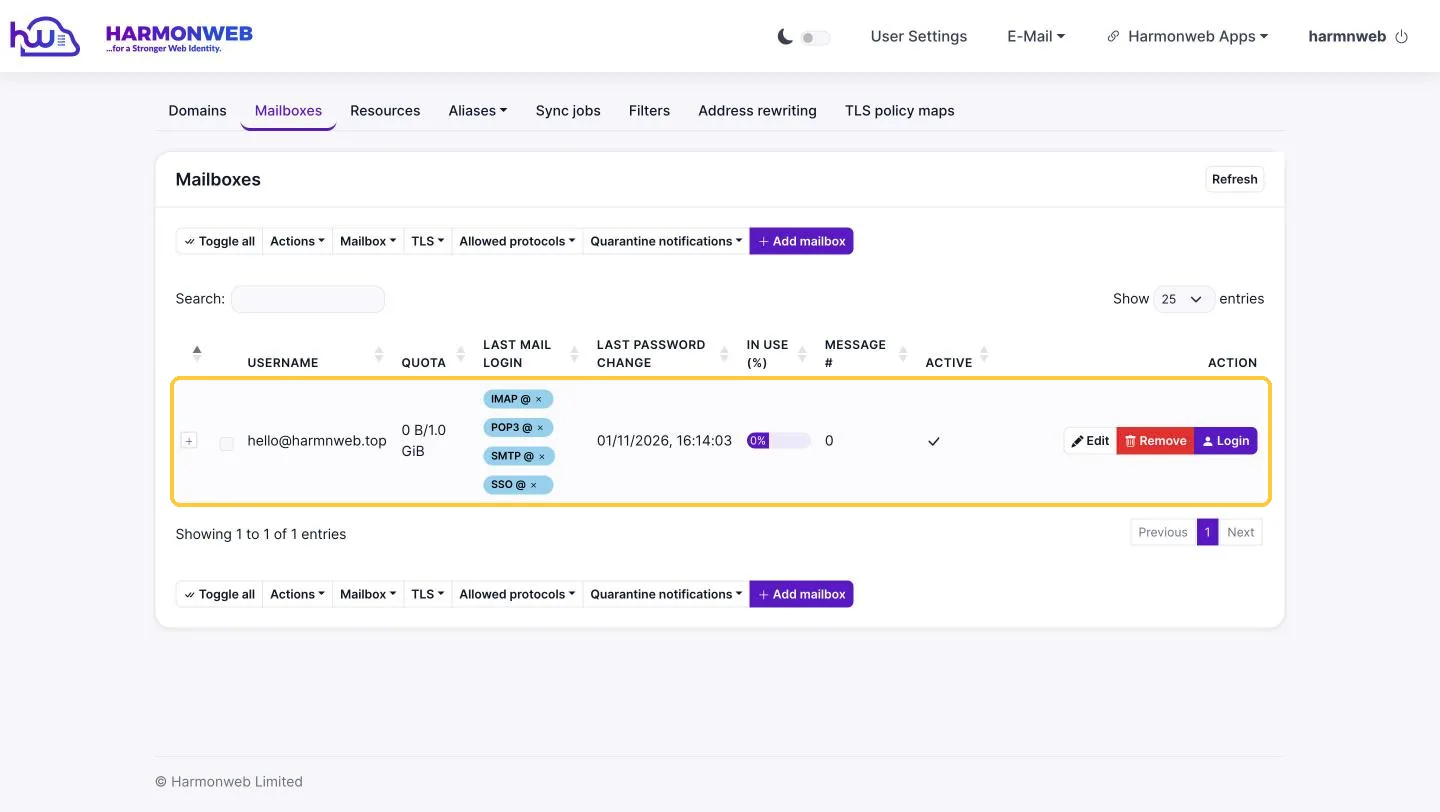
From this list you can:
- Edit: change the name, password or storage quota.
- Login: open this mailbox’s webmail straight away without typing its password.
- Remove: delete the address and all its emails. This can’t be undone, so be careful.
Your login details
To use your new address in webmail or an email app, you’ll need:
- Email / username: the full address, for example [email protected]
- Password: the password you set in Step 4
- Webmail: click Open webmail in the Harmonweb Business Email panel in your client area
- Email app settings: listed under Mail app settings on the same client area page
Tips for choosing a good business email address
- Keep it short and easy to say. hello@, info@ or yourname@ are easy to remember and hard to misspell.
- Use role addresses for teams. Addresses like sales@ or support@ keep working even when staff change.
- Avoid numbers and hyphens. They’re easy to get wrong when you read an address aloud over the phone.
- Need more addresses than mailboxes? Use aliases. For example, sales@ and info@ can both deliver to your hello@ inbox without using up another mailbox.
Frequently asked questions
How many email addresses can I create?
It depends on your plan: Email Starter includes 1 mailbox, Email Pro 10 and Agency Email 50. The Mailboxes column on the Domains tab always shows how many you’ve used. You can upgrade your plan at any time if you need more.
Can I change an address after creating it?
You can change the name, password and quota with Edit. To change the address itself (the part before the @), create a new mailbox with the address you want. If you just need a second address that delivers to the same inbox, add an alias instead.
A team member forgot their password. What do I do?
Log in to Manage mailboxes, open the Mailboxes tab, click Edit next to their address and set a new password.
I created the address but I’m not receiving emails. Why?
Your domain’s DNS records probably aren’t pointing to Harmonweb yet, or the change is still spreading. Follow our guide to point your domain to Harmonweb Email and allow up to 24 hours. If it still doesn’t work, open a support ticket.
What to do next
Your professional email address is ready. Next, log in to webmail to send your first email, or set it up on your phone and computer so you never miss a message.

Pingback: How to Point Your Domain to Harmonweb Email (MX Records) | HarmonWeb
Pingback: Harmonweb Webmail Login and Quick Tour | HarmonWeb
Pingback: How to Order Harmonweb Email Hosting (Step-by-Step) | HarmonWeb
Pingback: How to Create Email Aliases and Forwarders | HarmonWeb
Pingback: How to Manage Team Email Accounts (Add, Edit, Delete) | HarmonWeb