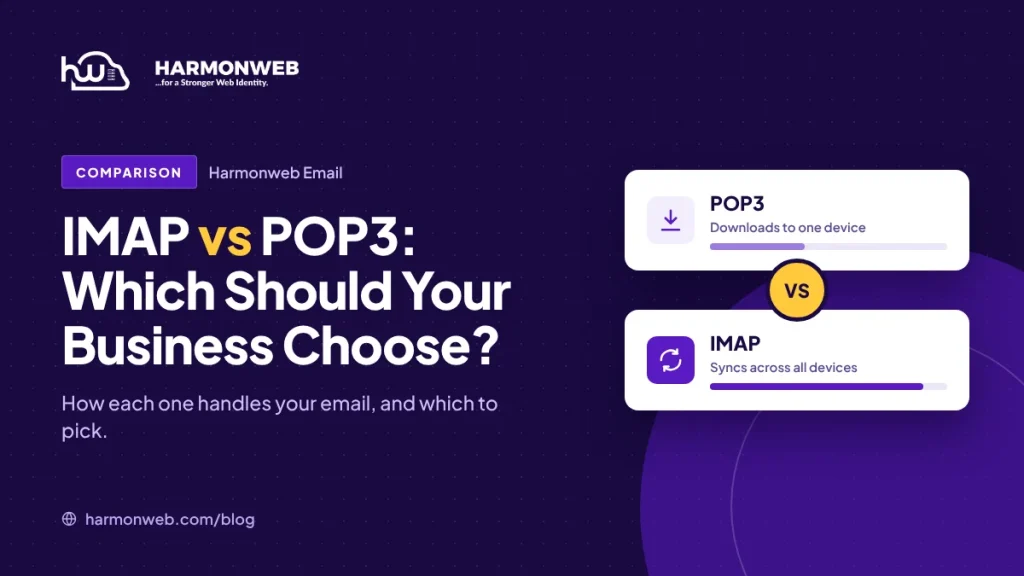
When you add your business email to Outlook, your phone or any other email app, one of the first questions it asks is: IMAP or POP3? Your choice decides where your emails live and whether you can see them on more than one device. Here’s what each option means, how they compare, and which one is right for your business.
Table of Contents
The short answer
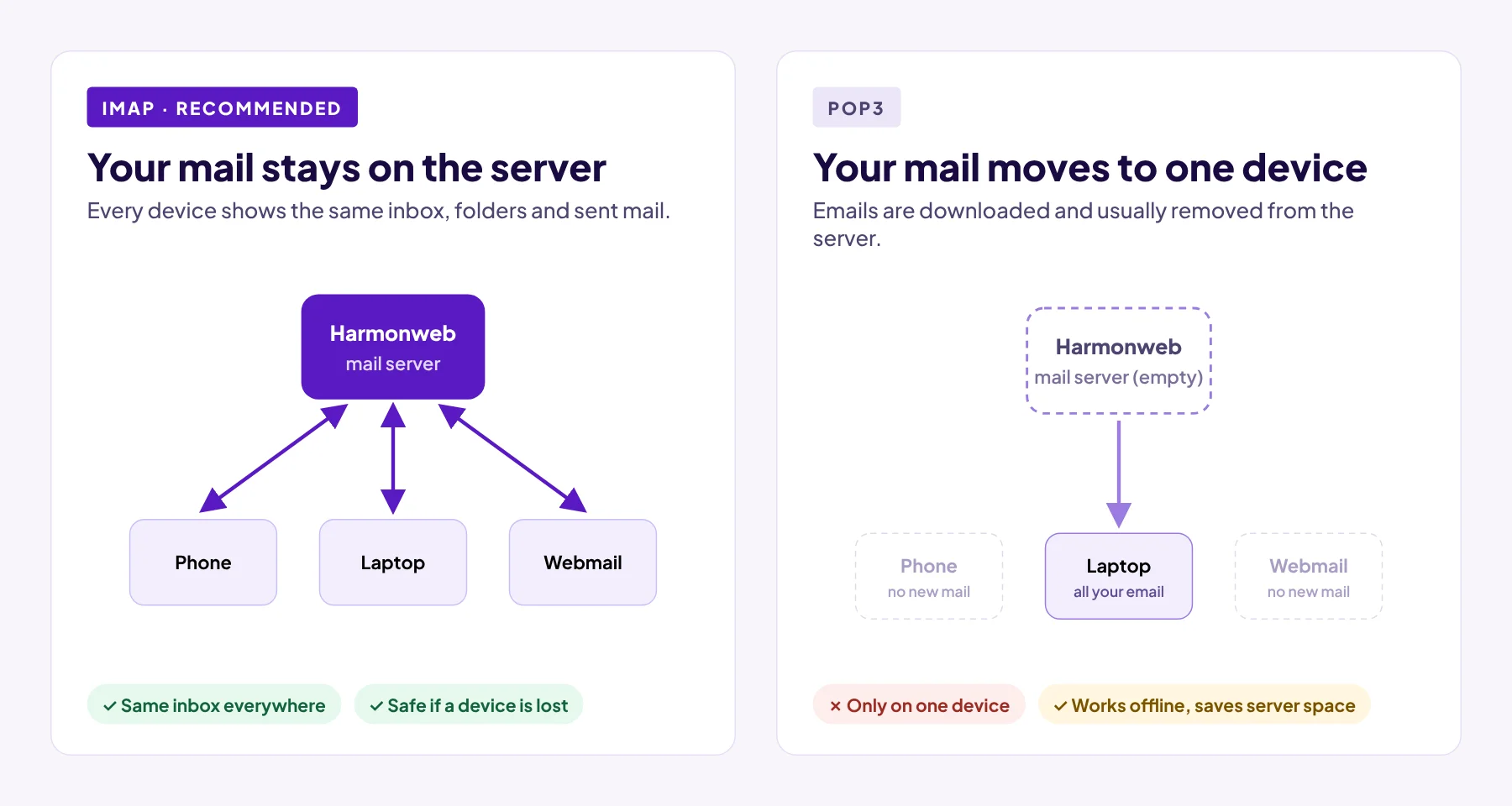
Choose IMAP. For almost every business today, IMAP is the better choice. Your emails stay safely on the Harmonweb mail server and appear the same on your phone, laptop and webmail. Choose POP3 only if you have a specific reason to keep your email on a single computer.
What is IMAP?
IMAP (Internet Message Access Protocol) keeps your emails on the mail server and syncs them to every device you use. Think of it like a shared online folder: when you read, delete or file an email on your phone, the same change appears on your laptop and in webmail.
What is POP3?
POP3 (Post Office Protocol version 3) works like collecting letters from a post office box. Your email app downloads new messages to one device, and by default removes them from the server. Once they’ve been collected, they only exist on that one device.
IMAP vs POP3 at a glance
| IMAP | POP3 | |
|---|---|---|
| Where your email is stored | On the mail server, synced to your devices | On the one device that downloaded it |
| Use on several devices | Yes, everything stays in sync | Not really. Each device sees different emails |
| Sent mail and folders | Synced everywhere | Stay on the device where you created them |
| If a device is lost or breaks | Nothing is lost. Your email is on the server | Emails on that device may be gone for good |
| Works offline | Yes, for messages already synced | Yes |
| Uses mailbox storage | Yes, all your email counts towards your quota | Very little, if emails are removed from the server |
| Teams and shared inboxes | Works well | Not suitable |
| Best for | Almost everyone | One person, one computer, with their own backups |
When to choose IMAP
- You check email on more than one device, such as your phone and a laptop.
- You want to use Harmonweb Webmail as well as an email app.
- Several people share one inbox, such as info@ or sales@.
- You don’t want to lose email if a phone is stolen or a laptop breaks.
- You want your Sent folder and other folders to be the same everywhere.
When POP3 might make sense
- You only ever read email on one computer.
- You want to keep all your email offline, on a computer you back up yourself.
- You receive a very large amount of email and want to keep your mailbox storage low.
Tip: if you do use POP3, turn on “Leave a copy of messages on the server” in your email app’s account settings. Your emails then stay on the server too, and you can still read them in webmail or on another device.
What about sending email (SMTP)?
IMAP and POP3 are only used for receiving email. Sending always uses SMTP, whichever option you choose. Your email app will ask for both an incoming server (IMAP or POP3) and an outgoing server (SMTP).
Harmonweb Email server settings
Here are the settings you’ll need. You can also find them under Mail app settings on your Harmonweb Email plan page in the client area.
| Setting | Server | Port | Security |
|---|---|---|---|
| IMAP (incoming, recommended) | mail.harmonweb.net | 993 | SSL/TLS |
| POP3 (incoming) | mail.harmonweb.net | 995 | SSL/TLS |
| SMTP (outgoing) | mail.harmonweb.net | 587 (or 465) | STARTTLS (or SSL/TLS on 465) |
Username: your full email address, for example [email protected]. Password: your email password. Outgoing mail also needs your email address and password, so make sure SMTP authentication is turned on.
Using IMAP? Keep an eye on your storage
With IMAP, all your email stays on the server and counts towards your mailbox storage. To keep things tidy:
- Empty your Trash and Junk folders regularly.
- Delete old emails with large attachments you no longer need.
- Check your storage in Harmonweb Webmail. It’s shown just above your folders.
If you keep running out of space, ask your account owner about moving to a bigger Harmonweb Email plan.
How to switch from POP3 to IMAP
Most email apps don’t let you change an existing account from POP3 to IMAP. Instead:
- Back up first. Emails that POP3 has already downloaded and removed from the server only exist on that device. Export them, or copy them into a local folder you’ll keep.
- Remove the POP3 account from your email app.
- Add the account again and choose IMAP, using the settings above.
- If you need your old downloaded emails in your new IMAP mailbox, drag them from the local folder into your IMAP inbox and they’ll upload to the server.
Frequently asked questions
Can I use IMAP on one device and POP3 on another?
You can, but it’s not recommended. If the POP3 device removes emails from the server, they’ll disappear from your IMAP devices and webmail too. If you must mix them, turn on “Leave a copy of messages on the server” in the POP3 app.
Which one does Harmonweb Webmail use?
Webmail reads your email straight from the server, so it always shows what’s on the server, just like IMAP. If you use POP3 in an app and let it remove emails from the server, those emails won’t appear in webmail.
Is IMAP or POP3 more secure?
Both are secure with Harmonweb Email, because the connections are encrypted with SSL/TLS. The bigger risk is losing email. IMAP is safer because your messages aren’t tied to one device.
Is IMAP slower than POP3?
Not in everyday use. Modern email apps keep a copy of your IMAP email on your device, so it opens quickly and you can still read synced messages offline.
What to do next
Now that you know which to choose, set up Harmonweb Email in your favourite email app using IMAP. You can also use Harmonweb Webmail from any browser at any time.