

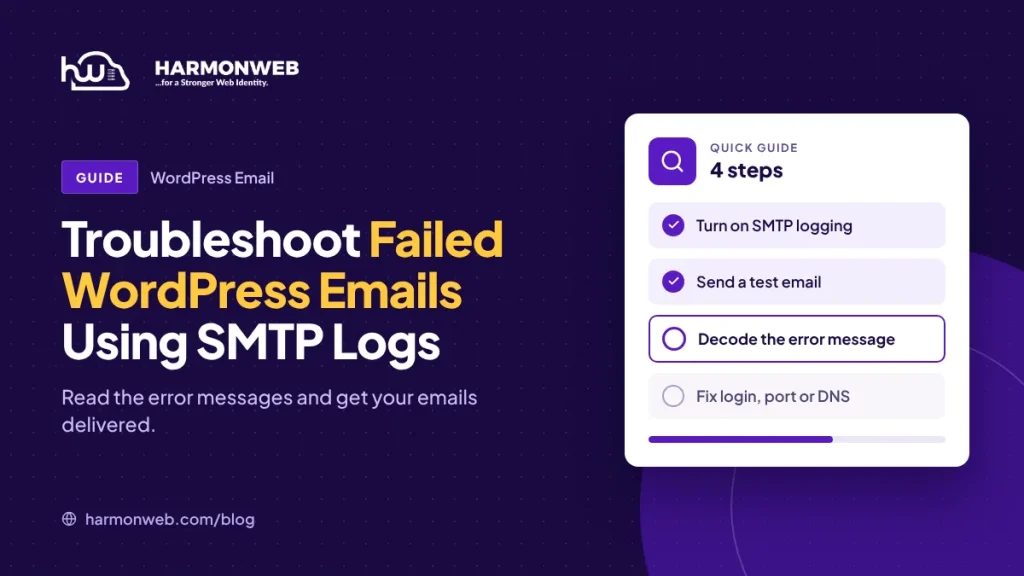
Email notifications play a crucial role in various activities like resetting passwords, sending form submissions, customer queries, and order confirmations for WordPress sites. But the problem is that emails don’t always arrive at their destination. There are cases where WordPress does not send them, and there are cases when the mail server doesn’t send them.
Various problems may lead to such difficulties, which include incorrect SMTP settings, authentication failures, connection and security blocks to the server. Unfortunately, frequently reconfiguring your email without resolving the problem is detrimental.
That is when SMTP logs and errors come into play. These give details on email sending attempts and any server replies, which will assist you in determining the problem with your WordPress emails and how you can solve it.
Table of Contents
Why WordPress Email Is Not Sending
WordPress uses its internal wp_mail() function for sending out emails. But what the wp_mail() function depends on is the mail transport that has been set up in the server.
Sending Emails with WordPress using wp_mail() Function
When a plugin, theme, or a function within WordPress requires sending out an email, it uses wp_mail(). WordPress will then deliver the email through the configured mailing handler.
The default setting for most hosted servers is the usage of the mail function in PHP. Nonetheless, the process might lack the delivery control of a dedicated SMTP handler. SMTP plug-in can help deliver WordPress emails through an authorized mail server.
Some Possible Reasons for Failure to Send Emails from WordPress
Emails sent from WordPress may not be delivered due to:
- Incorrect configuration of SMTP hostname, port and encryption.
- Absence of or incorrect SPF, DKIM or DMARC.
- Invalid username and password of the email account.
- SMTP connections blocked by firewall.
- Restrictions on the server or policy of the email provider.
- Invalid addresses or emails being blocked.
How SMTP Makes Emails in WordPress More Reliable
Simple Mail Transfer Protocol (SMTP) ensures that there is a protocol that allows the transfer of emails from the sender to the recipient through mail servers. An email message can be made more reliable using a SMTP provider.
Connection timeouts can be a sign of either restricted networks, an incorrect server address, or even non-running SMTP service.
SMTP Logs Location in WordPress
SMTP Log Location in WordPress
WordPress does not have SMTP logging feature by default. An SMTP plug-in will be required for debugging or logging.
You may also look into your email host’s server logs and delivery reports if available. This way, you will be able to get more details on what occurs after your SMTP server accepts an email.
How to Enable SMTP Logging in WordPress
Prior to troubleshooting, make sure that you capture enough data on your website for identifying failed emails.
You may also look into your email host’s server logs and delivery reports if available.
Installing and Configuring SMTP Plugin
Install a well-respected SMTP plugin on your WordPress dashboard. Configure the plugin using the SMTP hostname, SMTP port, SMTP encryption type, username, and password provided by your email host.
Save the changes and send a test email to see if the connection is functioning.
Email Logging and Debugging Enabled
Go to your SMTP plugin settings and find out how you can enable email logging and debugging options. Turn on the applicable functions for logging email activities and errors.
Keep in mind that email logging and SMTP debugging are distinct actions. Email logging usually logs any email activity, but SMTP debugging logs communication between WordPress and the email server.
Sending a Test Mail to Create Logs
Send out a test email using the plugin’s test function by sending it to any accessible email address. In case it doesn’t succeed, view the logs and determine what the error is.
Find and Analyze the Email Logs
Depending on your particular extension, you can find logs either under Email Log, Tools or Debug Events tab.
Check out the date-time of the activity, the receiver, the status of the sending attempt and additional error message. Do not provide logs in their entirety since these logs may have email addresses and even messages, among other confidential information. It is wise to remove credentials and other confidential data before seeking help.
How to Read and Interpret WordPress SMTP Errors
SMTP error codes provide an explanation for the reason that the mail server has accepted, queued or refused an attempt at sending emails. However, sometimes the full response of the SMTP server may be more informative than just the code.
1. SMTP Authentication Failure (535 and 530)
An SMTP server returning a 535 Authentication failed code is usually a sign that the provided authentication has been rejected.
How to fix it:
- Check your SMTP login name and password.
- See if your service provider needs you to use an application password or OAuth.
- Verify that authentication for SMTP is enabled.
- Determine if the email account has been suspended or limited.
The 530 Authentication required reply normally indicates that the server needs authentication before the mail can be accepted.
2. SMTP connection problems and timeouts
Connection errors arise if the WordPress installation fails to communicate with the SMTP server.
This may be due to using an incorrect SMTP host name or because the outbound ports are closed.
What to do: Check the SMTP hostname and port number from your hosting service provider. If the problem persists, inquire about any restriction on making outbound connections with the SMTP.
3. Errors of SMTP Server Responses (550 and 554)
A 550 response means that the server cannot accept the recipient or the message. The reason can be the absence of the recipient mailbox or the refusal of the message by the receiving server according to the policies.
A 554 response usually means that the transaction or the message has been refused by the server because of some policies.
How to fix this error: Go through the entire error message to check the email recipient address and other security issues that the receiving mail server is showing.
4. SSL/TLS Connection Errors
This type of error happens when the WordPress is not able to connect to the SMTP server using an encrypted connection.
Solution: Ensure that the server you are using demands SSL or STARTTLS encryption and then connect to it via the appropriate port and encryption. In addition, make sure that your hosting machine has a valid certificate.
5. Address from Sender and Recipient Rejection Issues
Some SMTP service providers will reject emails because the sender’s From address is not a member of the authorized domains/accounts.
Solution to the problem: Make sure you use an authentic sender address for your domain. Plus, verify that the receiving email address is correct and that you have been allowed by the provider to send messages to that address.
How to Diagnose Failed Emails Sent from WordPress Using SMTP Logging
With logging turned on, you can now follow these steps for determining the cause rather than doing things blindly.
1. Check if WordPress Tried to Send the Email
First, perform the action that would trigger the mailing, like completing a contact form or resetting your password.
See if WordPress has any record of this email in its logs.
If you don’t find any record of this, then you’ll need to check what plugin, form, or code is causing WordPress to send out the email. The mail may not have been sent at all through the SMTP sending process.
2. Find Authentication and Log-in Issues
Check for such messages as 535 Authentication failed or 530 Authentication required.
This means that the server could not accept your request to authenticate. Enter the appropriate credentials and see if you need to go through further authentication procedures.
3. SMTP Host and Port Settings Investigation
Check the settings of your configured SMTP hostname and port against the information provided by your service provider.
Typical SMTP port settings are 587 with STARTTLS and 465 with implicit TLS. But always go with what your service provider specifies.
In case you have a timeout or connection refused error in your logs, verify whether your hosting service is blocking that port.
4. Verify SSL/TLS Encryption Settings
Should any issue arise in the logs related to certificate validation or encryption negotiation, ensure that you have chosen the right encryption technique for the SMTP server.
Also, you need to configure your server’s certificate and check what TLS versions your server supports. You should never disable the certificate verification just to get connected.
5. Checking the Server Response and the Reason for Rejecting
Look into the entire SMTP response from the server after rejecting a message. For instance,
| 550 5.1.1 Recipient address rejected |
This means that the server cannot accept the particular recipient address.
Example of another:
| 535 5.7.8 Authentication credentials invalid |
It is clear that it is an issue related to authentication. The description given should be used to establish the correction needed, not the number code.
6. Test Email Delivery After Correcting the Problem
Having made the correction of the problem, send a test email again. Look at the new log and confirm if the message is accepted by the SMTP server. Where possible, check the inbox and spam folders of the recipient’s mail box and their mail server delivery status.
WordPress SMTP Errors and Their Fixes
Some issues need further analysis apart from checking each SMTP error message individually.
- SMTP Username/Password Incorrect: Provide the proper credentials and see if you need to use app password or other authentication process.
- Wrong SMTP Hostname or Port: Use the exact information for connection provided by your email provider. Do not assume that each of the SMTP services out there has the same host name, port or encryption.
- Outgoing SMTP Blocked Connections: Hosting companies may block outgoing SMTP connections to limit spam. Get in touch with your hosting company to check whether the port number is open or whether you have an SMTP service provided by the host.
- Problems with SPF, DKIM and DMARC DNS Authentication Records: Faulty DNS authentication records may impact email delivery and authentication, even when WordPress manages to connect to the SMTP server successfully. Make sure that the SPF, DKIM and DMARC settingsSPF, DKIM and DMARC settings in your domain match those of your email provider.
- Emails Sent Successfully but Not Received: Once the SMTP server gives a positive reply to the message, then WordPress has sent the emails successfully. However, it doesn’t mean that you will receive them. Search for email messages in spam mail folders, filtering policies, domain reputation and your email provider’s email delivery status report.
WordPress E-Mail Delivery Prevention
Regular checks and correct settings help avoid future e-mail delivery issues.
- Check the SMTP Logs Frequently: Check your e-mail traffic and troubleshoot failed e-mail authentications and connections.
- Use a Reliable SMTP Service: Select a good email service that gives clear instructions on how to make connections and send emails.
- Always Update Your SMTP Plugin Settings: Install only updated and well-maintained plugins that are compatible with the present WordPress standards and email authentication.
- Test Forms and Alerts on Your Website Frequently: Do regular testing of passwords, contact forms, registrations, and other vital features of email for finding any issues.
- Properly Authenticate Your E-Mail: SPF, DKIM and DMARC records should be properly configured. The configuration must be checked when switching email service providers or adding additional sending channels.
Conclusion
WordPress failed email issues can interfere with important activities on the site and cause problems in communicating with customers. Fortunately, SMTP logs will help to identify where the problem occurred.
Through authenticating the results, verifying the SMTP settings, and studying server responses among other factors, it is possible to fix email challenges. Besides, email authentication will prevent future problems related to email delivery.
Do you need a reliable hosting services for your WordPress website?
Here at HarmonWeb, we offer hosting options specifically aimed at catering to the performance and function of your website. Use quality hosting services and configure SMTP and business e-mailing correctly in order to have your website notification and customer communication systems function correctly.

Pingback: Why Your Business Emails Keep Going to Spam and How to Fix It | HarmonWeb