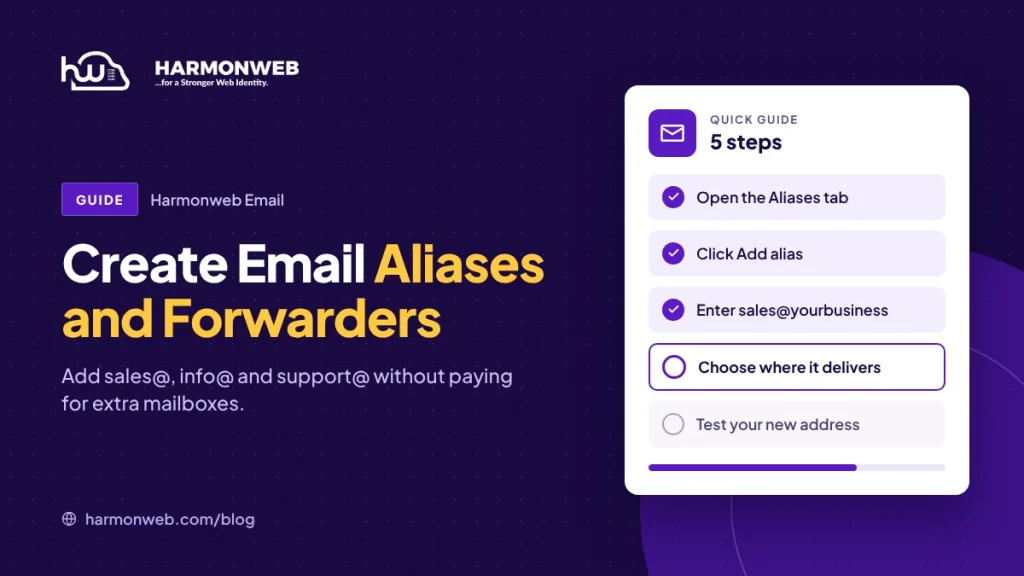
Most businesses want addresses like sales@, info@ and support@, but they don’t need a separate inbox for each one. With Harmonweb Email, you can create these as aliases, extra addresses that deliver to an inbox you already have. You can also set up a forwarder to send copies of your email to another address. This guide shows you how to do both.
Table of Contents
Mailbox, alias or forwarder: what’s the difference?
| What it is | Best for | |
|---|---|---|
| Mailbox | A full email account with its own inbox, password and storage | Each person on your team |
| Alias | An extra address with no inbox of its own. Emails go to one or more mailboxes on your domain | sales@, info@, support@, careers@ |
| Forwarder | A copy of incoming email sent on to another address, even outside your domain | Getting email somewhere else, such as a personal inbox, while you’re away |
The big advantage of aliases: they don’t use up a mailbox on your plan. Even on Email Starter, with one mailbox, you can have hello@, sales@ and info@ all arriving in one inbox.
Before you start
You’ll create aliases in Manage mailboxes. Open your Harmonweb Email plan in the client area, click Manage mailboxes and log in with your admin username and password. You’ll need at least one mailbox already. If you don’t have one yet, see how to create your first professional email address.
Part 1: Create an alias (sales@, info@, support@)
Step 1: Open the Aliases page
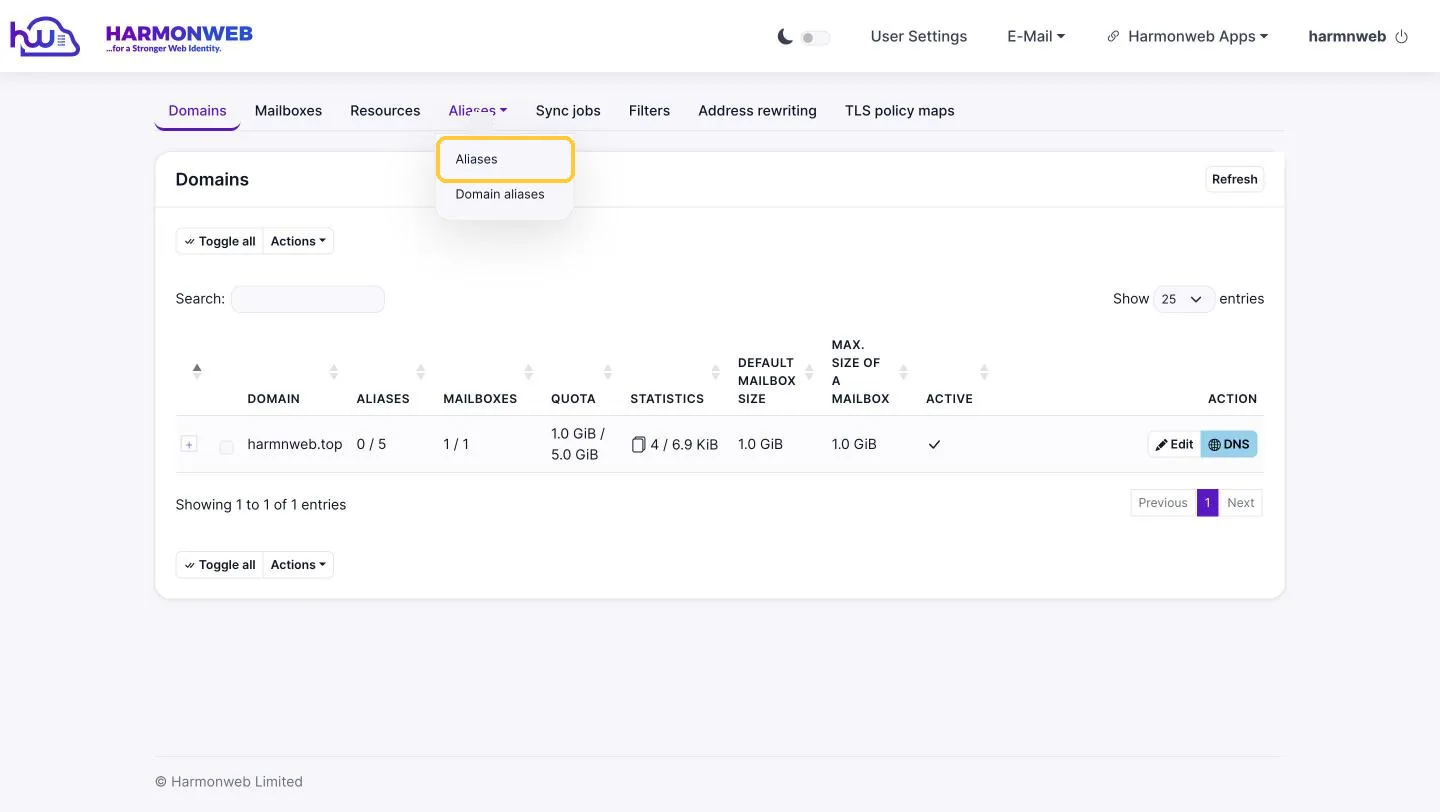
At the top of the page, click Aliases and choose Aliases from the menu.
Step 2: Click Add alias
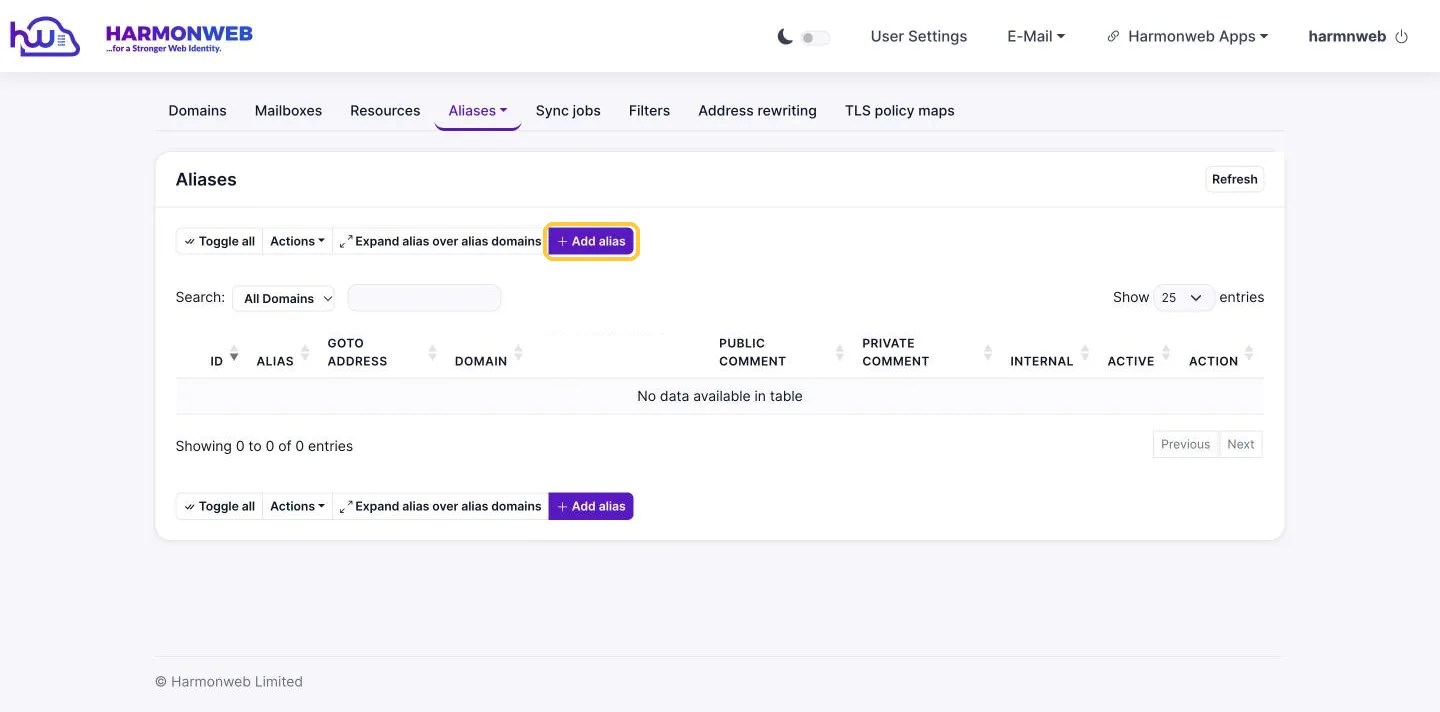
This page lists all the aliases on your domain. Click Add alias.
Step 3: Enter the alias and where it should go
- Alias address/es: the new address, written in full, for example [email protected]. To create several at once, separate them with commas.
- Goto addresses: the mailbox (or mailboxes) that should receive these emails, for example [email protected].
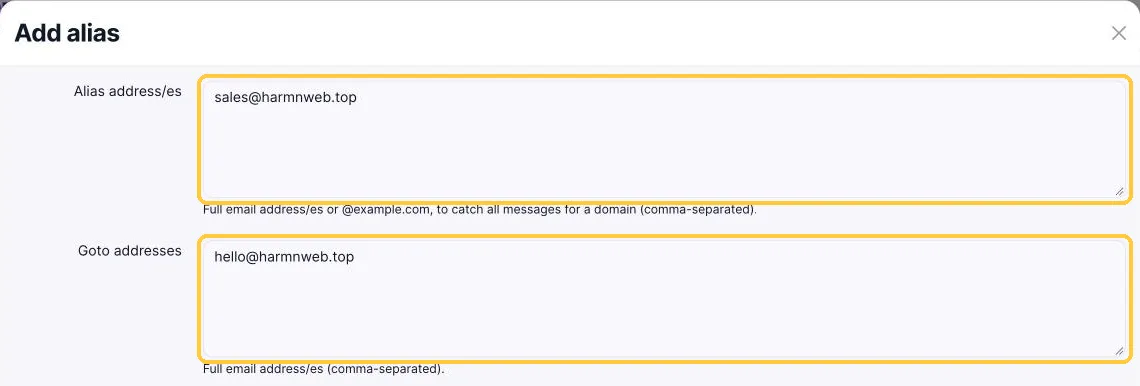
Leave the other options as they are. In particular, keep Allow to send as this alias ticked, so you can reply to customers from the alias address. Then click Add at the bottom of the form.
Step 4: Your alias is ready
The new alias appears in the list, showing which mailbox it delivers to. Emails sent to it start arriving straight away, as long as your domain’s DNS records point to Harmonweb Email.
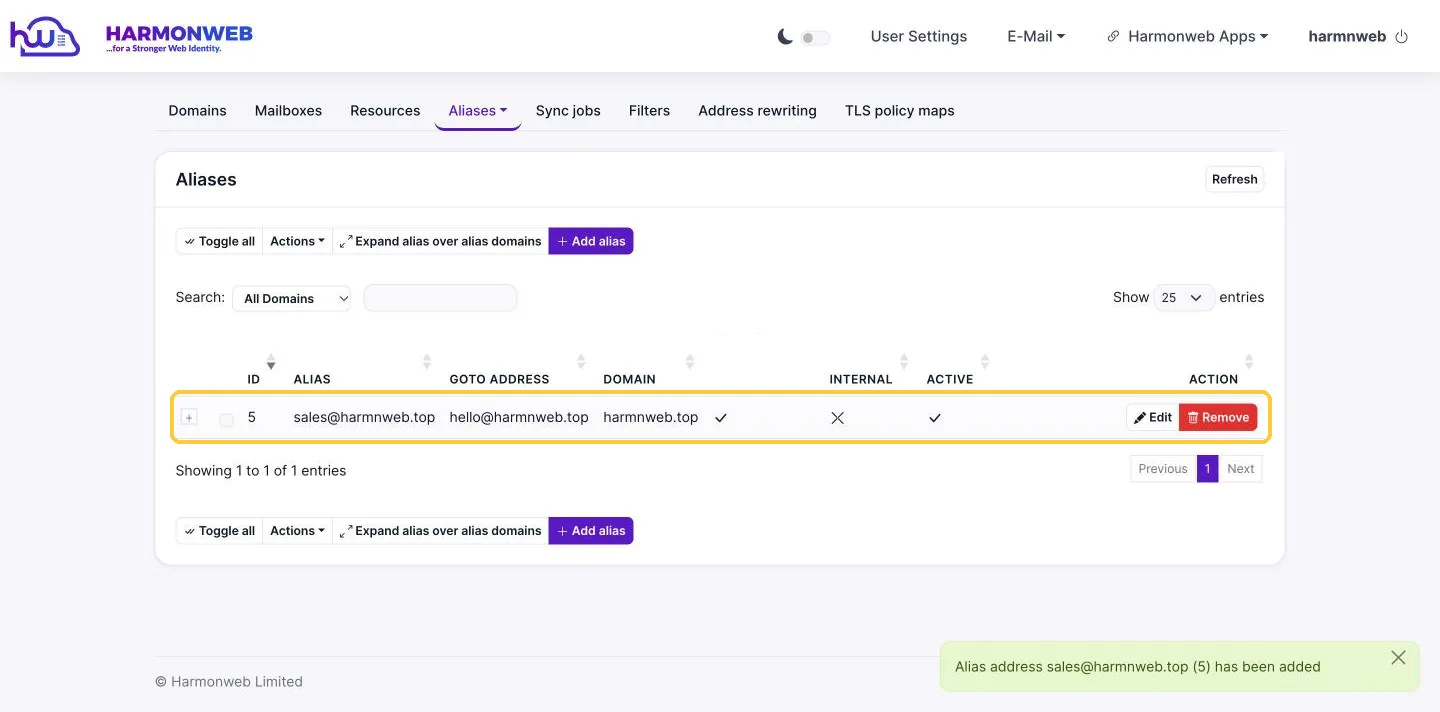
Test it: send an email to your new alias from another account, such as a personal Gmail. It should land in the mailbox you chose in Step 3.
Send one alias to several people
To share an address with your team, enter several mailboxes in Goto addresses, separated by commas. For example:
[email protected] → [email protected], [email protected]
Every email sent to support@ then lands in both Ada’s and Tunde’s inboxes, so nothing is missed when one of them is away.
Reply from your alias address
When a customer emails sales@, they expect the reply to come from sales@ too. In Harmonweb Webmail, open a new message or a reply and click the From address at the top of the message window. Your aliases are listed there, so you can pick the one to send from. In email apps like Outlook or Apple Mail, add the alias as an extra “From” address or identity on your account.
Catch-all: receive email sent to any address
If you enter @yourbusiness.com (with nothing before the @) as the alias address, it becomes a catch-all. Emails sent to any address on your domain that doesn’t exist, even ones with typos, are delivered to the mailbox you choose.
Use this with care. Catch-all addresses tend to attract a lot of spam, because spammers often guess random addresses. For most businesses, a few clearly named aliases work better.
Part 2: Forward your email to another address
A forwarder sends a copy of every email you receive to another address, including one outside your domain, like a personal Gmail. Each person can set this up for their own mailbox in webmail:
- Log in to Harmonweb Webmail.
- Click the gear icon next to your name in the top-left corner to open your preferences.
- Click Mail on the left, then open the Forward tab.
- Tick Forward incoming messages.
- Under Email addresses, type the address to forward to and press Enter. You can add more than one.
- Tick Keep a copy, so every message also stays in your Harmonweb mailbox. You’ll still have everything if the other address has problems.
- Click the round green save button at the top right.
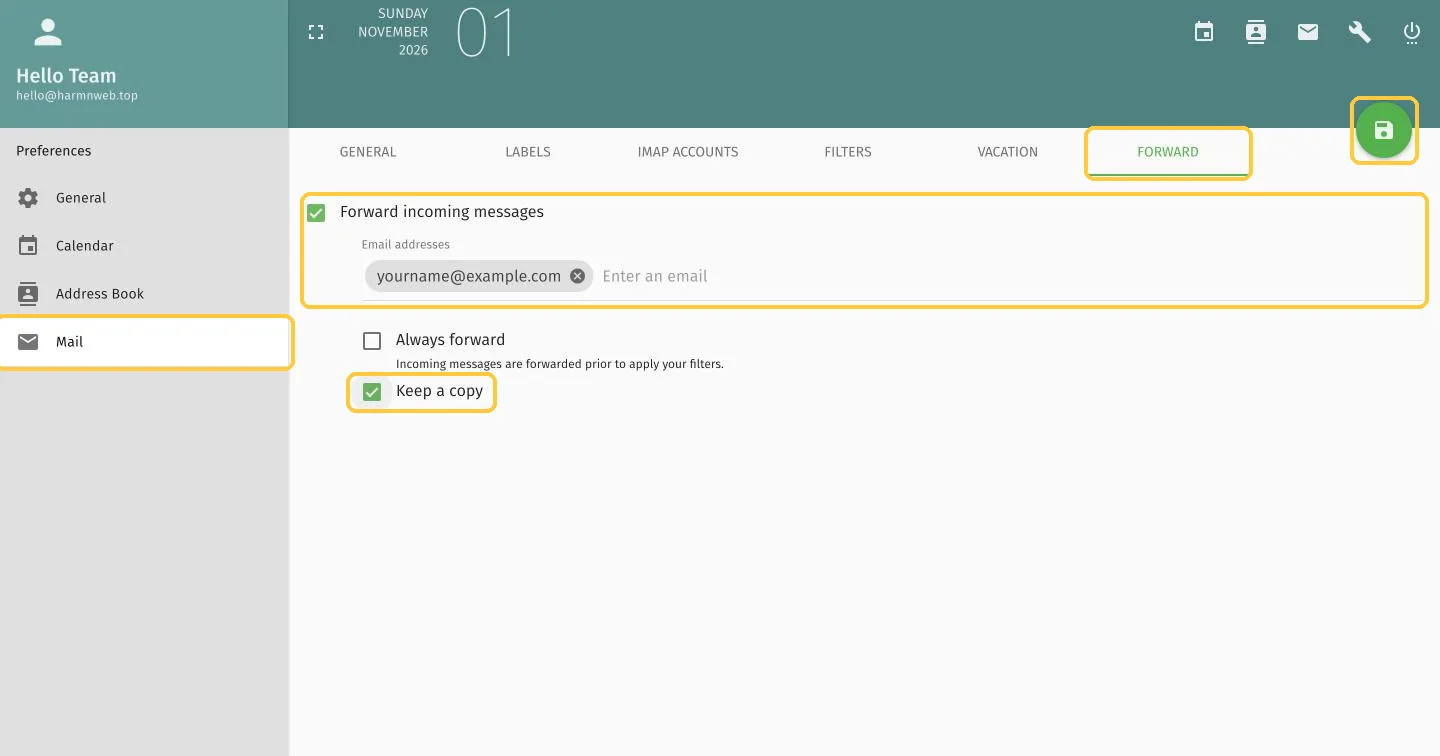
Always forward forwards messages before your mail filters run. Leave it unticked unless you know you need it. To stop forwarding, untick Forward incoming messages and save again.
Tip: if you just want to read your business email on your phone or in Gmail, it’s usually better to add your Harmonweb Email account to that app with IMAP than to forward it. That way your replies come from your business address, and nothing gets caught in spam filters along the way. See IMAP vs POP3 for the settings.
How to edit or remove an alias
On the Aliases page, click Edit next to an alias to change where it delivers, or switch it off temporarily by unticking Active. Click Remove to delete it. Removing an alias doesn’t delete any emails, because they’re stored in the mailboxes it delivered to.
Frequently asked questions
How many aliases can I create?
It depends on your plan. On the Domains tab in Manage mailboxes, the Aliases column shows how many you’ve created and how many you can have.
Do aliases count as mailboxes?
No. An alias has no inbox of its own, so it doesn’t use up a mailbox or any storage. The emails it receives count towards the storage of the mailbox they’re delivered to.
Can an alias point to an address outside my domain?
Aliases are designed to deliver to mailboxes on your Harmonweb Email account. To send email to an outside address, use a forwarder in webmail (Part 2 above).
My alias isn’t receiving email. What should I check?
Check that the alias is Active, that the address in Goto addresses is spelled correctly, and that your domain’s DNS records point to Harmonweb Email. Also check the Junk folder of the receiving mailbox. If it still doesn’t work, open a support ticket.