

You’ve ordered Harmonweb Email. Before you can send and receive email at [email protected], your domain needs a few DNS records that tell the internet where your email lives. It sounds technical, but it’s mostly copy and paste. This guide shows you exactly what to add and where, whether your domain is registered with Harmonweb or with another company.
Table of Contents
MX records explained simply
Think of your domain as your business address. When someone sends an email to [email protected], their email server first asks the internet: “Where should mail for yourbusiness.com be delivered?”
The answer is your MX record (MX stands for Mail Exchanger). It’s like the forwarding address on file at the post office. Point it to Harmonweb Email, and every new email for your domain lands in your Harmonweb mailbox.
The other records do the security work. They prove to Gmail, Outlook, Yahoo and other providers that emails sent from your domain really come from you. Without them, your messages are much more likely to land in spam.
The records you’ll add
| Type | Host / Name | What it does |
|---|---|---|
| MX | @ | Delivers incoming email to your Harmonweb mailbox. Required. |
| TXT (SPF) | @ | Lists the servers allowed to send email for your domain. Required. |
| TXT | _mailchannels | Authorises Harmonweb’s outgoing mail servers to send for your domain. Required. |
| TXT (DKIM) | dkim._domainkey | Adds a digital signature to every email you send. Required. |
| TXT (DMARC) | _dmarc | Tells receiving servers what to do with emails that fail the checks. Recommended. |
| CNAME | autodiscover, autoconfig | Lets Outlook, Thunderbird and other apps set up your account automatically. Optional. |
Important: always copy the values from your own client area. Your DKIM value is unique to your domain, so it won’t match anyone else’s.
Step 1: Find your DNS records in the client area
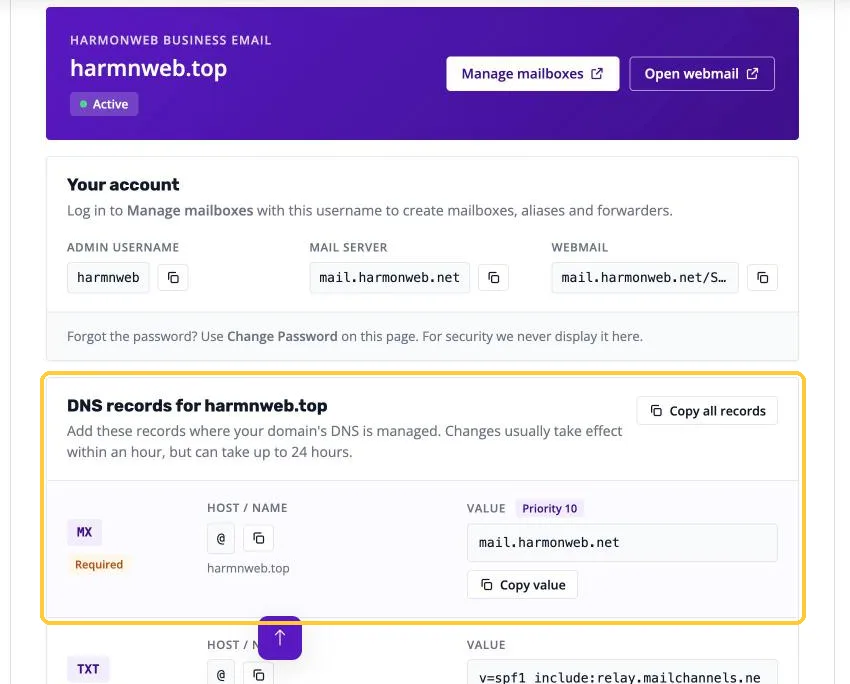
Log in to the Harmonweb client area and go to Services > My Services. Click your Harmonweb Email plan and scroll down to DNS records for yourdomain.com.
Every record is listed with its Host / Name and Value. Click Copy value to copy a single value, or Copy all records to copy them all at once. Keep this page open in a tab while you work.
Step 2: Find out where your domain’s DNS is managed
Your DNS records live wherever your domain’s nameservers point. This is usually the company where you registered the domain, but not always.
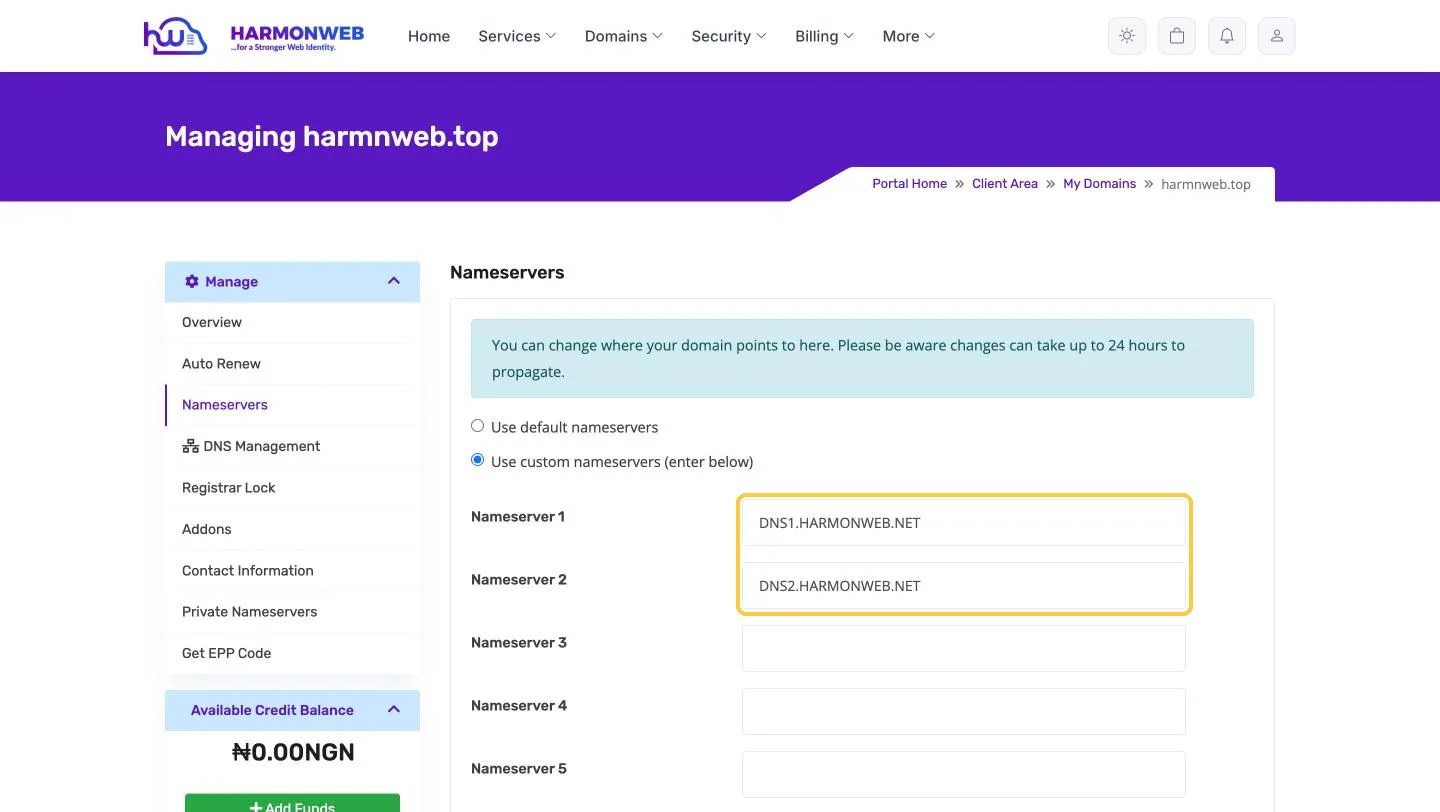
If your domain is registered with Harmonweb, go to Domains > My Domains, open your domain and click Nameservers:
- If you see dns1.harmonweb.net and dns2.harmonweb.net, your DNS is managed at Harmonweb. Follow Option A.
- If you see other nameservers (for example Cloudflare’s), add the records wherever those nameservers are managed. Follow Option B.
If your domain is registered somewhere else, log in to that registrar and check its nameserver settings. You can also look up your nameservers with any free WHOIS lookup tool.
Option A: Your domain’s DNS is managed at Harmonweb
1. Open DNS Management for your domain
Go to Domains > My Domains and click your domain.
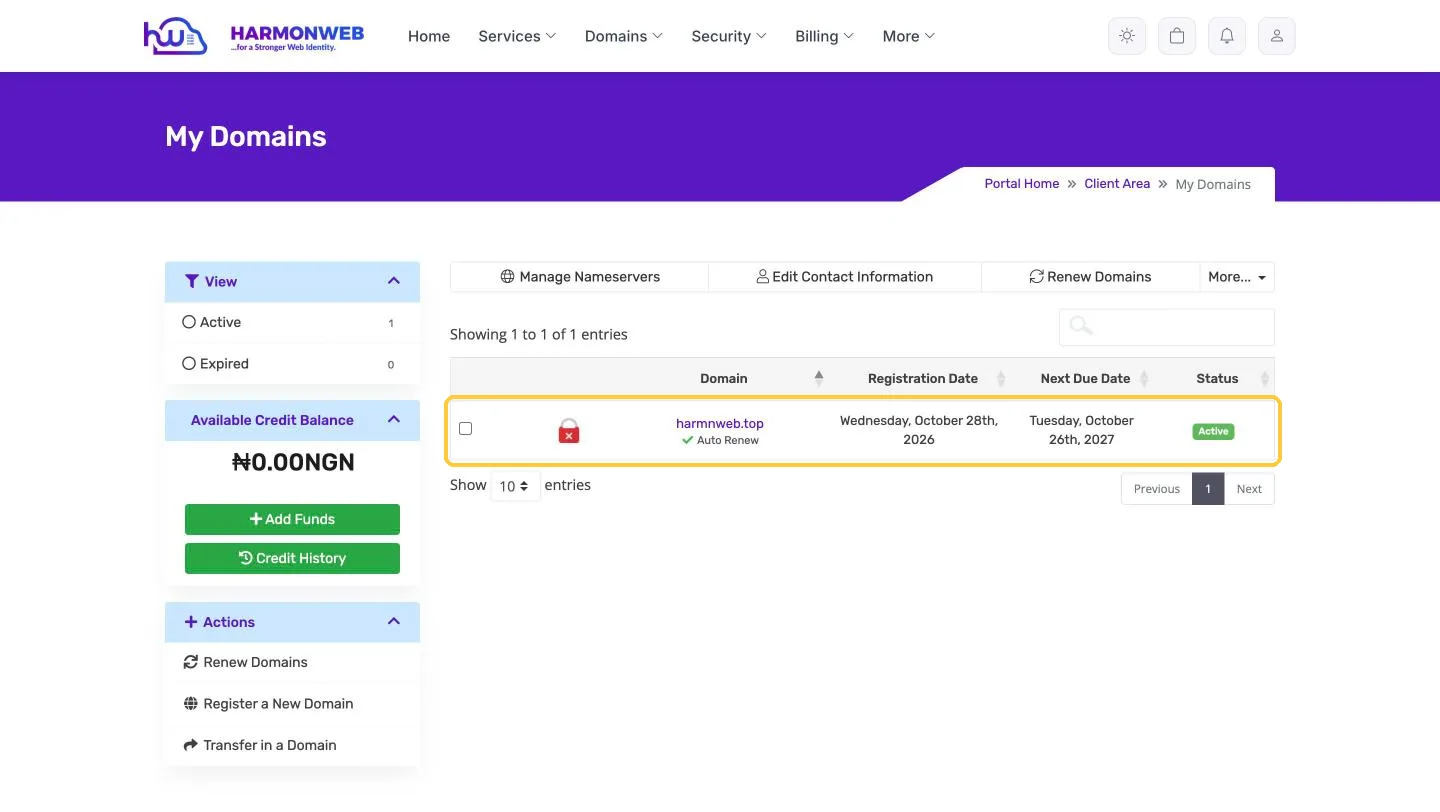
In the Manage menu on the left, click DNS Management.
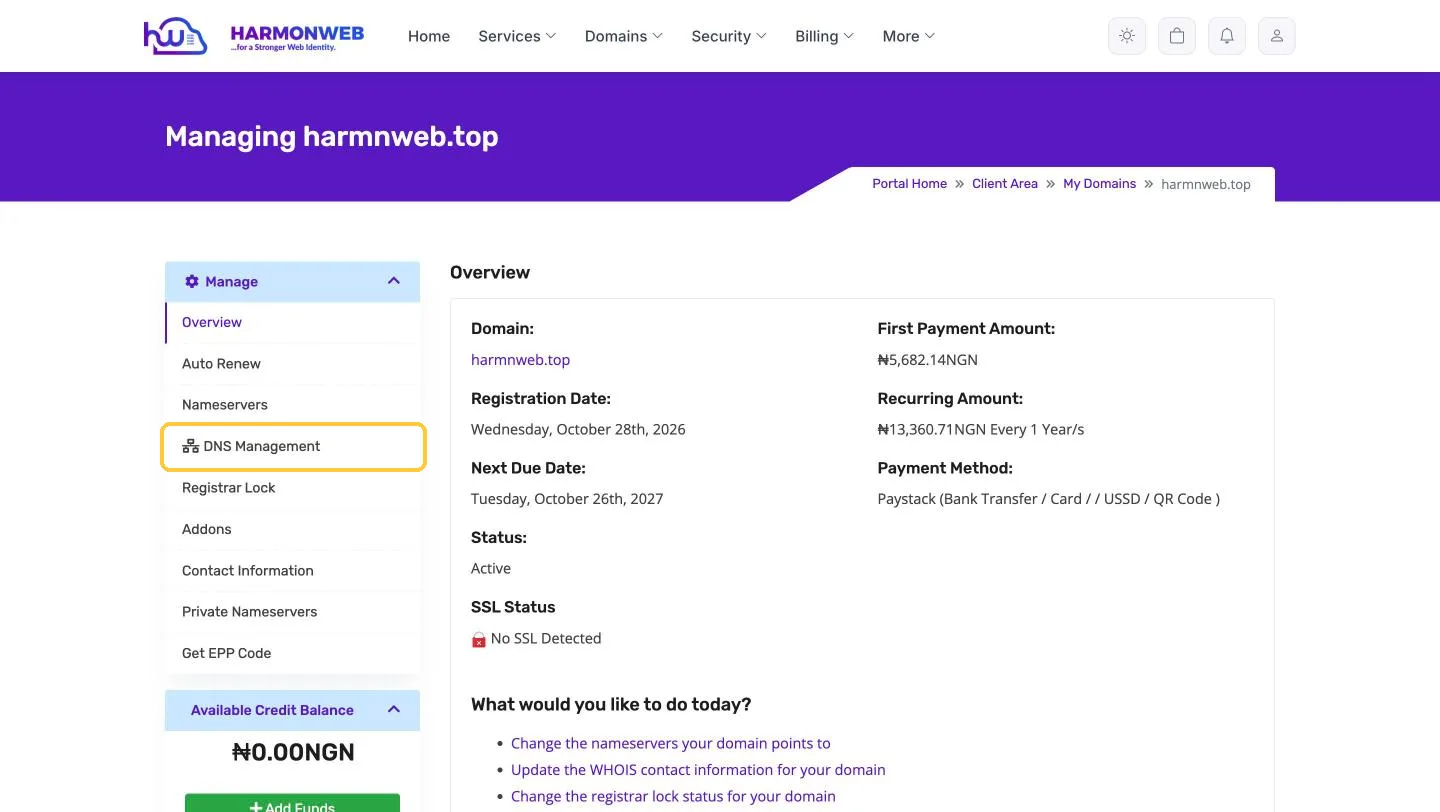
You’ll see every record on your domain. Records marked Protected are managed by Harmonweb and can’t be changed. You can edit or delete everything else, and add new records with the Add record button.
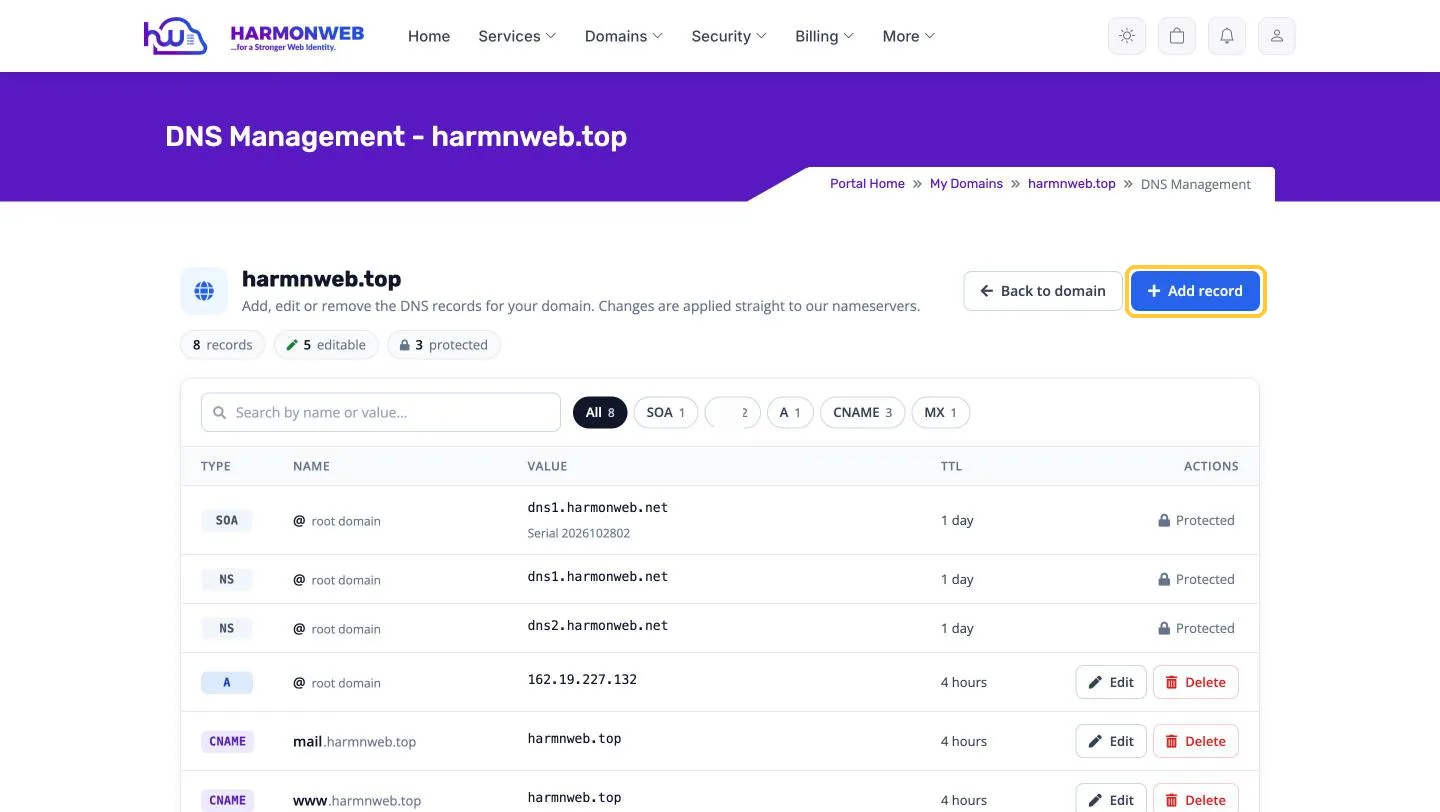
2. Update your MX record
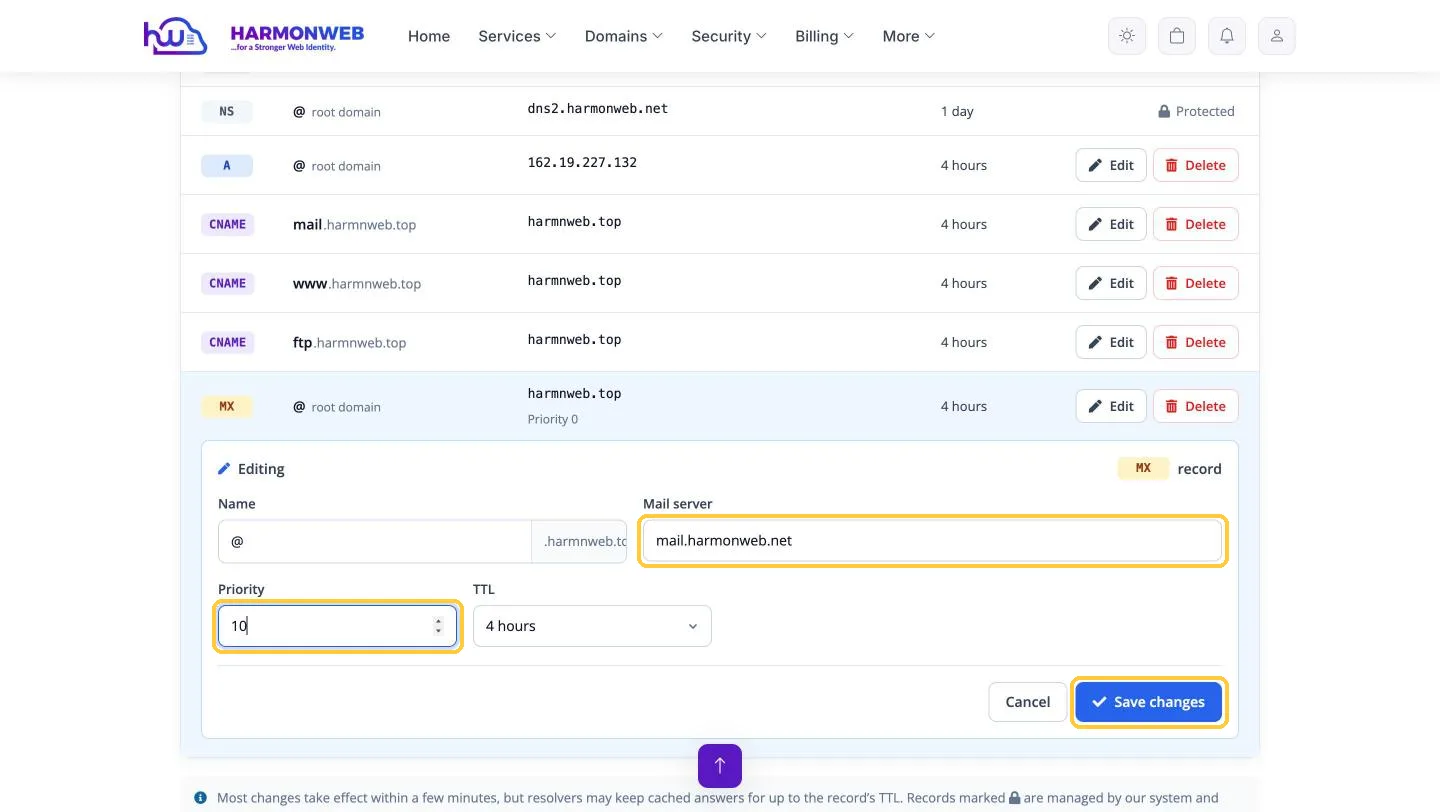
Most domains already have an MX record, usually pointing to your web hosting server or your old email provider. Don’t add a second one: edit the existing MX record instead.
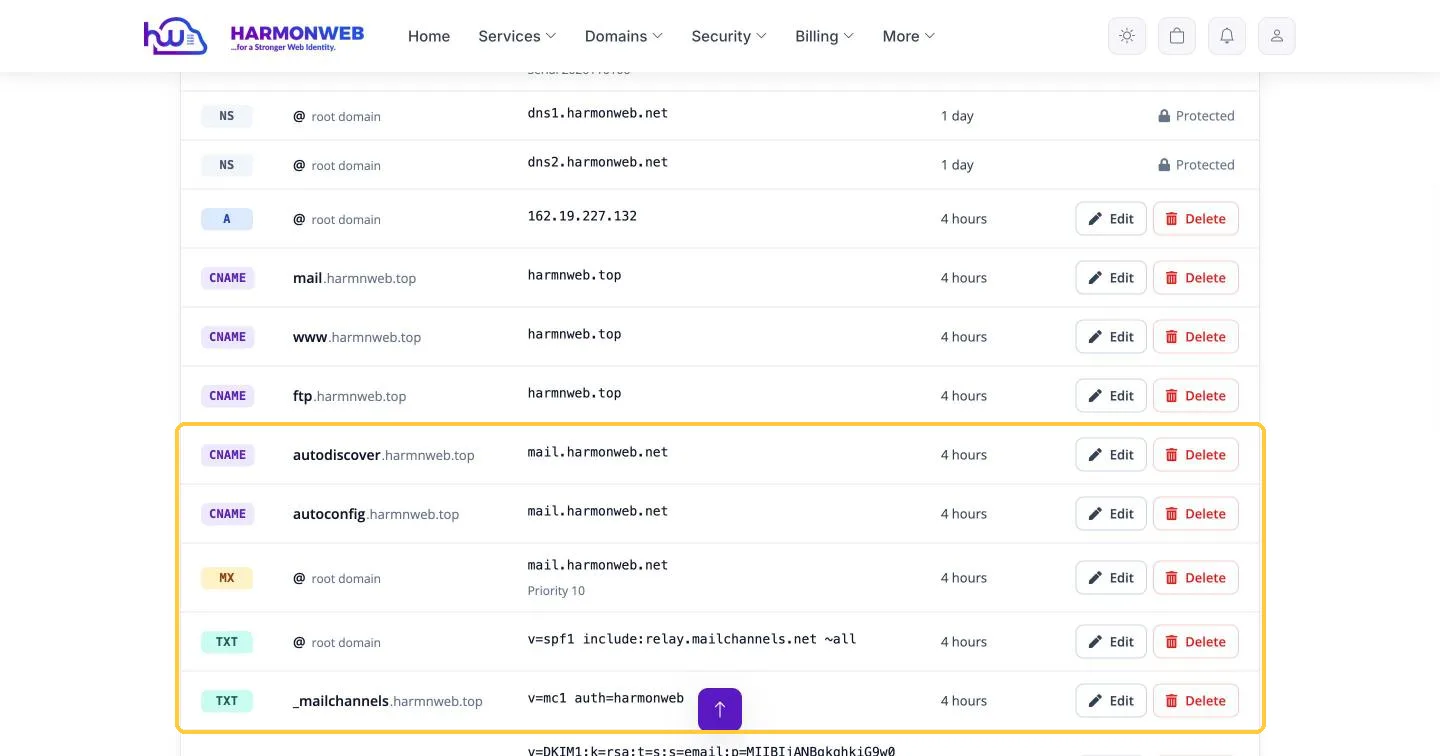
Click Edit on the MX row and set:
- Name: @
- Mail server: the MX value from your client area (for example
mail.harmonweb.net) - Priority: 10
Click Save changes.
If your domain has more than one MX record, delete the old ones so that only the Harmonweb MX record is left. Otherwise, some of your incoming email may still go to your old provider.
3. Add the TXT records (SPF, _mailchannels, DKIM and DMARC)
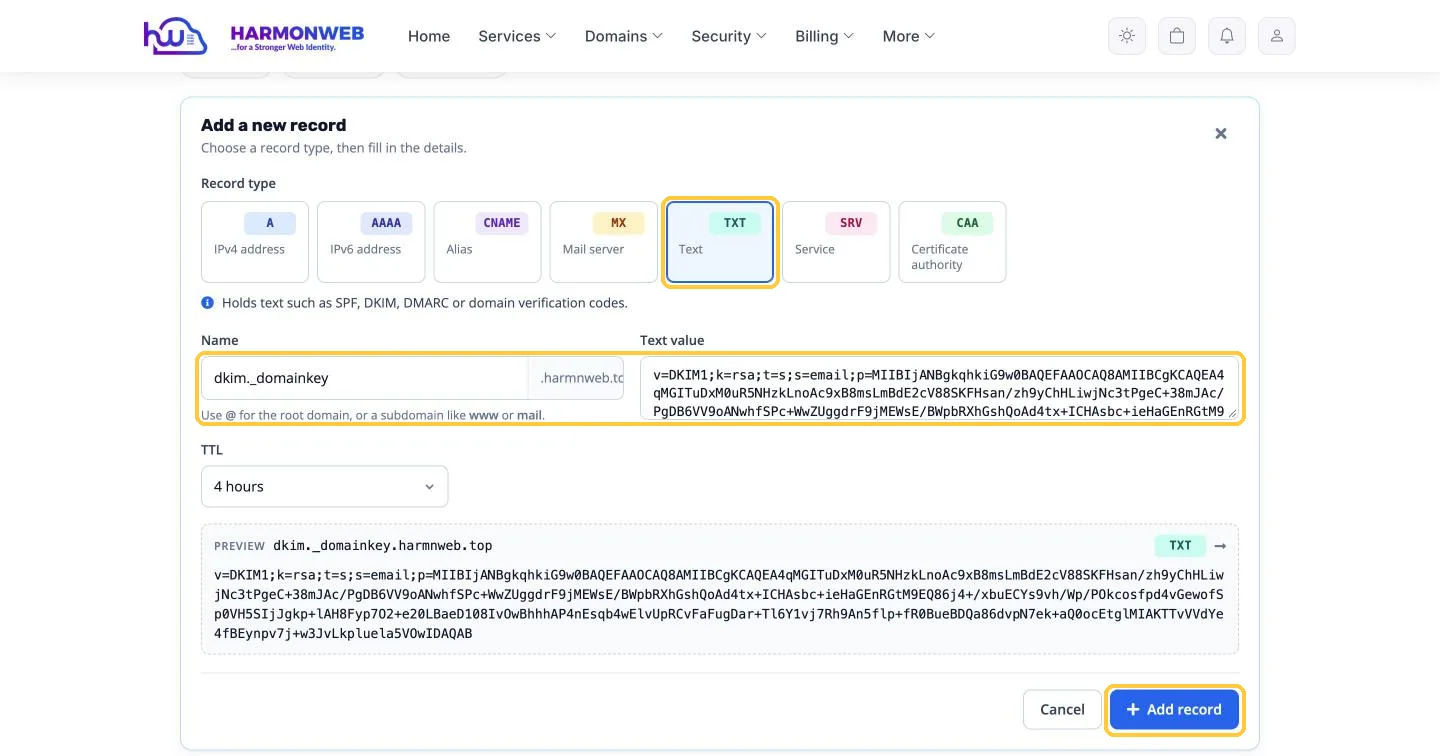
Click Add record, choose TXT, enter the Name, paste the Value from your client area and click Add record. Repeat for each TXT record:
- @: your SPF value (it starts with
v=spf1) - _mailchannels: the value starting with
v=mc1 - dkim._domainkey: your DKIM value (it starts with
v=DKIM1and is very long, so always use Copy value) - _dmarc: the value starting with
v=DMARC1
You only need to type the first part of the name (for example dkim._domainkey). Your domain name is added automatically, and the Preview line shows the full record before you save it.
Already have an SPF record? A domain must only have one SPF record. If you see an existing TXT record on @ that starts with v=spf1, don’t add a second one. Edit it instead and add the include: part from your client area before the ~all at the end. If you’re not sure, ask our support team and we’ll merge it for you.
4. Add the two CNAME records (optional, but handy)
Click Add record, choose CNAME, and add autodiscover and autoconfig, both pointing to the value from your client area. These let Outlook, Thunderbird and many phone mail apps find your settings automatically.
5. Check your records
When you’re done, your DNS list should include the new MX, TXT and CNAME records, like this:
Option B: Your domain’s DNS is managed somewhere else
The records are exactly the same. Only the screens are different. Log in to the company that manages your DNS, open the DNS settings for your domain, and add the records from your Harmonweb client area. Here’s where to find DNS settings with some popular providers:
- Namecheap: Domain List > Manage > Advanced DNS
- GoDaddy: My Products > your domain > DNS
- Cloudflare: select your domain > DNS > Records
- A cPanel hosting account: Domains > Zone Editor
A few things to watch out for:
- Host / Name field. Most providers add your domain name automatically, so type only @, _dmarc or dkim._domainkey, not the full
dkim._domainkey.yourdomain.com. Some providers use a blank field instead of @ for the root domain. - Remove old MX records. Delete any MX records that point to your old email provider so all new mail goes to Harmonweb.
- Cloudflare users. Set the autodiscover and autoconfig CNAME records to DNS only (grey cloud), not Proxied.
- cPanel users. If your website is hosted on a cPanel server, also go to Email > Email Routing in cPanel and choose Remote Mail Exchanger. Otherwise, emails sent from your website to your own addresses may never leave that server.
- Long DKIM values. Some older DNS panels limit TXT records to 255 characters. If yours won’t accept the full DKIM value, contact your DNS provider or our support team for help.
Step 3: Confirm your records are working
DNS changes usually take effect within an hour, but they can take up to 24 hours to reach every network.
To check, click Check your records under the DNS records in your client area. It opens a free email health test for your domain. You can also run a quick MX lookup at MxToolbox. When everything is set up, your MX record shows the Harmonweb mail server and the DNS record checks pass.
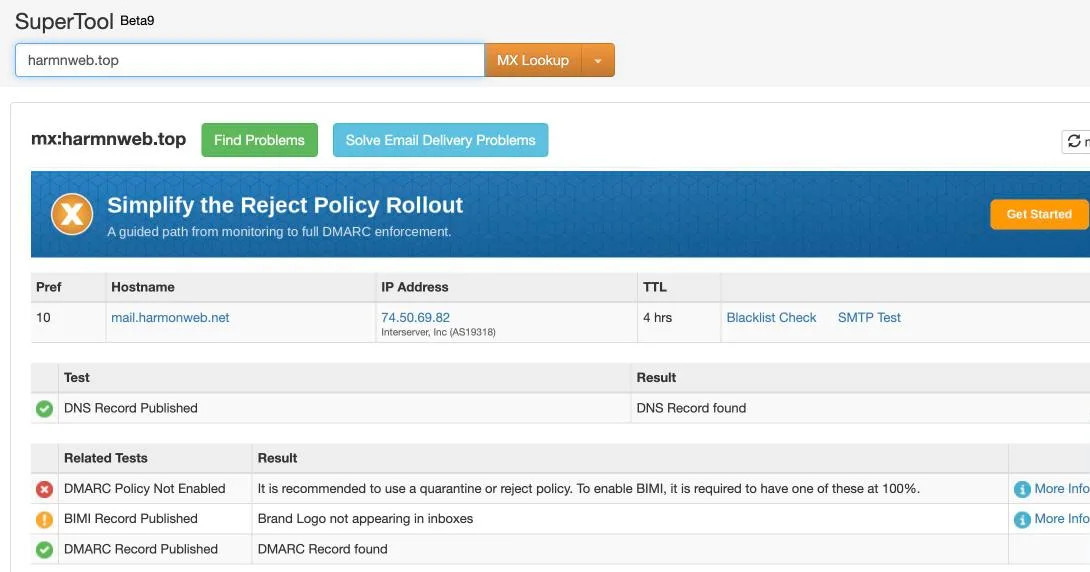
Don’t worry if the tool recommends a stricter DMARC policy. Starting with p=none is normal and safe. You can tighten it later once your email has been working smoothly for a few weeks.
What does MX priority mean?
The priority number tells sending servers which mail server to try first when a domain has more than one. Lower numbers are tried first. With Harmonweb Email you only need one MX record, so the exact number doesn’t matter much. Use the one shown in your client area (10).
Frequently asked questions
Will changing my MX record affect my website?
No. MX and TXT records only affect email. Your website uses different records (A and CNAME records for www), which you don’t need to touch.
What happens to emails in my old mailbox?
Changing your MX record only changes where new emails go. Your old emails stay with your old provider until you move them. We cover this in our guide to moving your emails to Harmonweb Email.
Will I miss any emails during the switch?
While DNS updates spread, a few emails may still arrive at your old provider. Keep your old mailbox active for a day or two after the change and check it once or twice.
My records are added but email still isn’t arriving. What should I check?
Make sure you only have one MX record and that it points to Harmonweb. Check that you’ve added the records at the place your nameservers point to, not at another provider. Then give DNS a few hours to update. If it still isn’t working, open a support ticket and we’ll check your domain for you.
What to do next
Once your records are in place, create your first email address. Go to your Harmonweb Email plan in the client area and click Manage mailboxes to add an address like [email protected].



Pingback: How to Order Harmonweb Email Hosting (Step-by-Step) | HarmonWeb
Pingback: How to Create a Professional Email Address (Step-by-Step) | HarmonWeb