As your business grows, people join, change roles and leave. With Harmonweb Email, you control every email address on your domain from one place. This guide is for the account owner or IT person. It shows you how to add team members, change their details and passwords, temporarily block an account, and delete one safely when someone leaves.
Table of Contents
Before you start
You’ll manage all your team’s email addresses in Manage mailboxes. To get there, open your Harmonweb Email plan in the client area, click Manage mailboxes and log in with your admin username and password. If this is your first time, see how to create your first professional email address.
Check how many email accounts you can create
The Domains tab shows your domain and how much of your plan you’re using:
- Mailboxes: how many email accounts you’ve created and how many your plan allows. For example, 1 / 1 means you’ve used all of them.
- Quota: how much storage your accounts are allowed to use in total, out of your plan’s total storage.
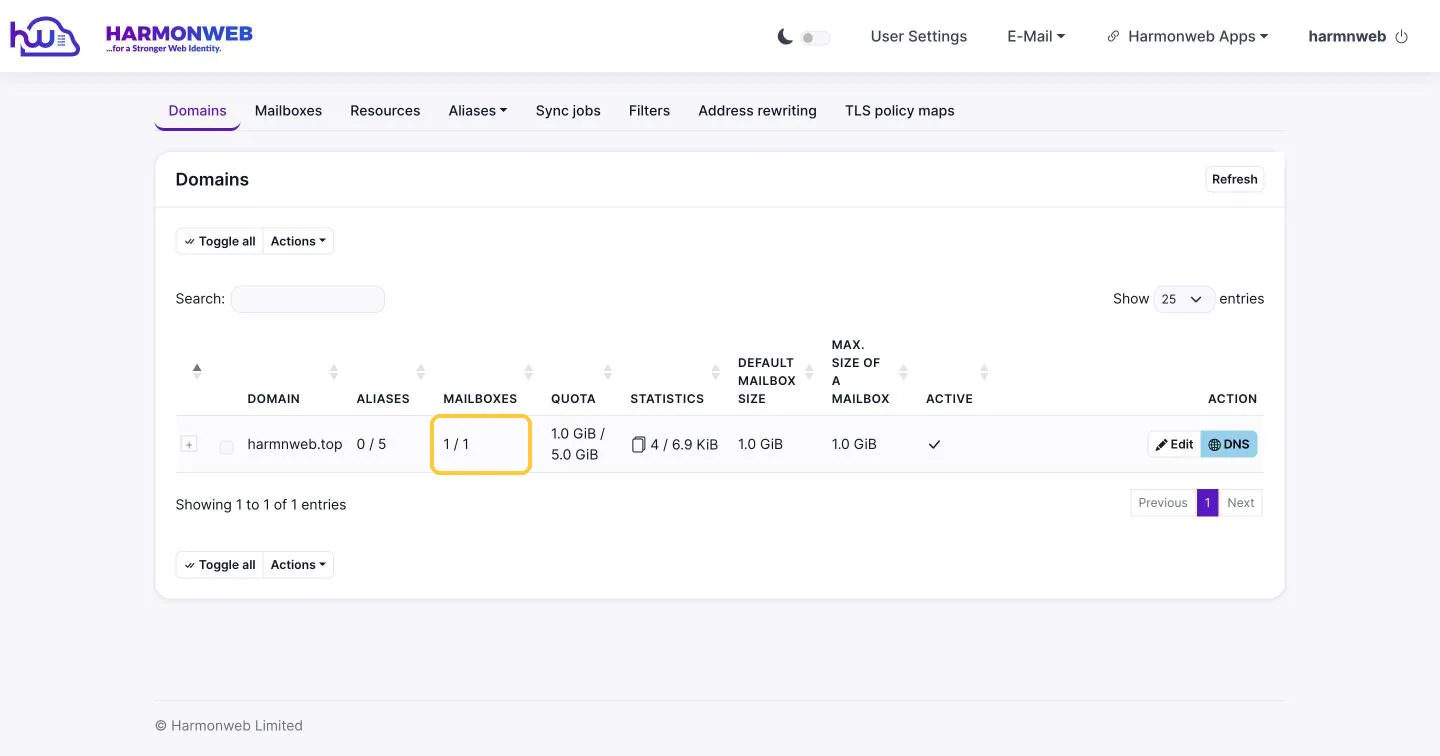
If you’ve reached your limit, you’ll need to upgrade your plan or delete an account you no longer need before you can add another. Tip: if someone just needs an extra address like sales@, you can use an alias that delivers to an existing inbox instead of creating a new account.
The Mailboxes tab at a glance
Click the Mailboxes tab to see every email account on your domain. For each one, you can see its storage use, when it last logged in, when its password was last changed, how many messages it holds, and whether it’s active.
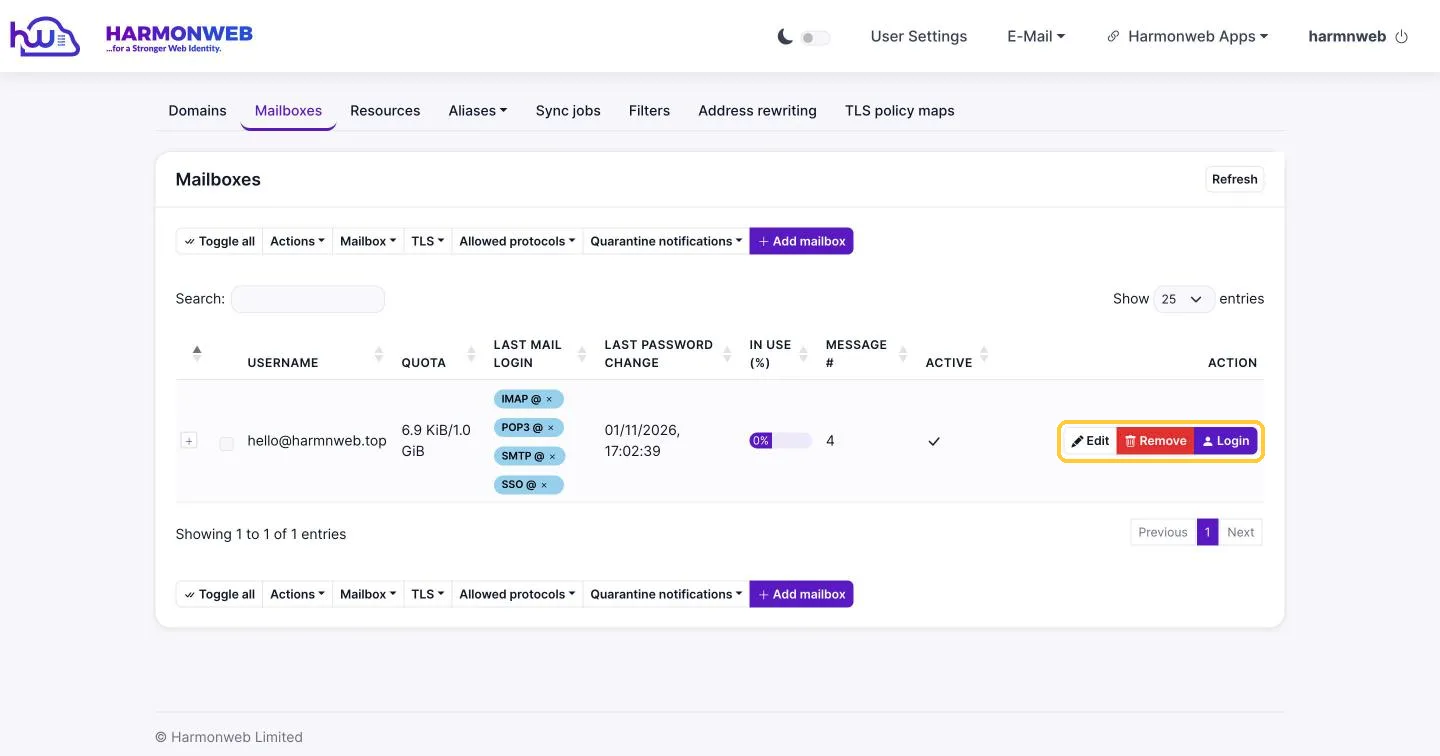
On the right of each account are three buttons:
- Edit: change the name, password, storage, status and other settings.
- Remove: delete the account permanently.
- Login: open that account’s webmail without its password. This is useful for support, but only do it with the person’s knowledge and in line with your company’s policies.
How to add an email account for a team member
- On the Mailboxes tab, click Add mailbox.
- Enter the Username (the part before the @, such as ada for [email protected]) and the person’s Full name.
- Set a Password, or click generate and copy the password somewhere safe.
- Set the Quota (storage) for this person. If several people share your plan’s storage, give each one a fair share.
- Click Add.
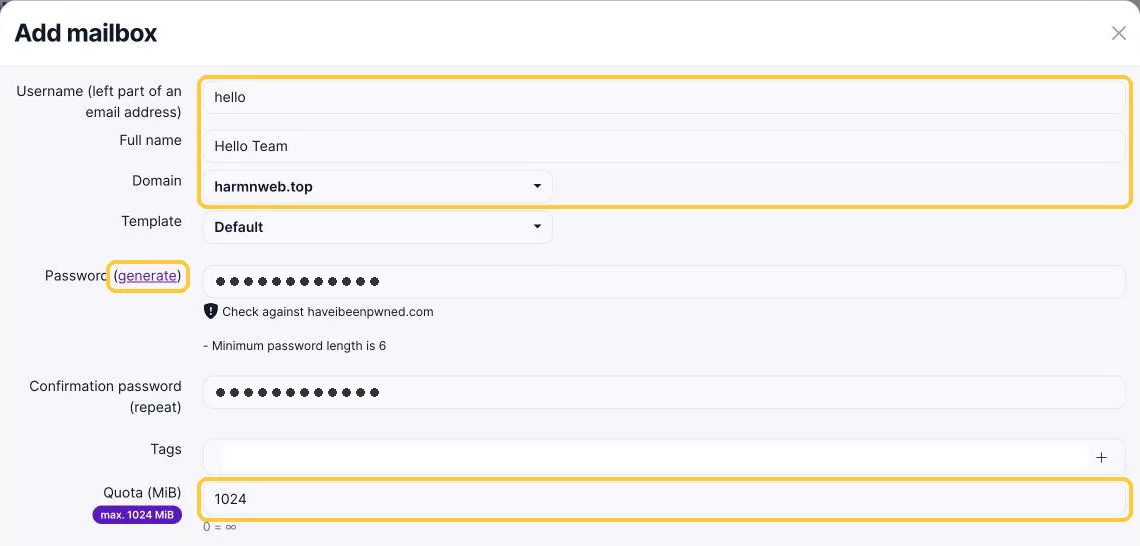
Then share the new address and password with your team member privately, for example in person or over a phone call, not in a group chat. Ask them to change their password the first time they log in.
How to edit an email account
Click Edit next to the account. On the Edit mailbox tab you can change:
- Full name: the name people see when this person sends an email.
- Quota (MiB): how much storage this account can use. 1024 MiB is 1 GB.
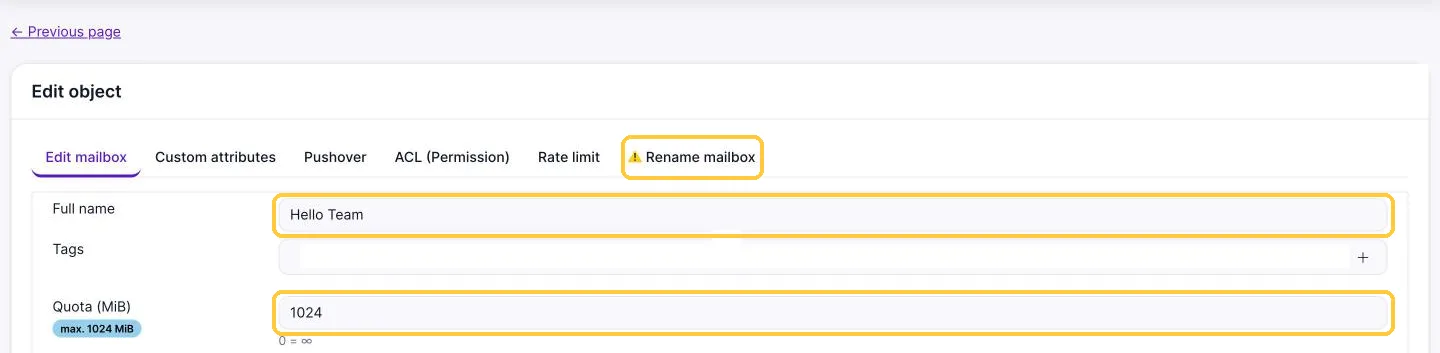
The Rename mailbox tab changes the email address itself. Use it with care: the person will need to log in with the new address and update the account in every email app they use.
Scroll to the bottom and click Save changes when you’re done.
How to reset a team member’s password
If someone forgets their password, or you think an account may be compromised:
- Click Edit next to their account.
- Scroll down to Password. Type a new password, or click generate to create one, and enter it again in Confirmation password.
- Click Save changes.

Leave the password fields empty if you don’t want to change the password. Before saving, you can also tick Force password update at next login, so the person must choose their own new password.
How to temporarily block an account
Sometimes you need to stop someone logging in without deleting their email, for example when a staff member leaves or goes on extended leave. Click Edit, scroll to the bottom and open the status menu:
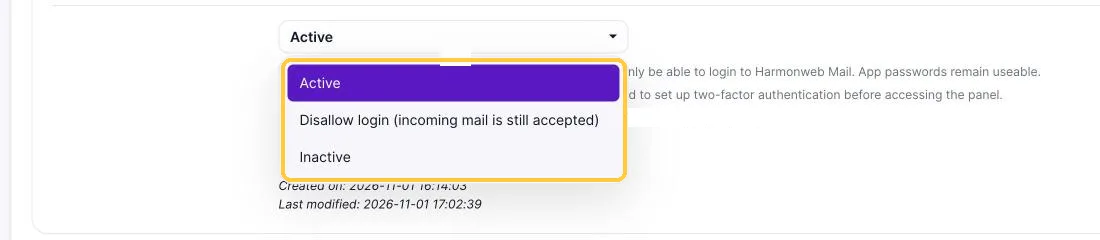
- Active: the account works normally.
- Disallow login (incoming mail is still accepted): nobody can log in, but new emails keep arriving. This is usually the best choice when someone leaves, because customer emails aren’t lost.
- Inactive: the account is switched off completely.
Click Save changes. You can switch the account back to Active at any time.
What to do when someone leaves your company
- Block access straight away. Set the account to Disallow login, or reset its password.
- Keep the emails coming to someone. Log in to the account with the Login button and set up forwarding, or have a colleague check it regularly.
- Save anything important. Move or export any emails your business needs to keep.
- Delete the account when you’re ready. This frees up a mailbox on your plan for someone new.
How to delete an email account
Deleting an account is permanent. All of its emails, folders, contacts and calendar entries are deleted and can’t be recovered. Back up anything you need first.
- On the Mailboxes tab, click Remove next to the account.
- Check that the address shown in the Confirm deletion box is the one you want to delete.
- Click Delete now. Or click Cancel if you’ve changed your mind.
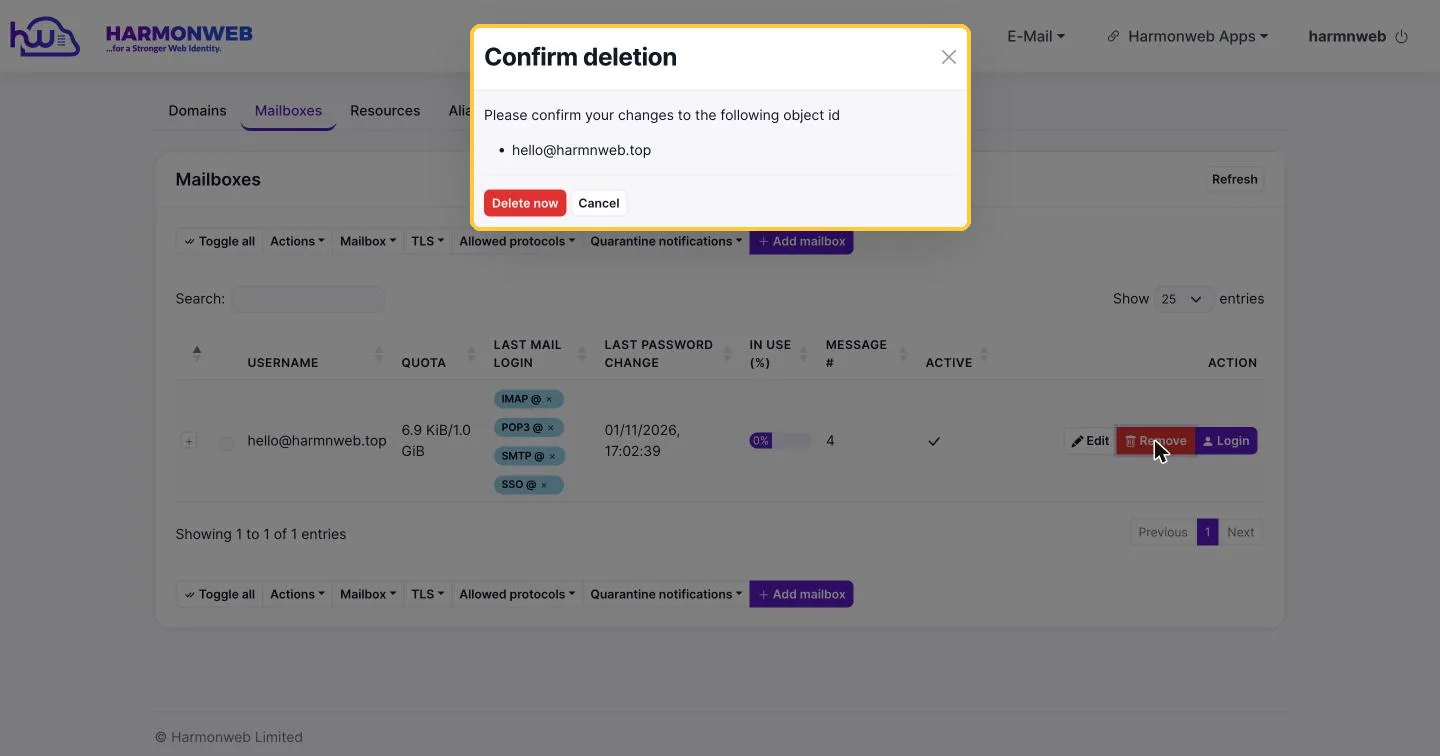
Once deleted, the address stops receiving email, and the mailbox slot becomes free for a new team member.
Best practices for managing your team’s email
- Give everyone their own account. Shared passwords make it hard to know who did what, and hard to remove access when someone leaves.
- Use role addresses like info@, sales@ and support@, so customer conversations don’t depend on one person.
- Turn on two-factor authentication for important accounts. Each person can enable it from their account settings.
- Review your accounts every few months. Remove the ones you no longer need, and check that storage is shared fairly.
Frequently asked questions
I can’t add a new account. Why?
You’ve probably used all the mailboxes your plan includes. Check the Mailboxes column on the Domains tab. Email Starter includes 1 mailbox, Email Pro 10 and Agency Email 50. Upgrade your plan or remove an account you don’t need.
Can I recover an account after deleting it?
No. Deleting an account removes its emails permanently. If you’re not sure, set the account to Disallow login instead, and delete it later.
A team member is running out of storage. What can I do?
Click Edit next to their account and increase their Quota, as long as your plan has storage left. You can also ask them to empty their Trash and delete large old emails.
Can team members change their own password?
Yes. They can change it themselves from their account page after logging in to Harmonweb Webmail.