

Getting a professional email address like [email protected] takes about five minutes with Harmonweb Email. This guide walks you through the full process: choosing a plan, connecting your domain, checking out, paying and getting your plan activated.
Every step below comes with a screenshot from the Harmonweb client area, so you always know where to click.
Table of Contents
What you need before you start
- A domain name. You can use a domain you already own (registered with Harmonweb or anywhere else), or register a new one during checkout.
- A Harmonweb client area account. If you don’t have one, you can create it during checkout.
- A payment method. Card, bank transfer, USSD, mobile money or crypto.
Step 1: Open the Harmonweb Email page
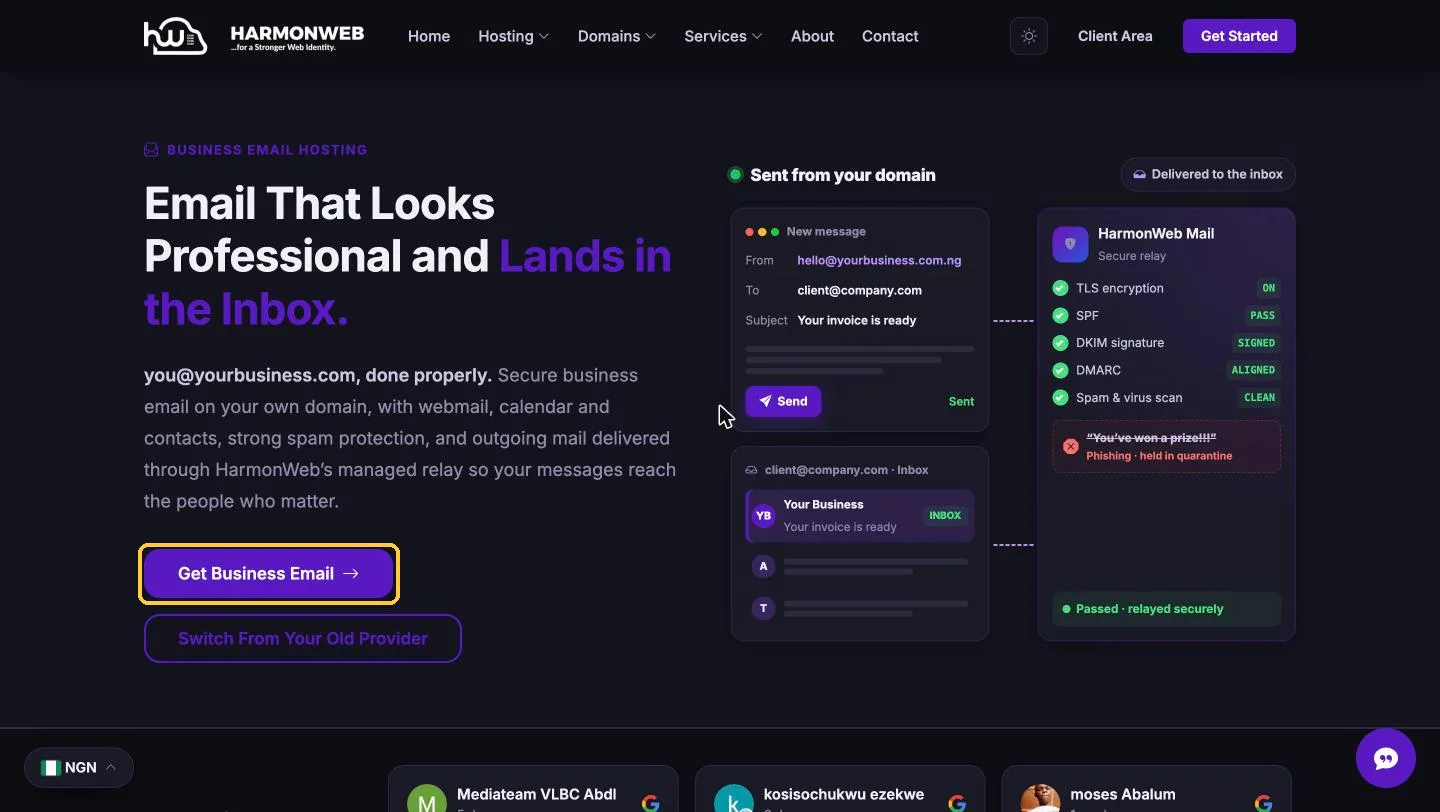
Go to harmonweb.com/hosting/email-hosting. You can also get there from the Hosting menu at the top of the Harmonweb website. Click Get Business Email to jump to the plans.
Step 2: Choose your email plan
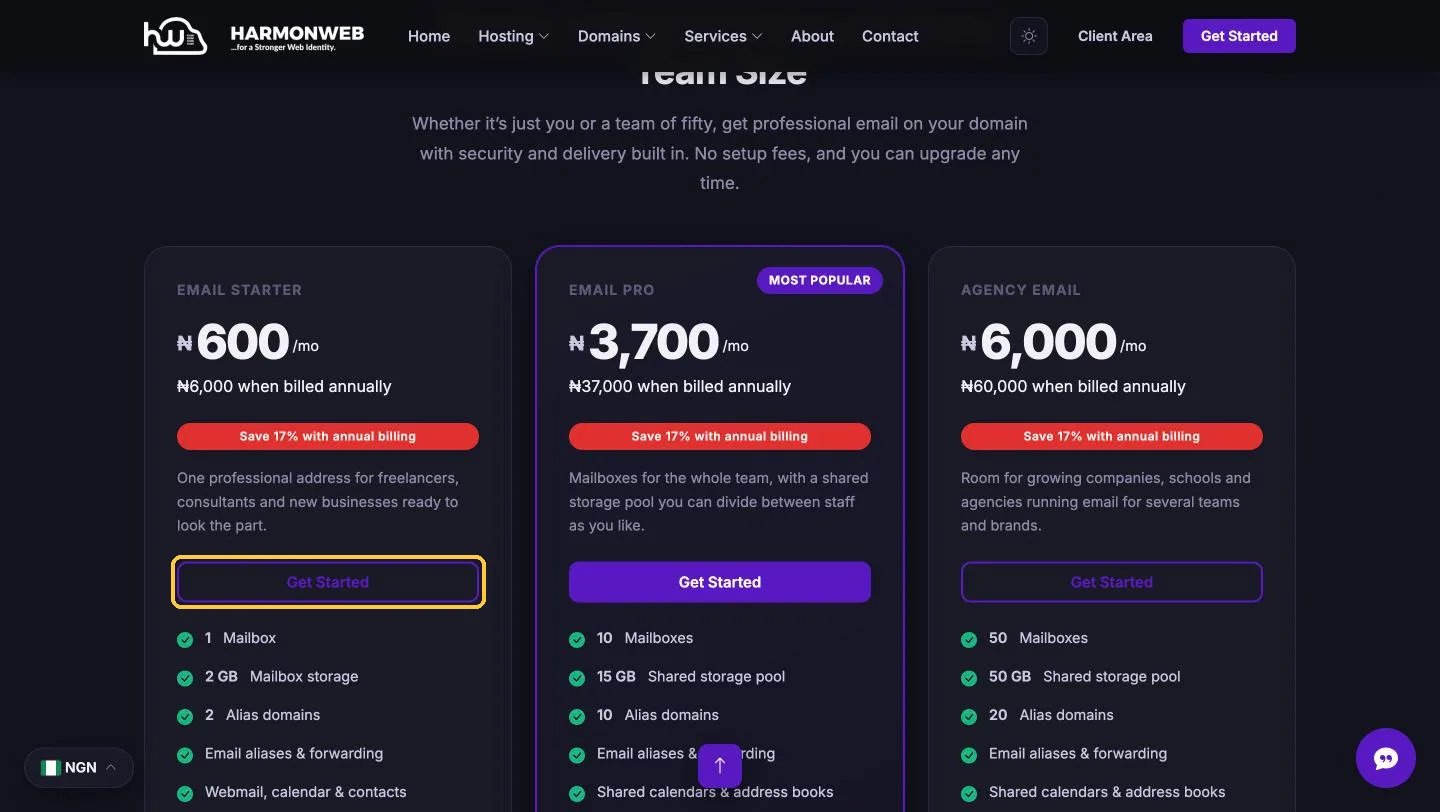
Scroll to the plans and pick the one that fits your team. Every plan includes webmail, spam and virus protection, IMAP/POP3/SMTP access on any device, SPF/DKIM/DMARC setup and two-factor authentication.
| Plan | Monthly price | Mailboxes | Storage | Best for |
|---|---|---|---|---|
| Email Starter | ₦600/mo | 1 | 2 GB | Freelancers, consultants and new businesses |
| Email Pro | ₦3,700/mo | 10 | 15 GB shared | Small teams |
| Agency Email | ₦6,000/mo | 50 | 50 GB shared | Growing companies, schools and agencies |
Paying annually saves you about 17%. There are no setup fees, and you can upgrade later as your team grows.
Click Get Started under the plan you want. In this guide we’re ordering Email Starter.
Step 3: Connect your domain
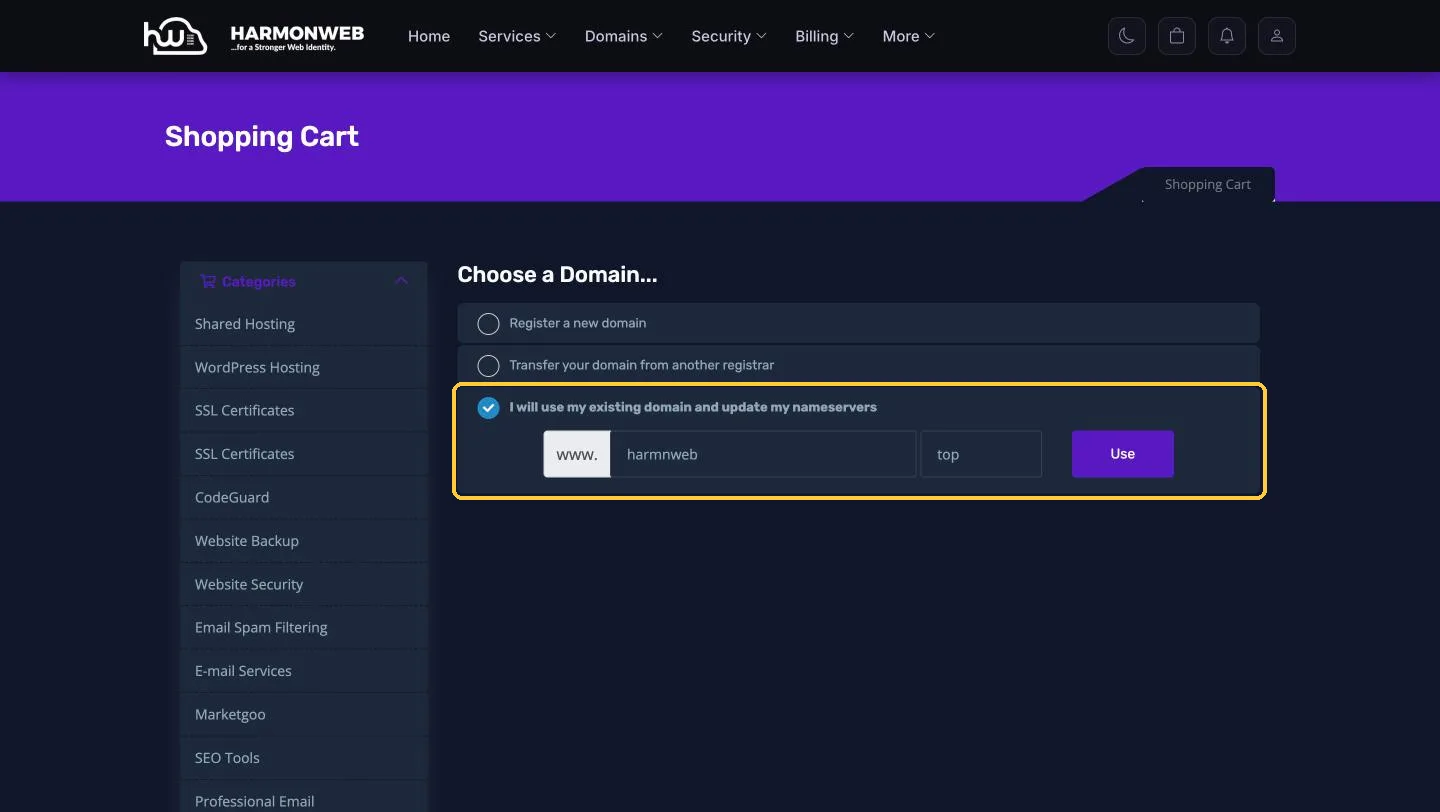
Next, tell us which domain your email addresses will use. You’ll see three options:
- Register a new domain: if you don’t own a domain yet. Type the name you want, pick an extension like .com or .com.ng, and click Check.
- Transfer your domain from another registrar: if you want to move your domain to Harmonweb as well.
- I will use my existing domain: if you already own the domain. This is the most common choice.
We’re using an existing domain. Select that option, type your domain name in the first box and its extension in the second box (without the dot), then click Use.
Tip: choosing an existing domain doesn’t move your website. Your email starts working once your domain’s email records point to Harmonweb. We’ll show you how in a separate guide.
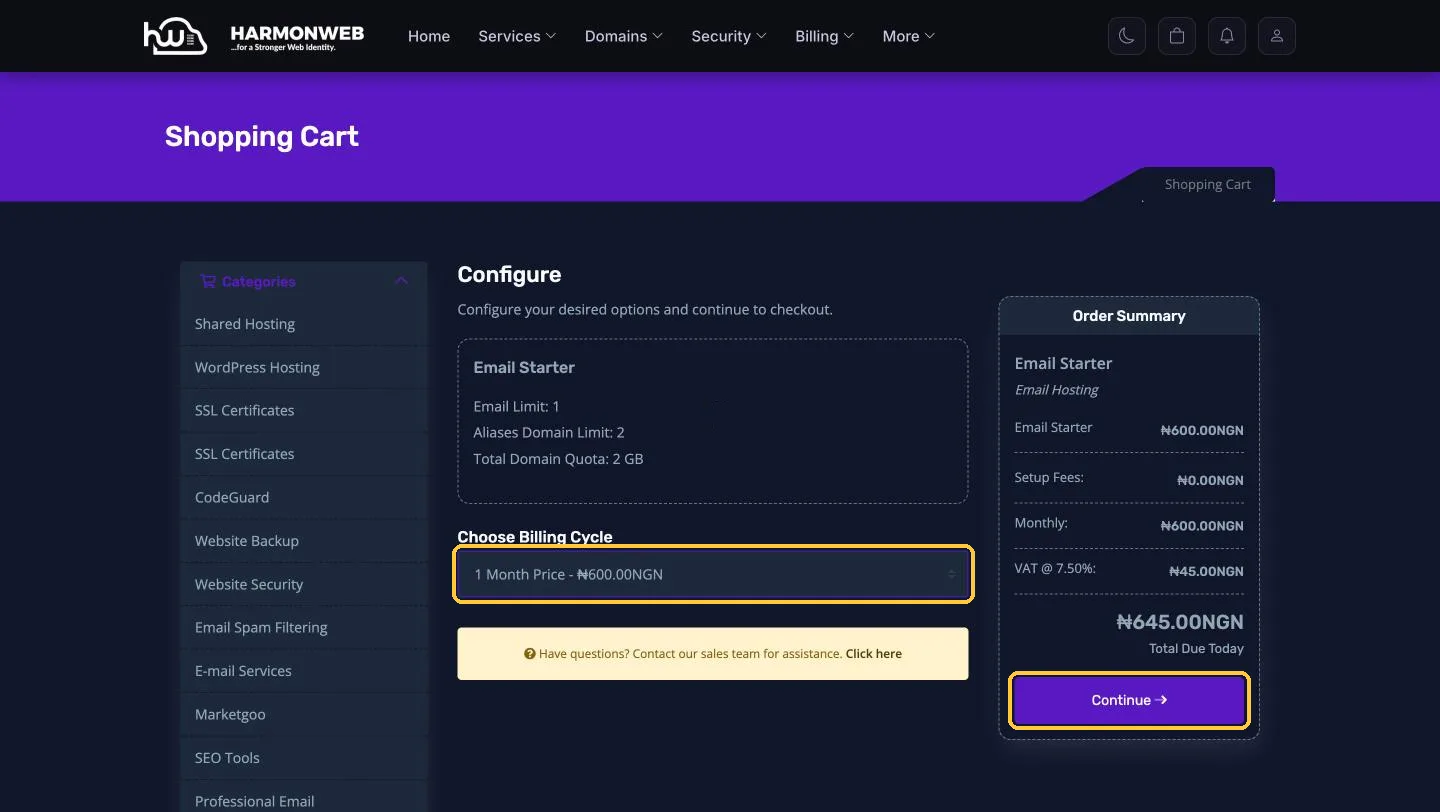
Step 4: Choose your billing cycle
On the Configure page, you’ll see what your plan includes and an Order Summary on the right. Use the Choose Billing Cycle dropdown to pick how often you want to pay: 1, 3, 6 or 12 months. The 12-month option gives you the lowest monthly price.
The Order Summary updates as you change the cycle and shows VAT (7.5%) and your Total Due Today. When you’re happy, click Continue.
Step 5: Review your cart
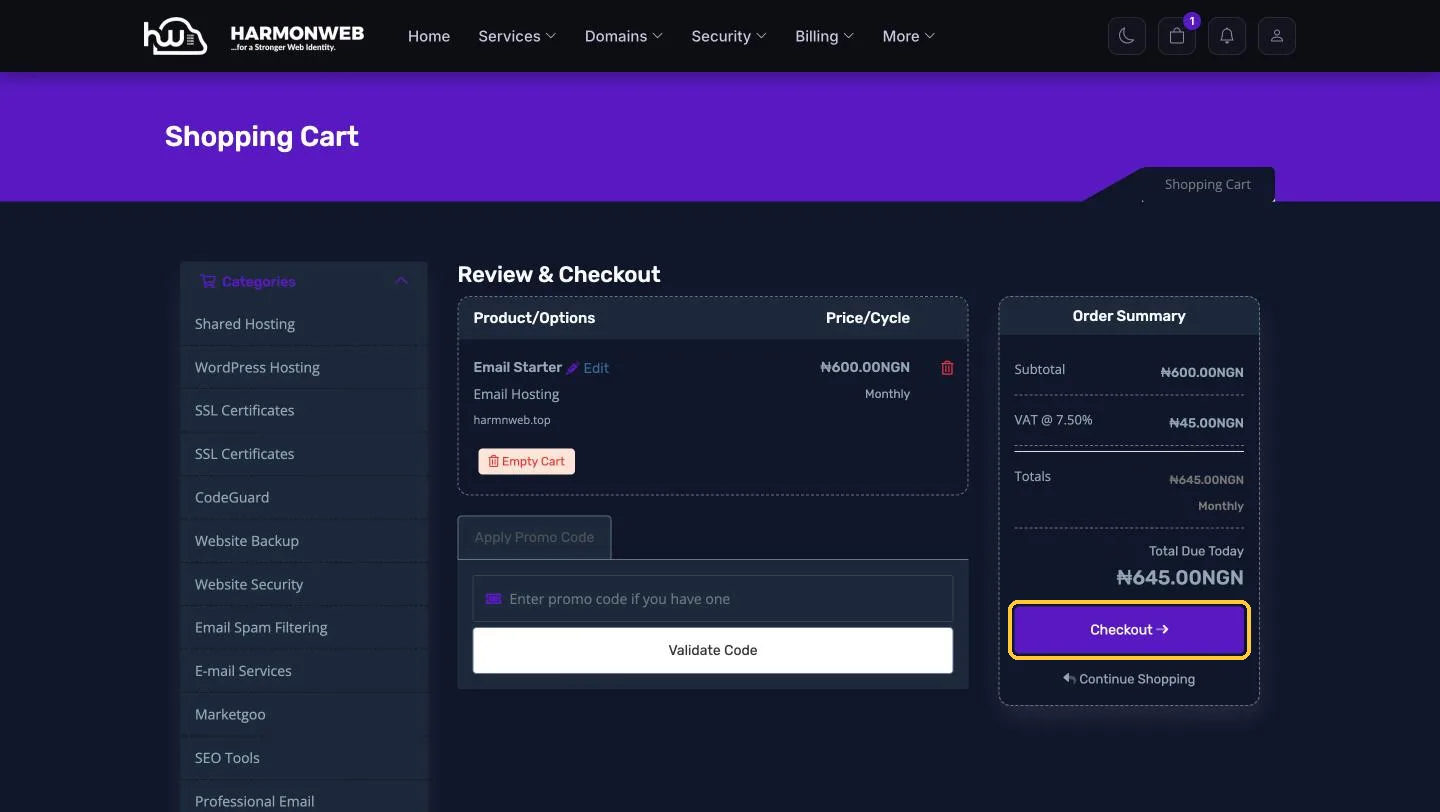
The Review & Checkout page lists your plan, the domain it’s attached to and the billing cycle. If you have a promo code, enter it and click Validate Code. Need to change something? Click Edit next to the plan.
When everything looks right, click Checkout.
Step 6: Confirm your account details
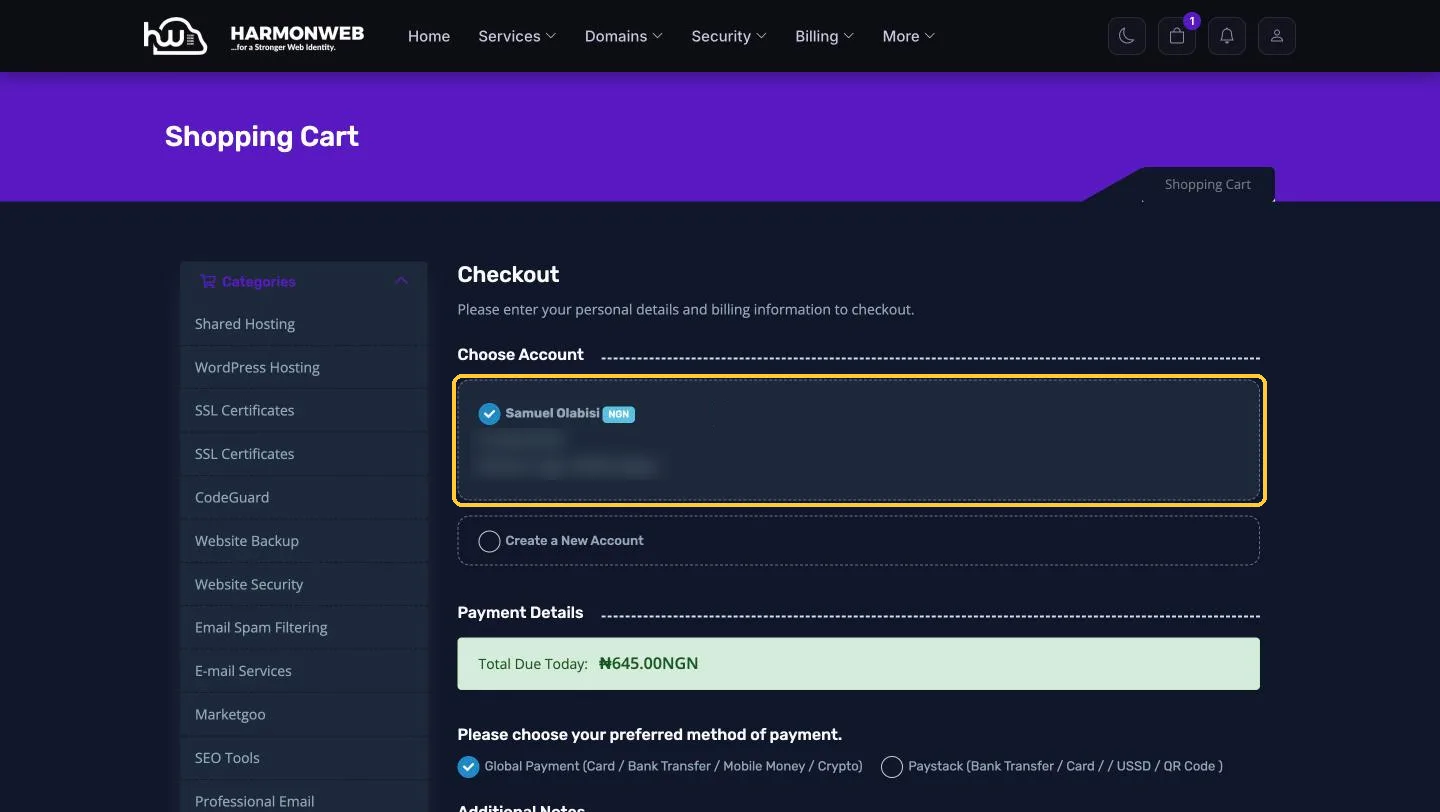
If you’re logged in, your Harmonweb account is already selected under Choose Account. New customers can select Create a New Account and fill in their details here.
Step 7: Choose a payment method and place your order
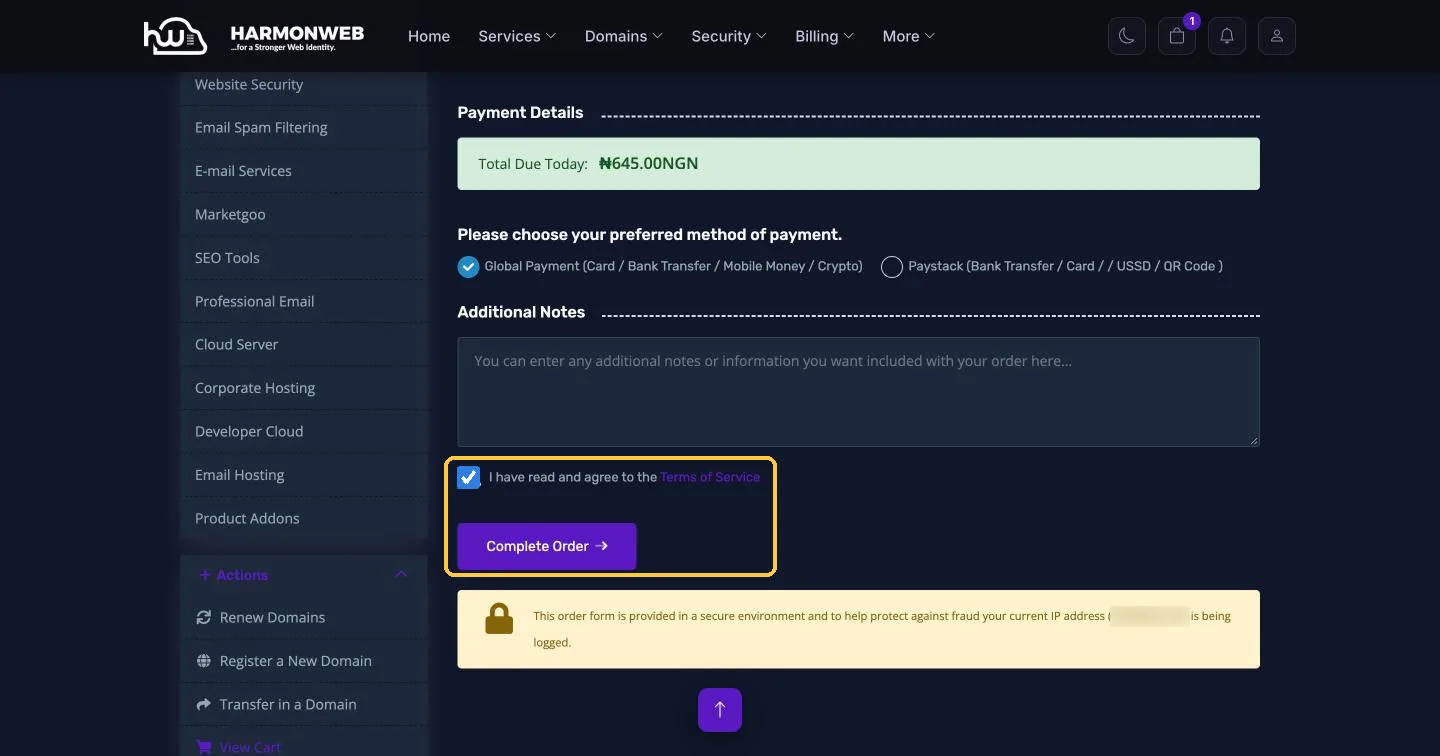
Scroll down to Payment Details and choose how you’d like to pay:
- Global Payment: card, bank transfer, mobile money or crypto.
- Paystack: bank transfer, card, USSD or QR code.
You can add a note to your order if you need to. Then tick I have read and agree to the Terms of Service and click Complete Order.
Step 8: Pay your invoice
After you place the order, you’ll be taken straight to the payment page. Complete the payment there.
If you close the page before paying, don’t worry. Your order is saved with an unpaid invoice. To find it, log in to the client area and go to Billing > My Invoices, then open the invoice or click Pay All.
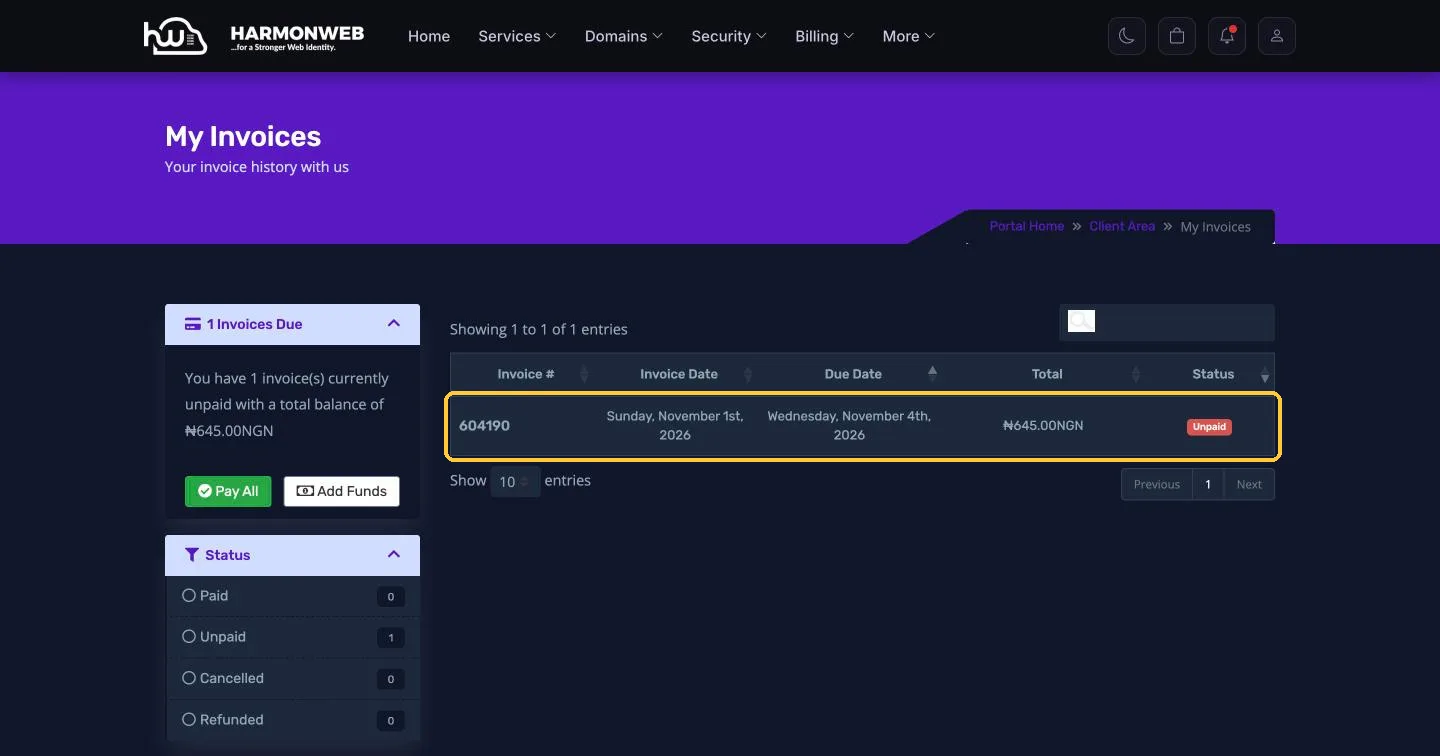
Until the invoice is paid, your email plan shows as Pending under Services > My Services.
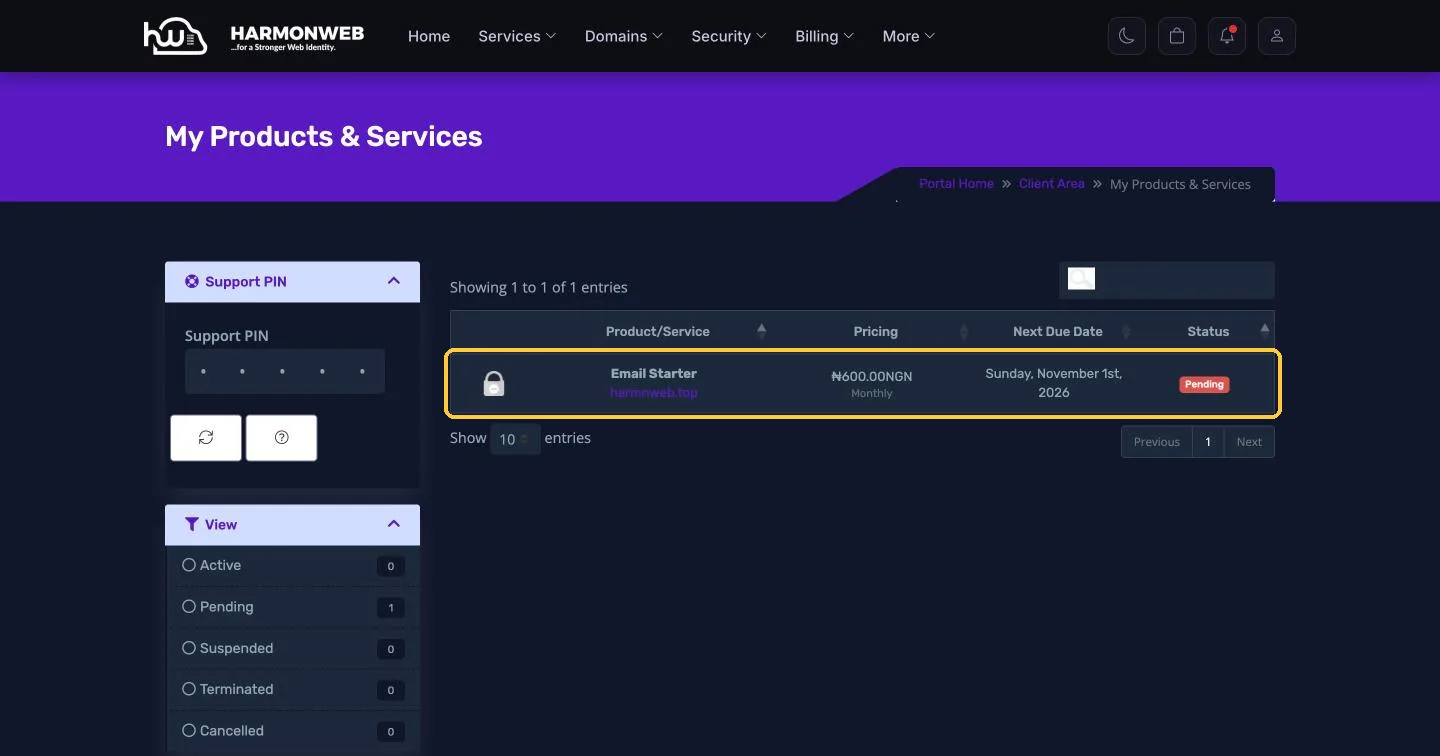
Step 9: Your plan is activated
Once your payment goes through, your plan is activated automatically and its status changes from Pending to Active under Services > My Services.
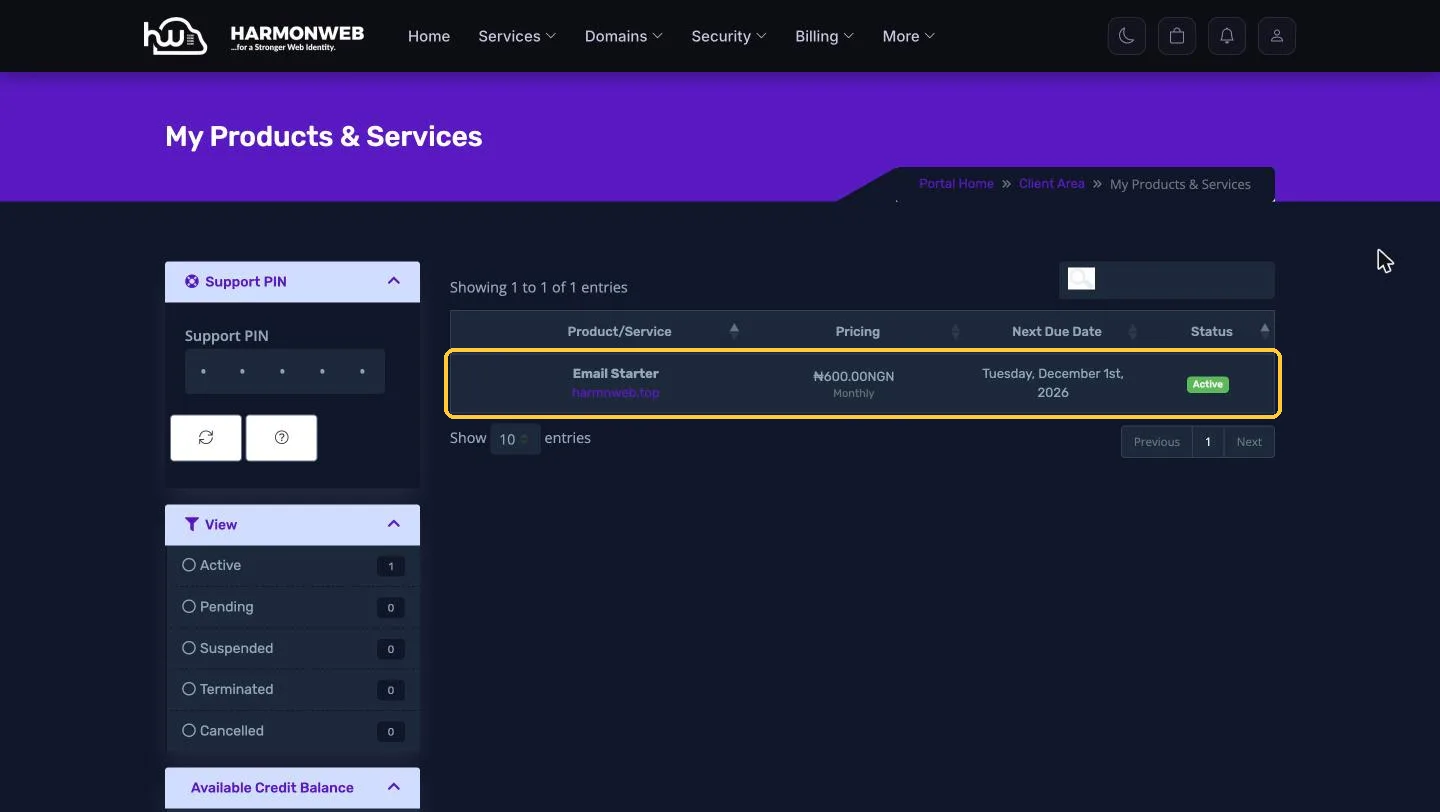
Click your plan to open its Manage Product page. Here you can see your billing cycle, next due date and payment method.
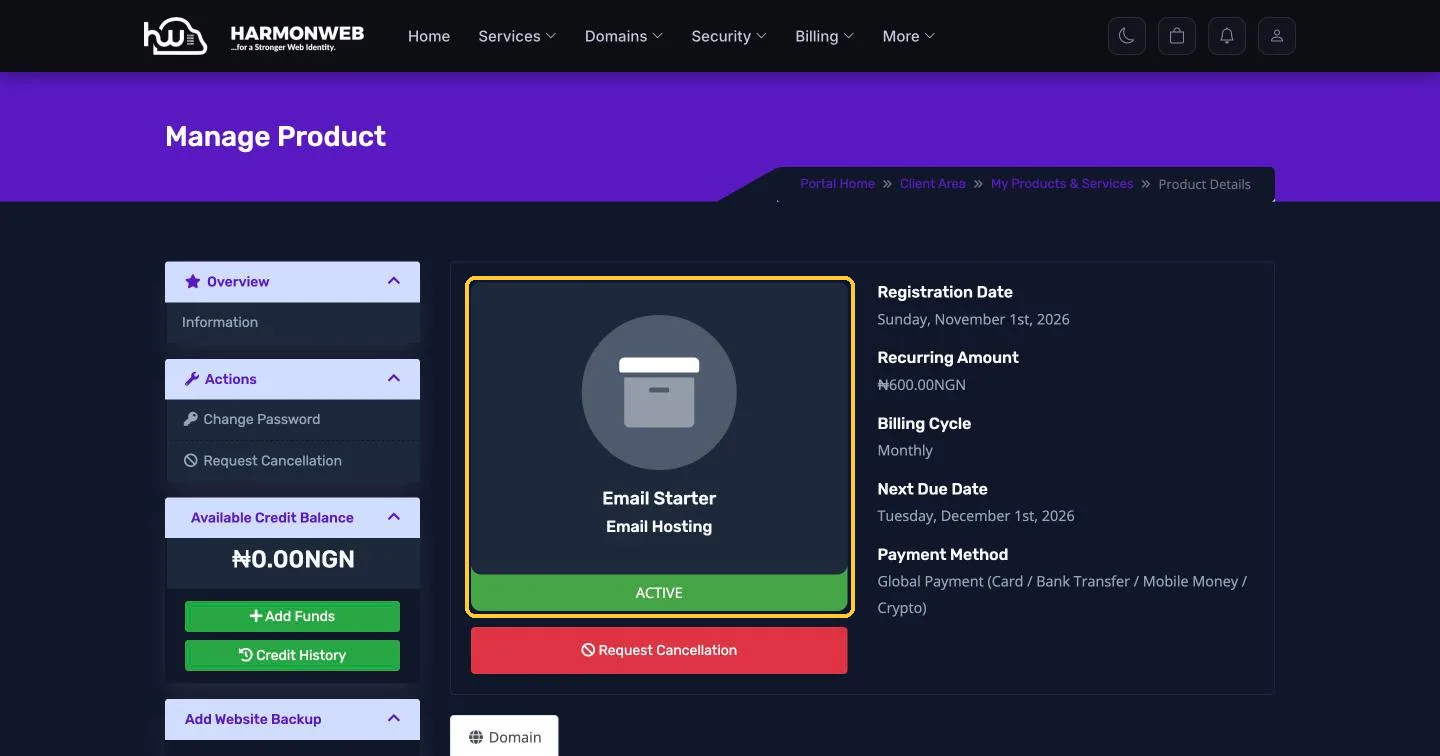
Step 10: Find your Harmonweb Email details
Scroll down the same page to the Harmonweb Business Email panel. This is your control centre for everything email:
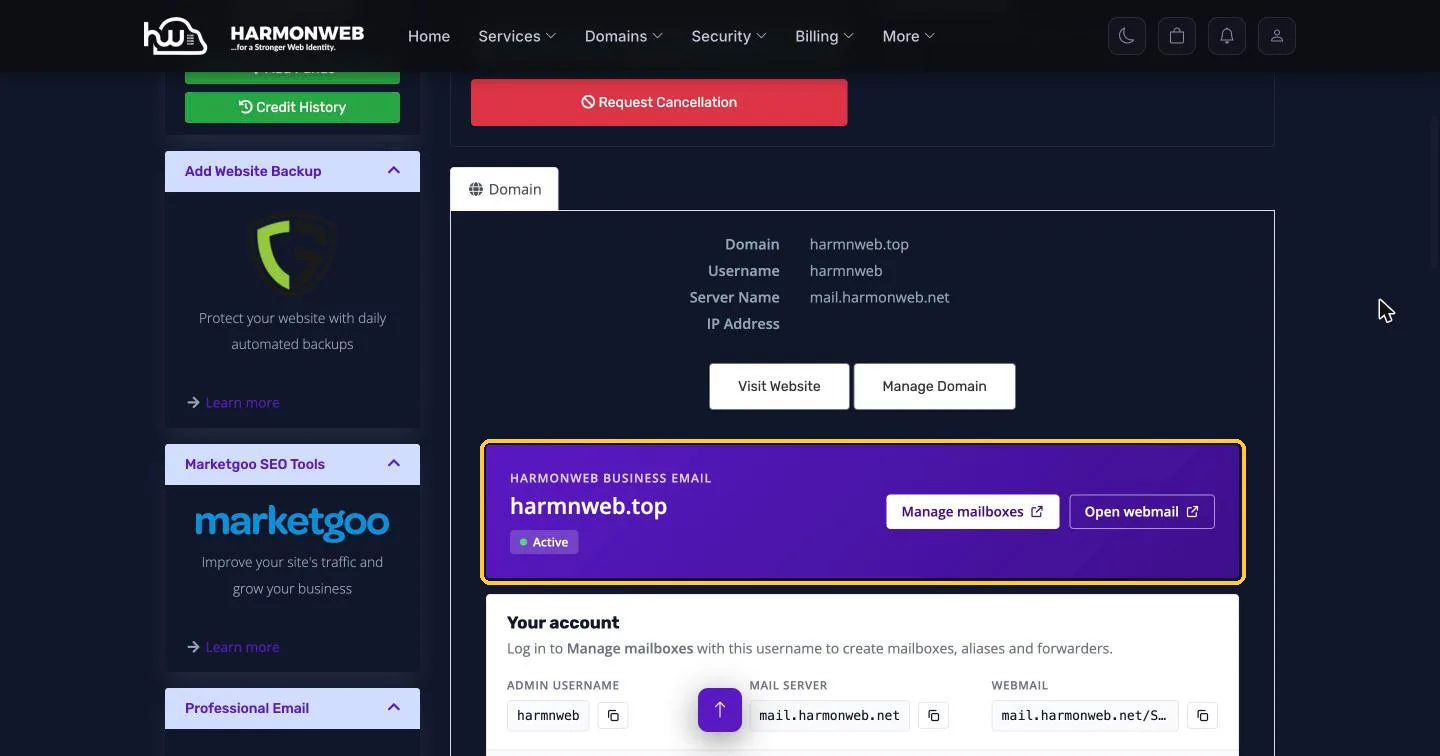
- Manage mailboxes: log in with the admin username shown under Your account to create email addresses, aliases and forwarders.
- Open webmail: read and send email from any browser.
- DNS records for your domain: the MX, SPF, DKIM and DMARC records your domain needs. Each one has a Copy value button, and Copy all records copies them all at once.
- Mail app settings: the server, ports and login details for Outlook, Gmail, iPhone Mail or any other email app.
Your admin password isn’t shown on this page for security reasons. If you need to set or reset it, click Change Password in the Actions menu on the left.
What to do next
Your plan is active, but there are two more things to do before you can send and receive email:
- Point your domain to Harmonweb Email. Add the DNS records from the Harmonweb Business Email panel where your domain’s DNS is managed. This is usually where you registered the domain. Changes usually take effect within an hour, but can take up to 24 hours.
- Create your first email address. Click Manage mailboxes and add your first mailbox, for example [email protected].
We have step-by-step guides for both, so you can follow along. If you get stuck at any point, open a support ticket and our team will help you finish the setup.
Frequently asked questions
How long does activation take?
Activation is automatic. Your plan becomes active as soon as your payment is confirmed, usually within a few minutes.
Can I use a domain that isn’t registered with Harmonweb?
Yes. Choose I will use my existing domain during checkout. You’ll only need to add a few DNS records at your domain provider, which we cover in a separate guide.
Can I upgrade my plan later?
Yes. You can move to a bigger plan at any time as your team grows.
Is there a setup fee?
No. You only pay the plan price plus VAT.
I paid but my plan still says Pending. What should I do?
Give it a few minutes and refresh the page. If it’s still pending, open a support ticket with your invoice number and we’ll sort it out.


Pingback: How to Create a Professional Email Address (Step-by-Step) | HarmonWeb